How to Create Sub-Customers in Tabs
Last updated: August 4, 2025
Summary / Introduction
Learn how to create sub-customers to manage multiple business locations under a single parent customer account. This feature can be particularly useful when you need to handle separate billing or organization for different locations of the same business.
Step-by-Step Instructions
Navigate to Customers: Click into the Customers tab in the sidebar
Start Creation: Click the 'Create customer' button
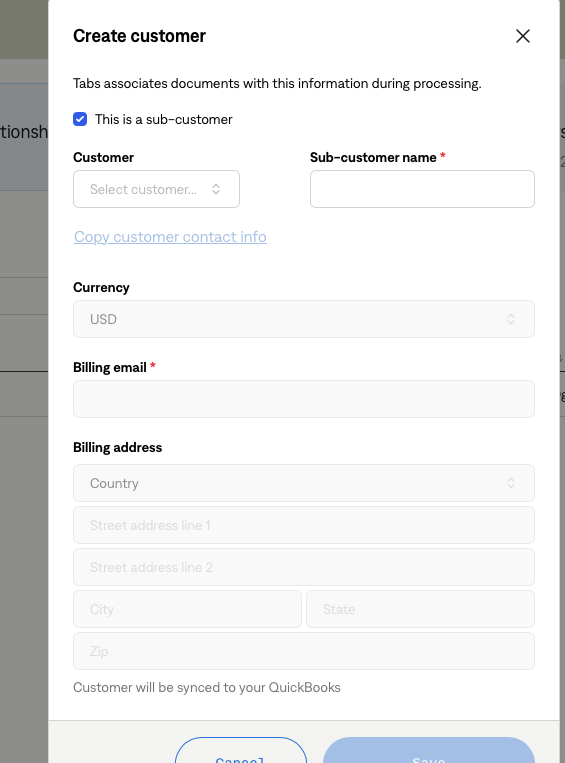
Enable Sub-Customer: Check the 'This is a sub-customer' box in the create customer popup
Enter Details: Fill in all required information for the sub-customer location
Save: Click the 'Save' button to create the sub-customer
Repeat: Repeat the process for each additional location
Tips & Best Practices
Naming Convention: The system automatically uses the format `
customer:sub-customer` to display the relationship between parent and sub-customersOrganization: Create all sub-customers under the main parent account to maintain proper hierarchy and organization
Separate Billing: Using sub-customers allows for separate invoicing for each location while maintaining the connection to the parent company