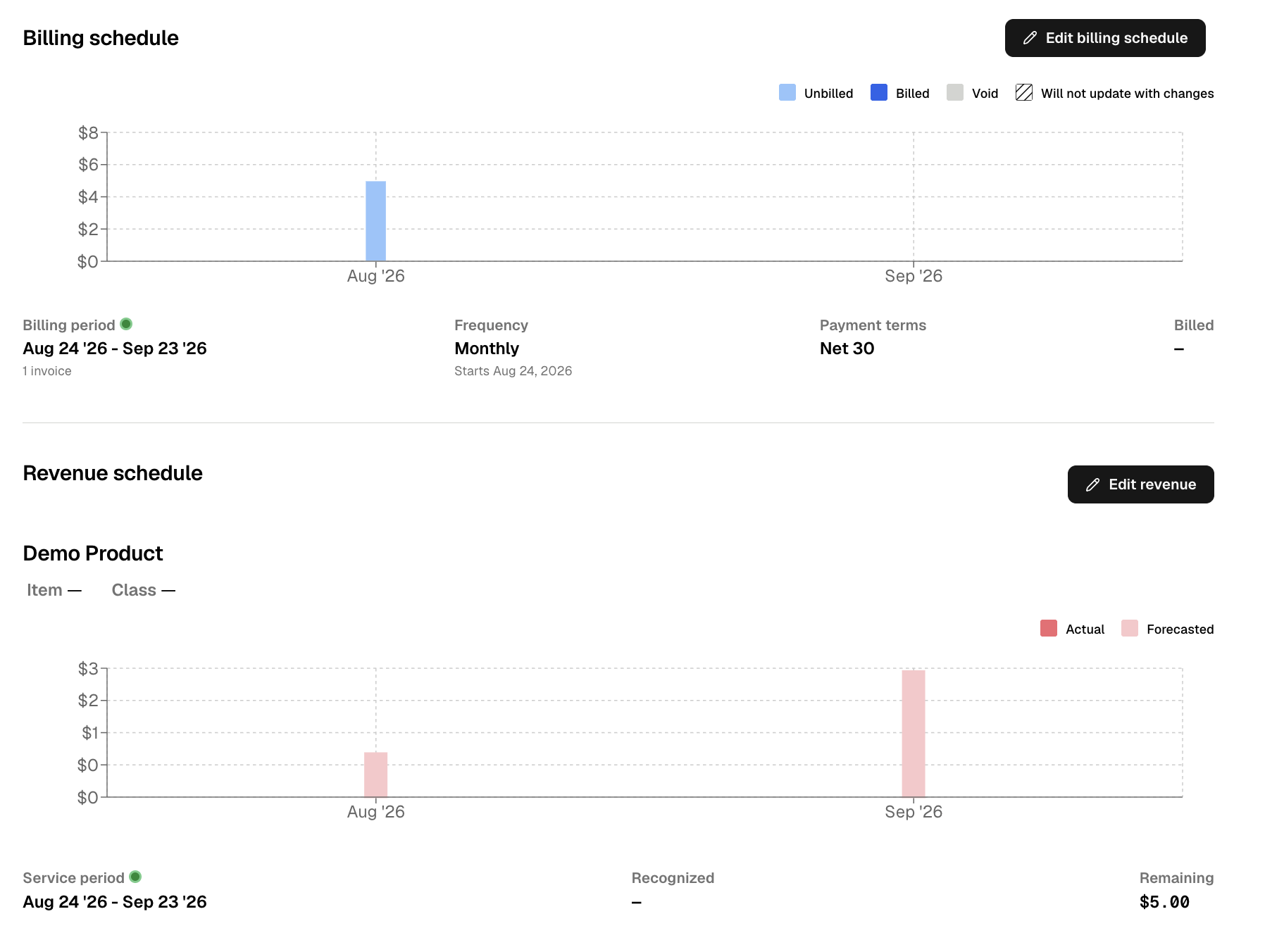
How do I add a new Billing Term?
Last updated: October 5, 2026
Summary / Introduction
The Billing Term list represents all products or services that you've contracted to bill a customer for. You can add additional Billing Terms and assign billing and revenue schedules to them directly in the App.
Steps
Navigate to a Customer profile, and select
Billing Termsto view the Billing Terms and services that you are currently billing a customerClick
+ Add Billing Termto add a new Billing Term or service that you are billing a customer. You can do this if you want to set up your own billing instead of sending a contract to Tabs.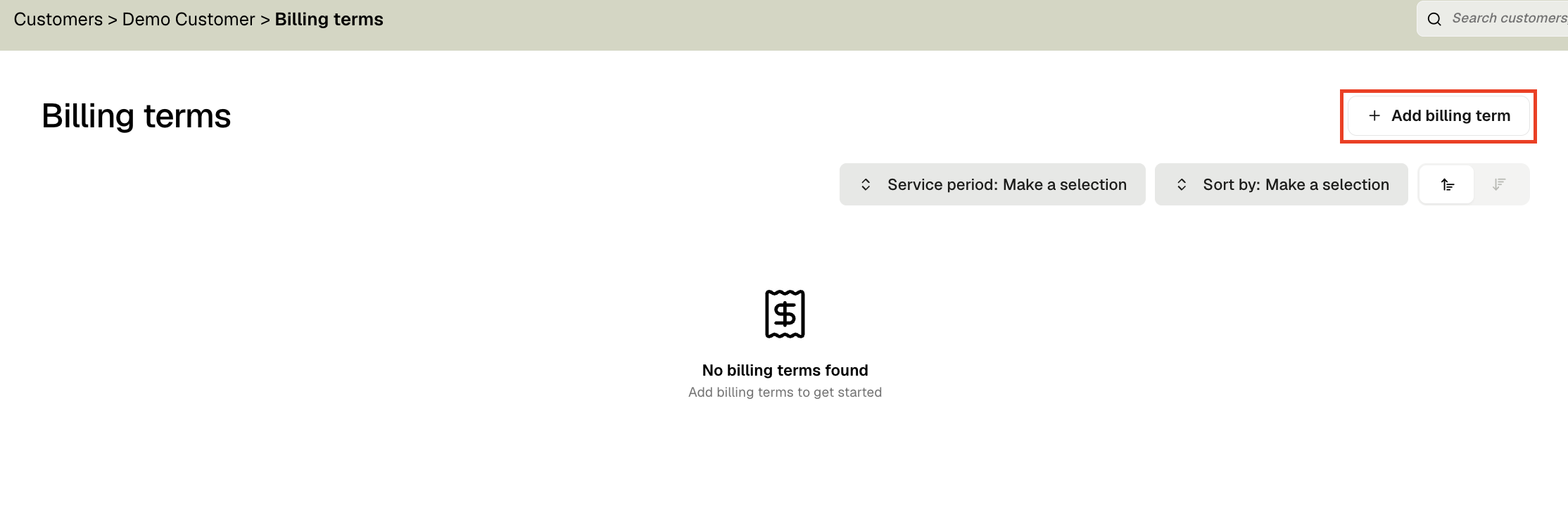
Fill out basic Billing Term information. This is how you will identify your Billing Term.
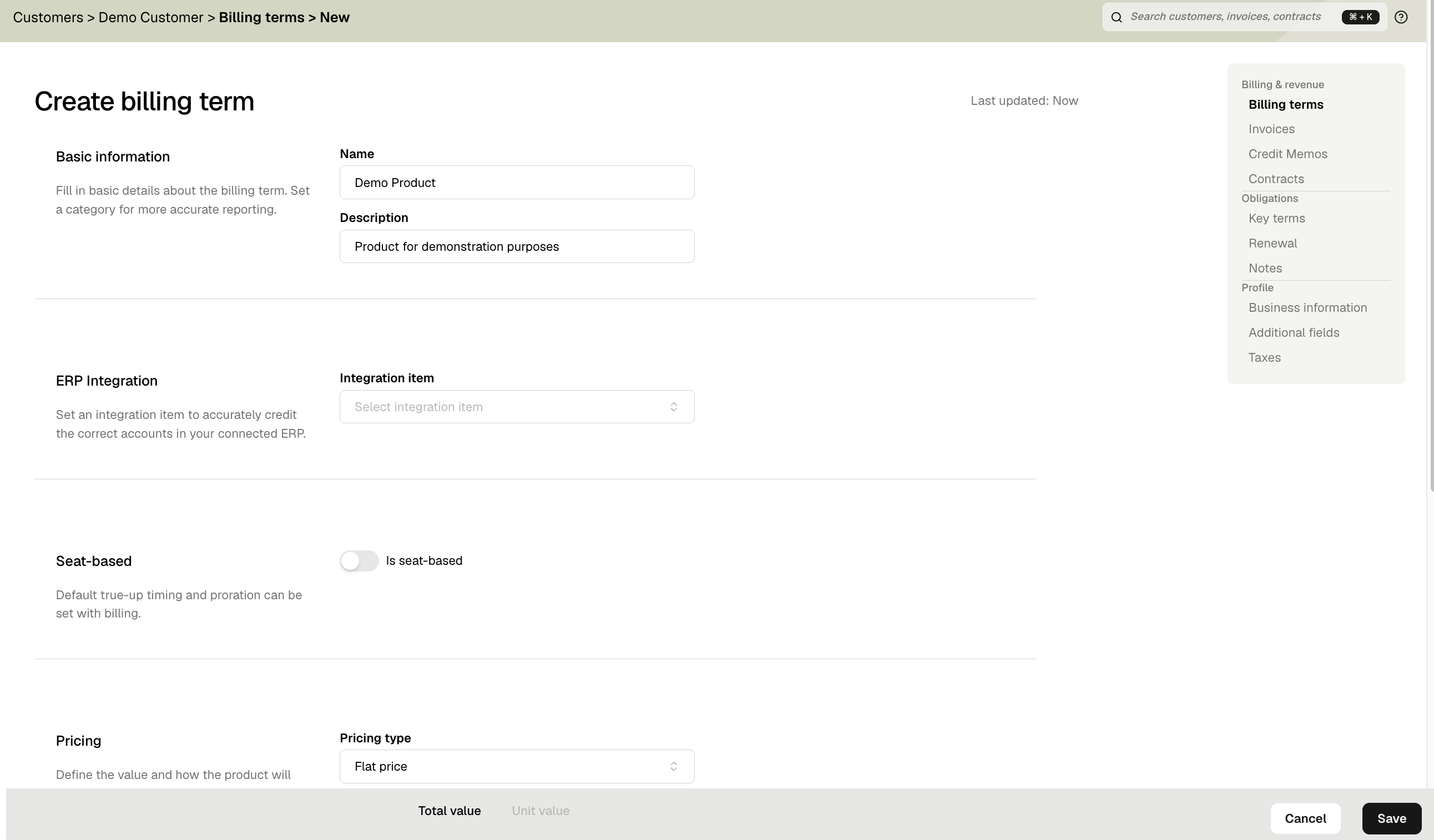
In the ERP section, you can choose which item in the General Ledger or ERP that this Billing Term maps to. Configuring this will ensure journal entries are attributed to the correct accounts.
Tabs supports a variety of pricing options.
Flat pricerepresents Billing Terms that you bill at the same price each time.Unit pricesrepresents simple usage-based Billing Terms that you bill at a variable quantity. Andtier pricesrepresent different ways of calculating the correct billing based off your total usage.Tabs also supports adding discounts.
Discountscan apply to Flat price and Unit price Billing Terms. You can discount by a dollar or percentage of the total.Click "Save" to create the Billing Term
You can stop here if you are not yet ready to set up a billing schedule. To set up a billing schedule, click
+ New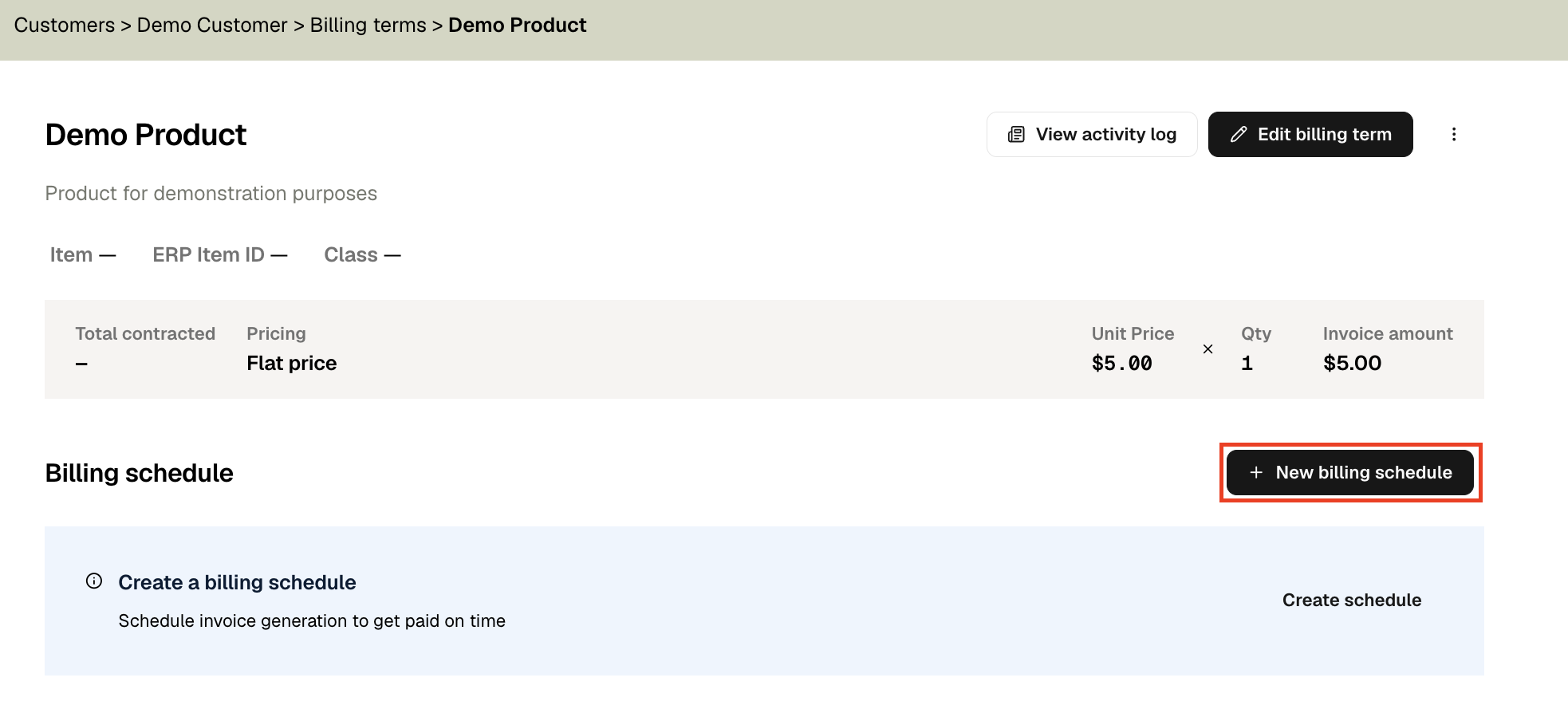
billing schedule.You can set up your billing cadence by configuring the total number of invoices to be sent, the start date, and how frequently you want invoices to be sent out. Advanced billing options helps you choose to bill either on the start date, at the end of the billing period, or the first date
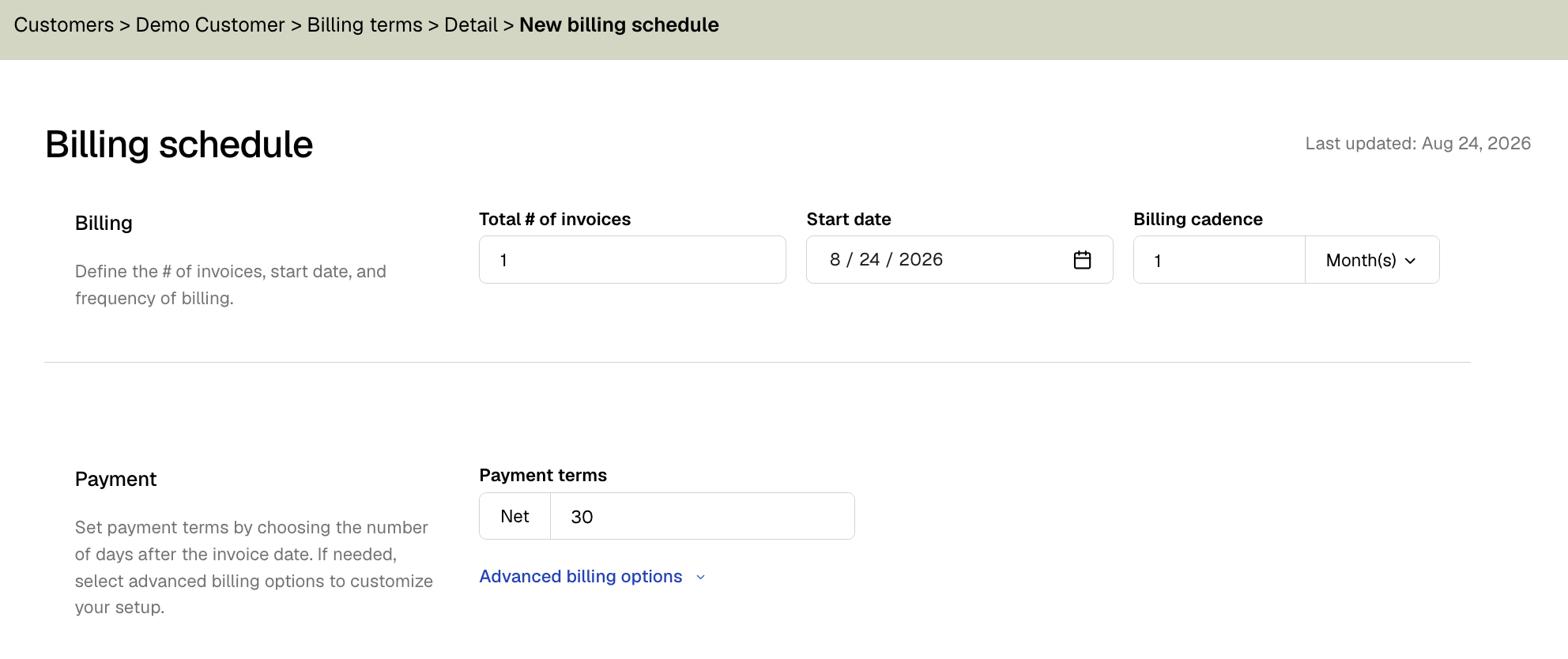
of the next period.
When you click "Save", Tabs will begin generating invoices for this Billing Term.
Tabs will also by default set up a straight-lined pro-rated revenue schedule for your Billing Term. To change it, click
Edit Billing Term