Recording a payment on an invoice
Last updated: February 19, 2025
Summary
Record payments on an invoice by matching to a bank transaction or entering them manually. Reconcile or close out invoices for balances you don’t expect to collect.
Components of a payment

Number of payments
Balance due: The total invoice balance remaining to be paid
Total paid: Total payment value excluding pending, removed or reconciliation payments
Payment type: Pending, Completed, Reconciliation (bad debt / bank fees), Removed, Failed
Payment method: Credit card (CC), ACH Debit, ACH Credit, Check. Stripe payments will be marked as such and will be automatically reconciled if using Tabs cash application.
Pass through credit card fees are included in the payment total if enabled.
If Cash Application is not enabled in Tabs and you wish to record a payment
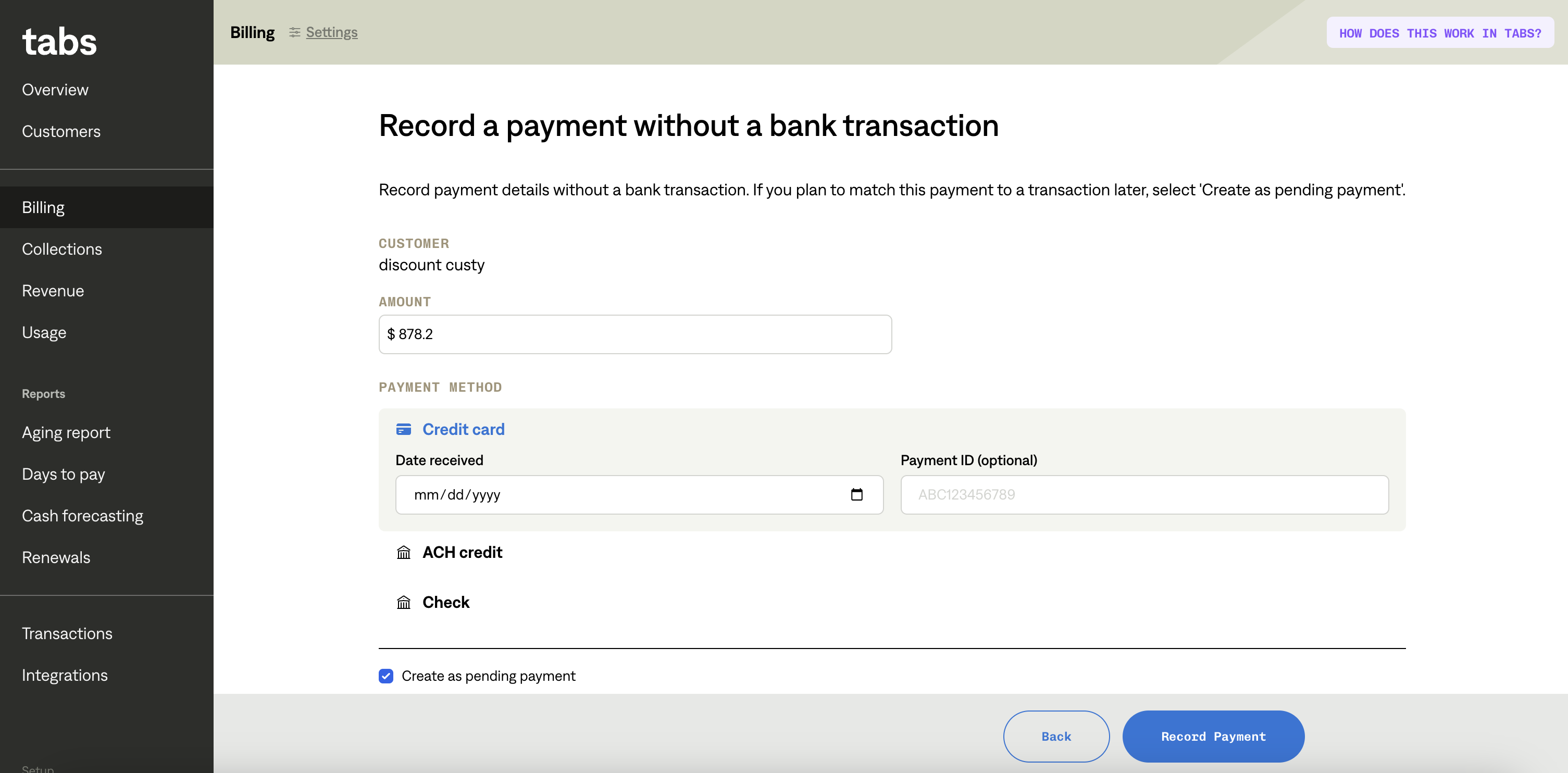
To record payments:
Click ‘Record a payment’
Fill out payment information from information the customer has given to you, or from a bank transaction.
Complete by clicking ‘Record payment’. The customer will receive a confirmation that a payment has been received.
If Cash Application is enabled in Tabs and you wish to record a payment
💳 Stripe payments will be marked as pending until cash is received in your account. These payouts will be automatically attributed to the appropriate invoices and create accurate payments and fees.
To record payments
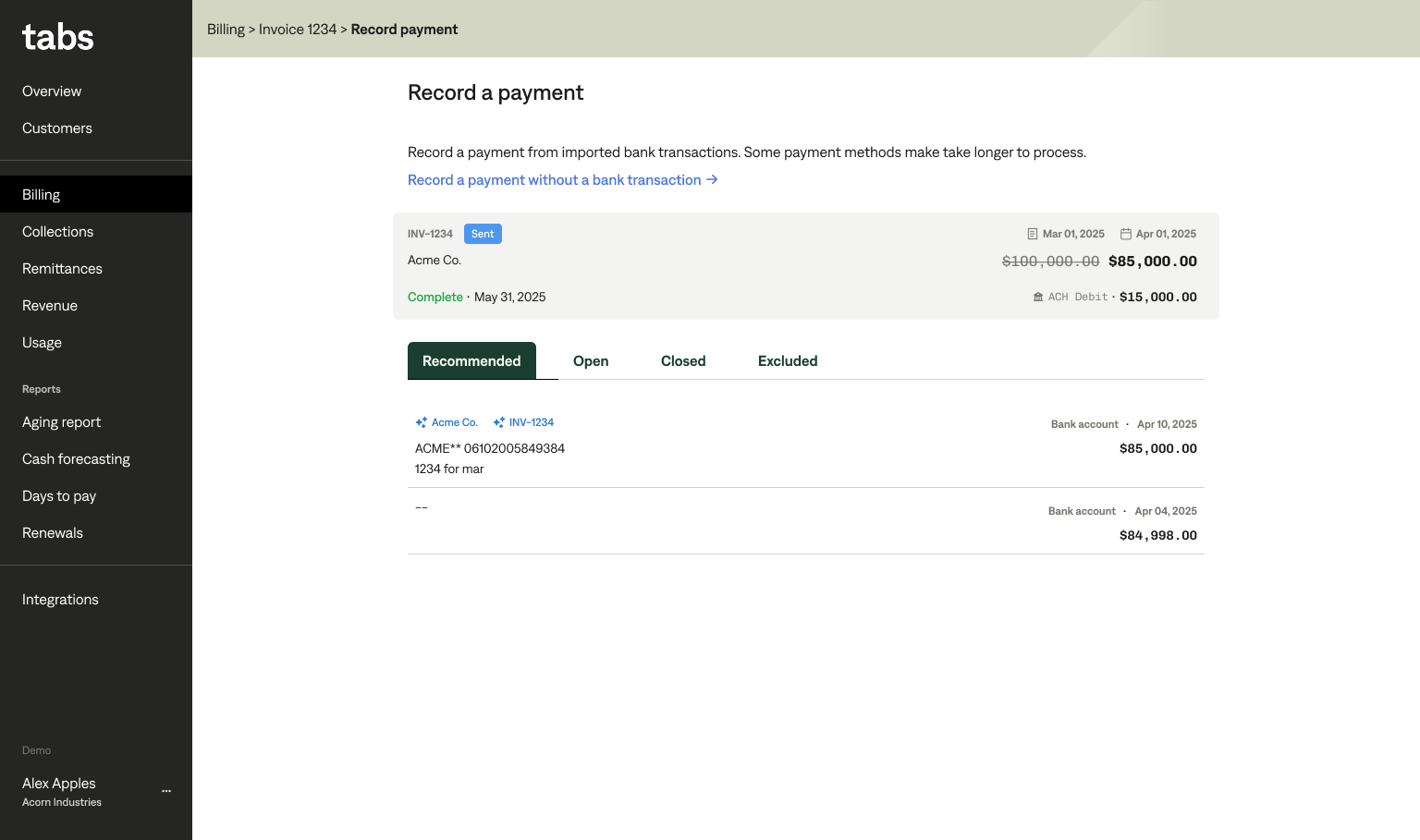
Click ‘Record a payment’
Tabs will recommend likely transaction matches to this invoice based off remaining balance, invoice ID, transaction date, and customer.
If there are no recommended transactions, you can filter for open transactions. It is possible the transaction has not been received yet.
Select the appropriate transaction by clicking on the transaction row. The next page will let you confirm the payment creation.
If there is a remaining balance, you can reconcile the remaining balance as bad debt or bank fees. If you account for remaining amounts in different ways, please contact support.
If you haven’t set up GL accounts for reconciliation, you can do so at Integrations > your ERP
If you don’t wish to reconcile the remaining balance at this moment or if you expect additional payments, toggle ‘reconcile payment’ to off
Click ‘Confirm’ to complete the match.
If there is no transaction match, but you are sure there is a payment
Click ‘record a payment without bank transaction’
Fill out payment information from information the customer has given to you, or from a bank transaction.
If you are recording payment advice or notice of payment, check ‘Create as pending payment’. This will help you match this invoice to a bank transaction later.
Complete by clicking ‘Record payment’. The customer will receive a confirmation that a payment has been received.
To close out an invoice
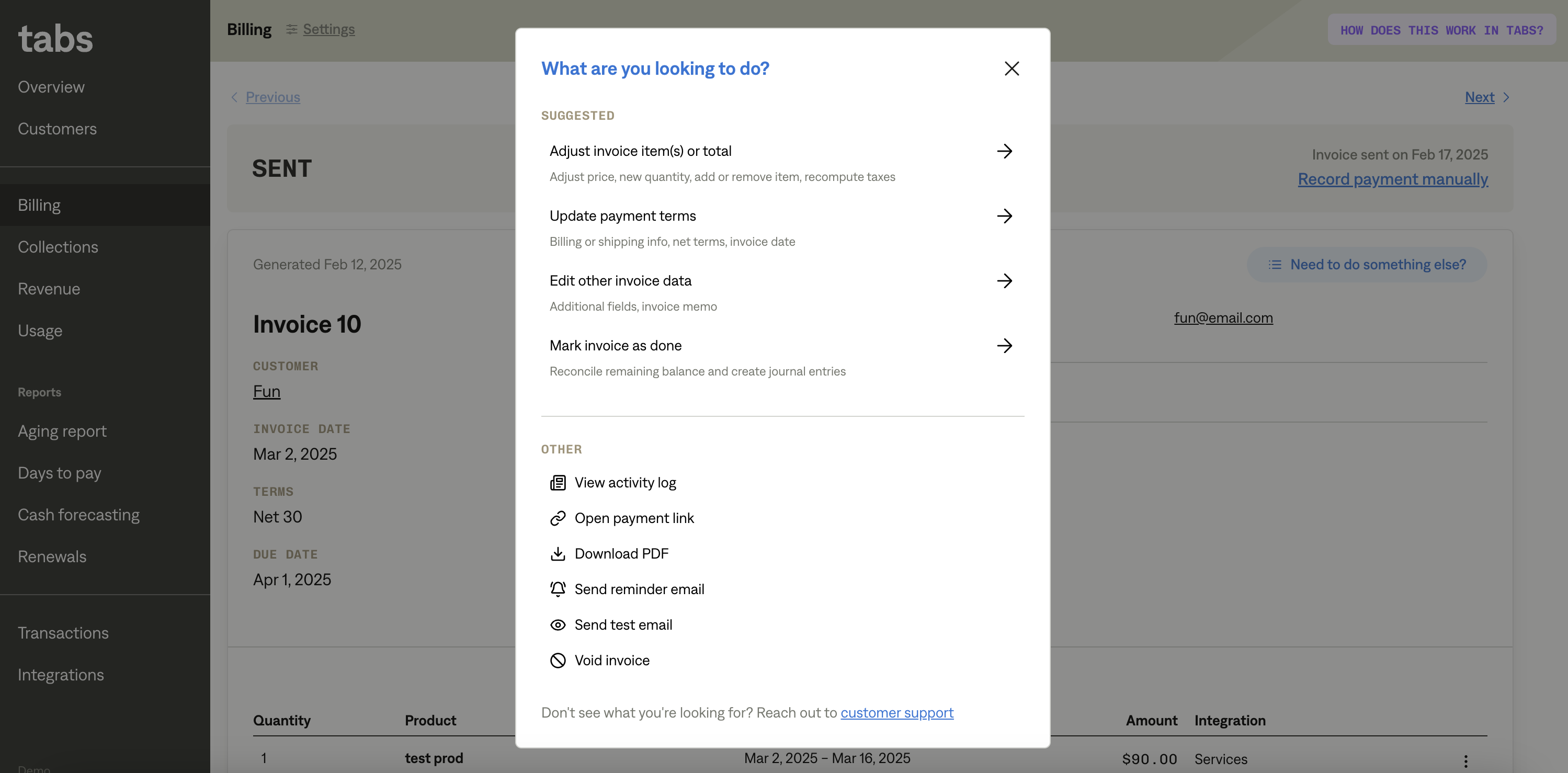
Click ‘Need to do something else?’
Select ‘Mark invoice as done’
Select the appropriate transaction type (bad debt/ bank fees), and the date you want to close out the invoice.
GL accounts must be specified to close out the invoice. Go to Integrations > ERP > Manage to configure this.