Add Tabs as an external organization to Teams
Last updated: August 29, 2026
When connecting your organization's Teams accounts to the Tabs-managed instance, in order to facilitate a Teams<>Slack<>Pylon connection, you will need to add the Tabs organization to your instance.
This is done via the Microsoft Entra, Microsoft’s umbrella brand for identity and access management - the systems that determine who you are, how you authenticate, and what company resources/apps you’re allowed to access.
The most important piece is Microsoft Entra ID, which is simply the new name for Azure Active Directory (Azure AD).
Microsoft Entra External ID B2B direct connect is disabled by default. To enable collaboration in shared channels with people from other organizations, you must:
Add an organization.
Configure outbound settings for the organization to allow your users to be invited to the other organization's shared channels.
1. Add an organization
Add each organization with which you want to participate in shared channels.
To add an organization
Sign in to the Microsoft Entra admin center using a Security administrator account.
Select External Identities, and then select Cross-tenant access settings.
Select Organizational settings.
Select Add organization.
On the Add organization pane, type "Tabs.com" and press Enter.
Select Add.
The organization appears in the organizations list. At this point, all access settings for this organization are inherited from your default settings. You will need to make some further configuration settings changes.
2. Configure outbound settings
Follow this procedure for each organization where you want your users to be able to participate in external shared channels.
To configure outbound settings for an organization
In the Microsoft Entra admin center, select External Identities, and then select Cross-tenant access settings.
Select the outbound access link for Tabs.
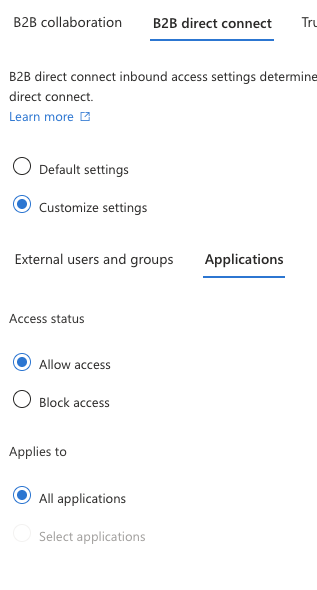
On the B2B direct connect tab, choose Customize settings.
On the External users and groups tab, choose Allow access and set an Applies to of all users.
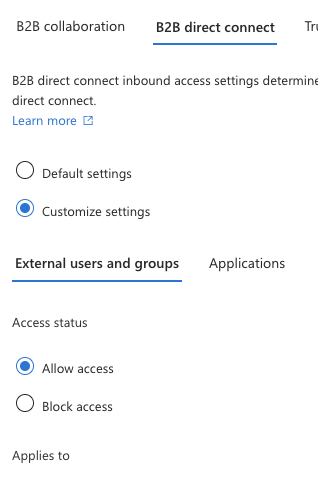
On the External applications tab, choose Allow access and Select external applications.
Select All Applications.