Setting up Pandadoc
Last updated: March 4, 2025
Summary
PandaDoc can be easily configured to automatically send Tabs signed documents and trigger the contract for processing. Follow the steps below to set up PandaDoc with Tabs.
Configure via Documents (Recommended)
Use this method if using PandaDoc to build and send contracts.
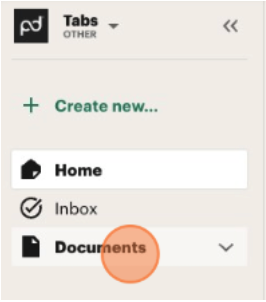
1. When logged into PandaDoc, navigate to Documents.
2. Click into Templates.
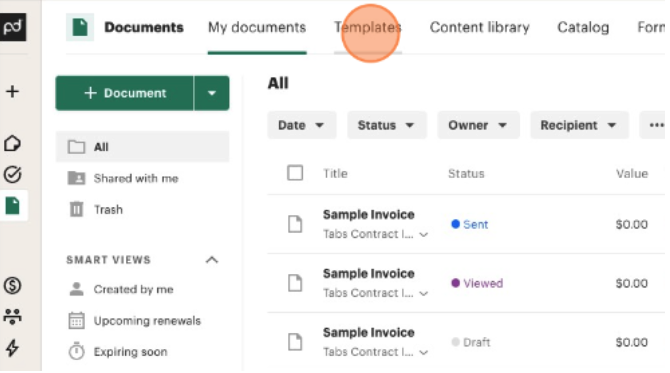
3. Click into the corresponding Template you wish to add Tabs to.
4. Click “Manage Roles or add new ones”.
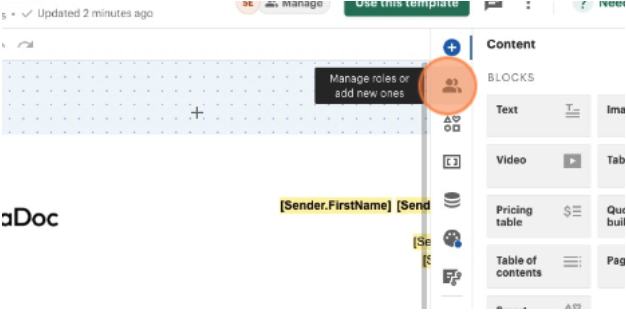
5. Insert [Your Company Name] Contract Ingestion in the text insert the option shown below and click ADD

6. Click into role you just created and under pre-assign a person enter
contract-ingest@tabsplatform.com
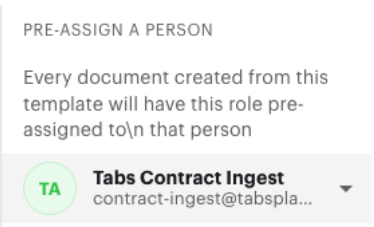
7. Once the above information is populated, scroll and select “Set signing order”. Ensure that the newly added Tabs recipient is last in the order.
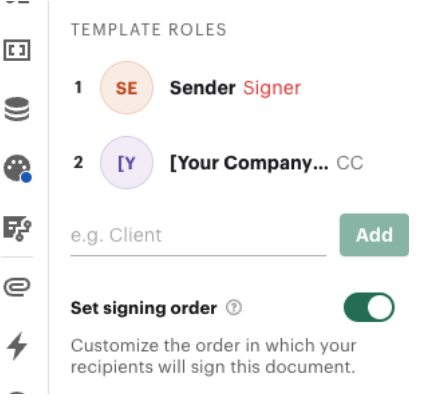
8. When complete, click “Save and Close” to exit, or “Next” to continue editing.
9. You can continue to “Use this template” and it will take you to a page called “Add document recipients”.
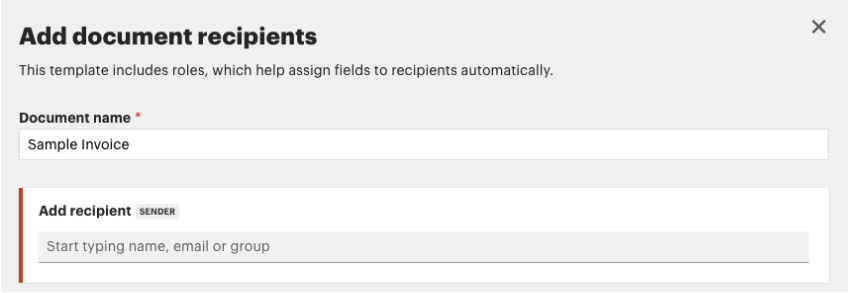
10. Add the contract-ingest@tabsplatform.com email as a recipient and continue on the bottom of the page to add your customer recipients.
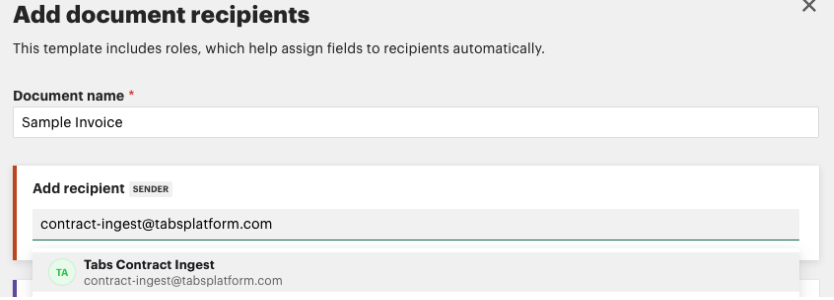
11. Click continue and you can proceed with sending out your document
Configure via Individual Documents
If you do not utilize Templates within PandaDoc, use the above process starting from Step #9 each time you are executing a contract that will need to be sent out to Tabs.