How to Generate an API Key for Tabs Platform
Last updated: August 18, 2026
Overview
API keys authenticate requests to the Tabs API. Every key is scoped to one of two permission levels:
Read-only — can retrieve data (customers, contracts, invoices, revenue, and more) but cannot create, update, or delete anything. Use this for reporting tools, BI integrations, or any use case that only needs to read data.
Full access — can read and write data, including creating customers, updating contracts, and issuing invoices. Use this only for integrations that need to make changes in Tabs.
Your merchant ID identifies your Tabs instance and is required by most API requests alongside your key.
Prerequisites
A Tabs platform account with access to the Developers section of your merchant dashboard
Permission to manage API keys (contact your Tabs admin if you don't see the Developers tab)
Find your merchant ID
Go to app.tabsplatform.com/merchant and sign in.
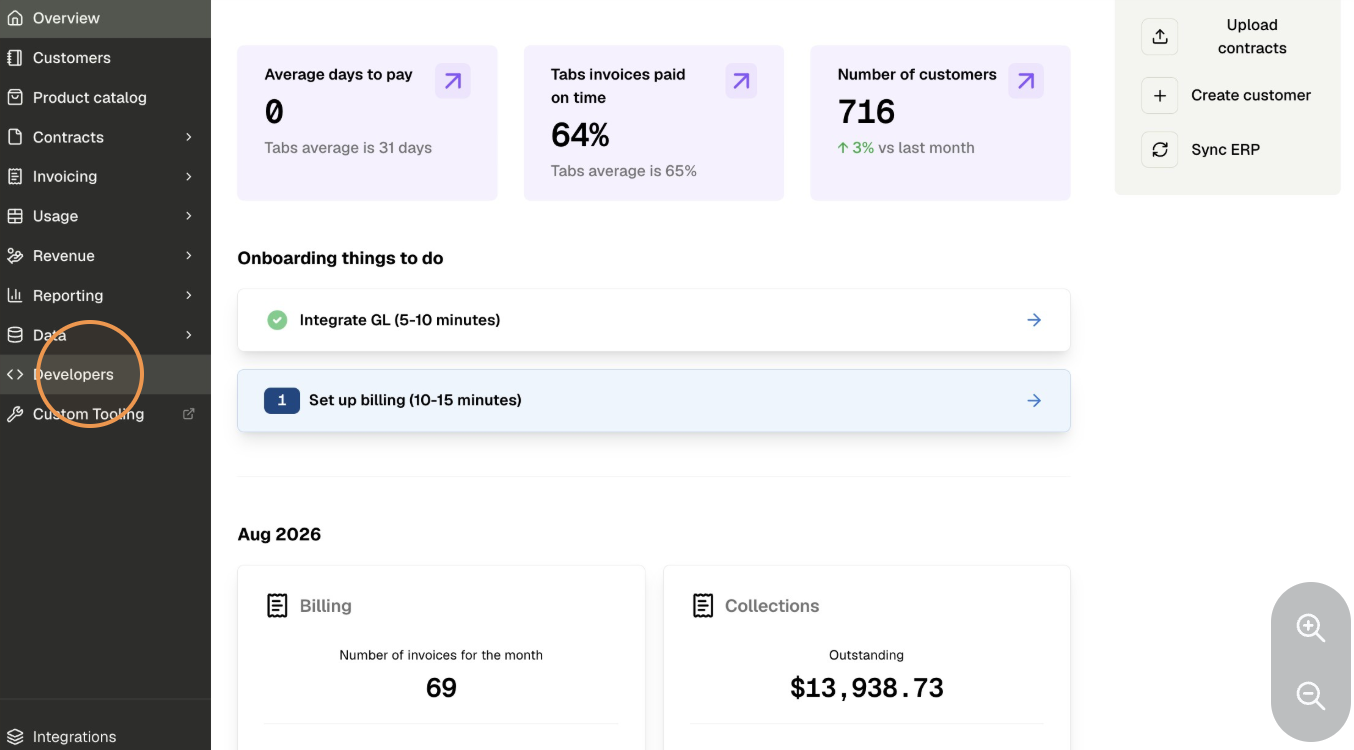
In the left navigation, click Developers.
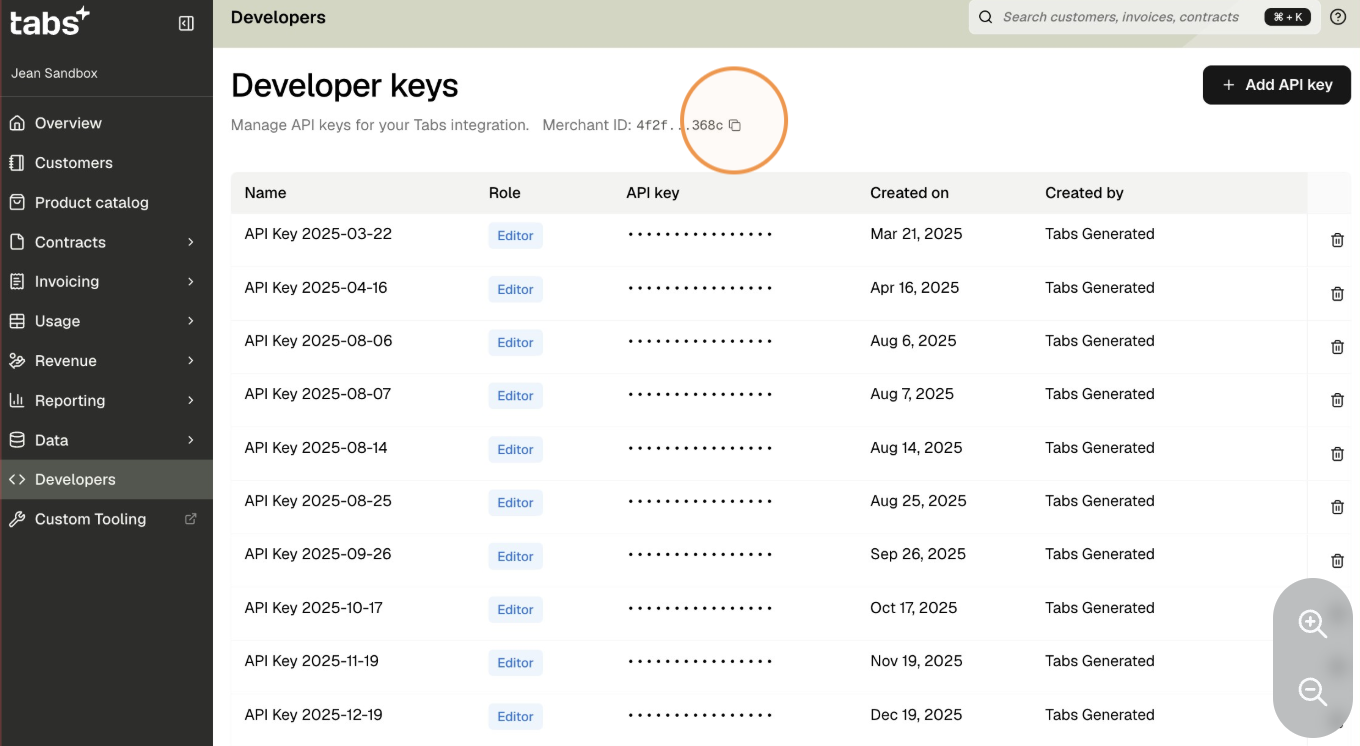
Your merchant ID is displayed at the top of the Developers page. Click the copy icon next to it to copy it to your clipboard.
Where you'll need it
Most API requests and integrations (including the Tabs MCP connector) require your merchant ID alongside your API key. Keep it handy when setting up a new integration.
Generate a read-only API key
Go to app.tabsplatform.com/merchant and sign in.
In the left navigation, click Developers.
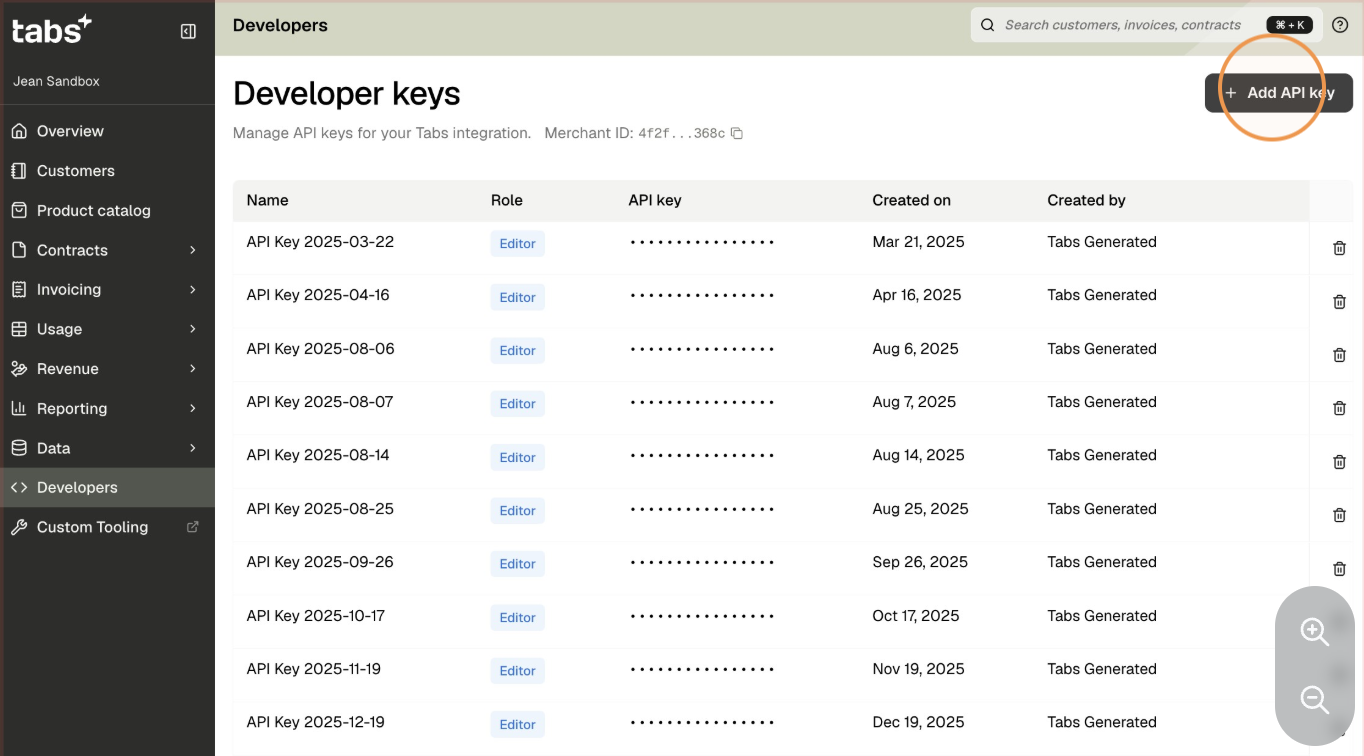
Click Add API key.
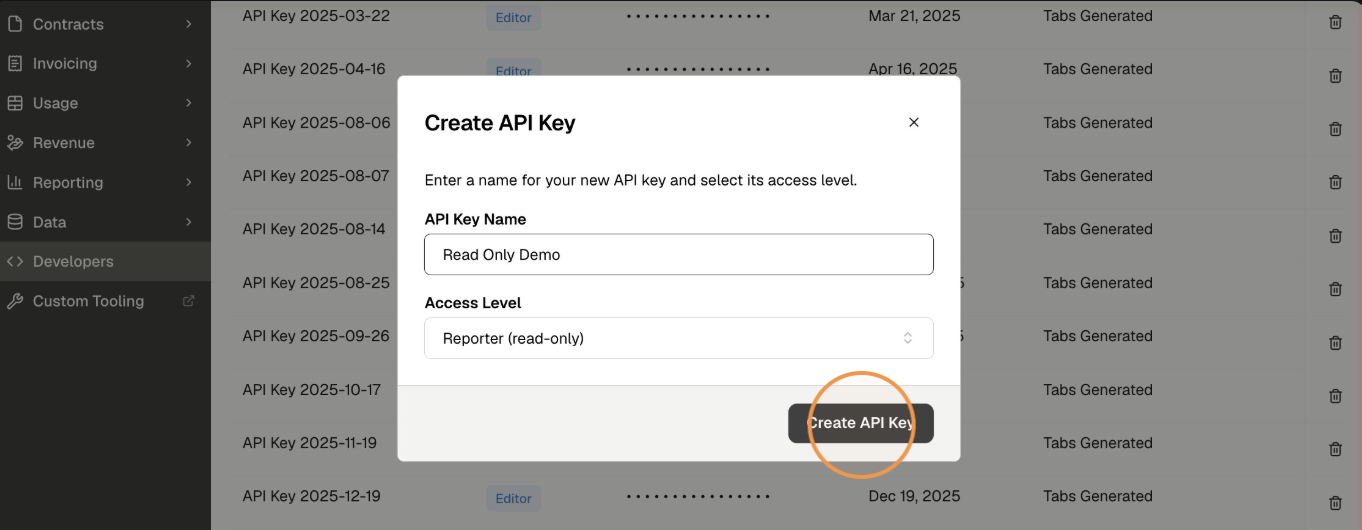
Give the key a name (for example,
Reporting Integration) so you can identify it later.Select Read-only as the permission level.
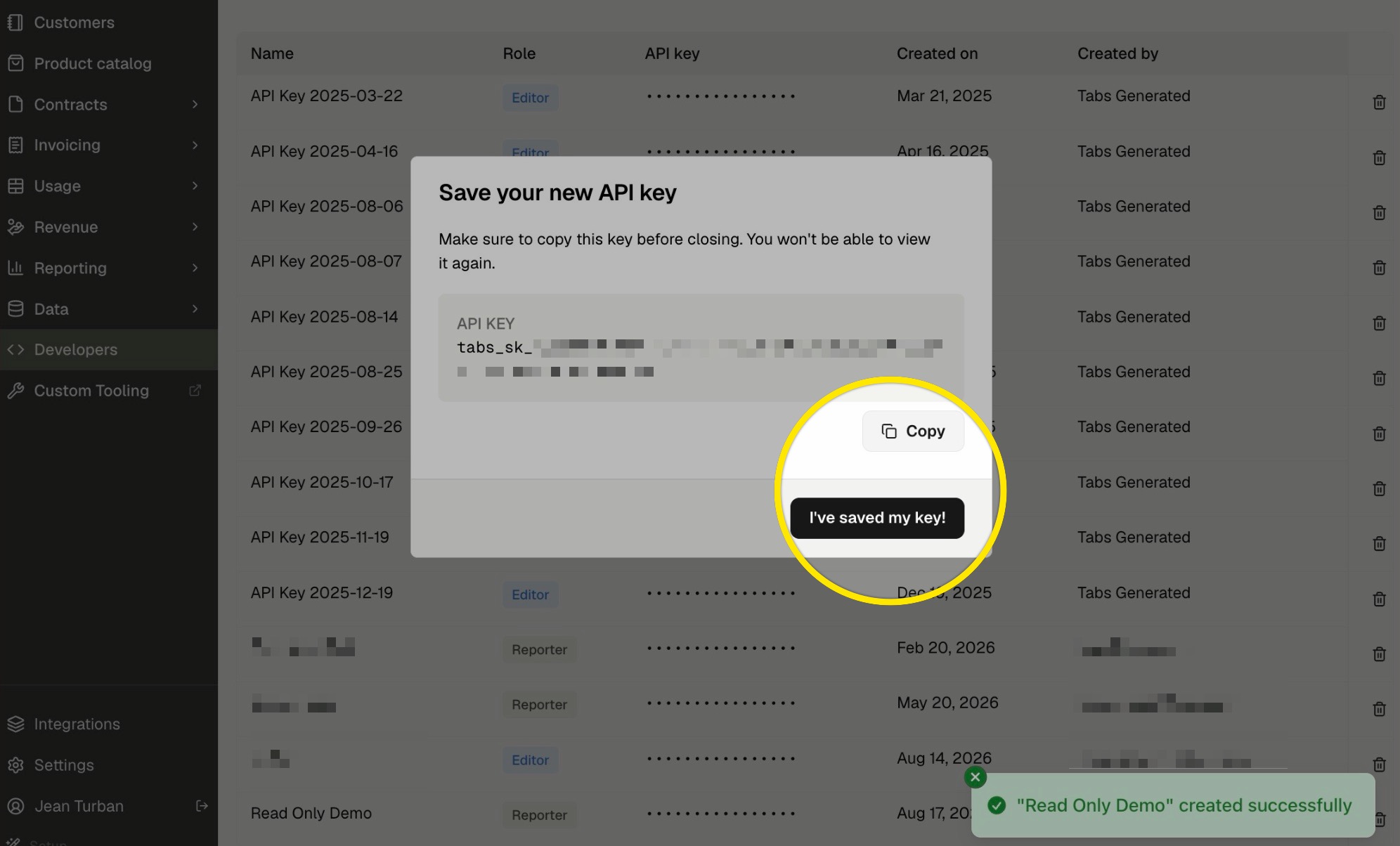
Click Copy to copy the generated key to your clipboard.
Click I've saved my key! to confirm. Tabs will not display the full key again.
Generate a full-access API key
Go to app.tabsplatform.com/merchant and sign in.
In the left navigation, click Developers.
Click Add API key.
Give the key a name (for example,
ERP Sync) so you can identify it later.Select Full access as the permission level.
Click Copy to copy the generated key to your clipboard.
Click I've saved my key! to confirm. Tabs will not display the full key again.
Handle with care
Full-access keys can create, update, and delete records in Tabs. Only issue them to integrations that genuinely need write access, and never share a full-access key over email, chat, or an unsecured channel.
Keep your API keys secure
Store keys in a secrets manager or environment variable — never commit them to source control.
Use a read-only key wherever an integration only needs to retrieve data.
Give each key a descriptive name tied to the integration that uses it, so you can identify and revoke it later without guessing.
If a key is ever exposed, revoke it immediately from the Developers page and generate a replacement.
FAQ
What's the difference between a read-only and full-access key?
Read-only keys can only retrieve data. Full-access keys can also create, update, and delete records. Choose the narrowest permission level that supports your use case.
Can I have more than one API key?
Yes. You can generate multiple keys, each with its own name and permission level, so you can use a separate key per integration.
What happens if I lose my key?
Tabs only displays the full key once, at creation. If you lose it, revoke the key from the Developers page and generate a new one — there's no way to retrieve the original value.
How do I use my API key in a request?
Pass it as a bearer token in the Authorization header of your API requests, alongside your merchant ID. See the Tabs API documentation for request examples.
Can I revoke a key?
Yes. From the Developers page, find the key and revoke it. Any integration using that key will immediately lose access.
Support
If you run into issues generating a key or locating your merchant ID:
Email: support@tabsplatform.com
Slack: reach out via your dedicated Tabs <> Customer Slack channel