How do I map tax codes in Avalara to items in Tabs?
Last updated: June 26, 2026
Summary
Avalara uses tax categories to identify products that have specific tax rates depending on where they are taxed. Using Avalara tax categories allows Avalara to keep track of rate changes for products that have tax codes. Each tax category has a tax code, which is passed from Avalara to Tabs to your ERP as the product/item that is listed on the invoice. Therefore, each product/item (what Tabs calls integration items) needs to be mapped to an Avalara tax code. This mapping is configured and maintained directly in Tabs.
If you have already been using Avalara, you should already have tax codes that are being utilized. If you are new to Avalara, you will need to set up for the various products are sell.
Find/Create Avalara tax codes
Follow the instructions below to find and/or create tax codes in Avalara.
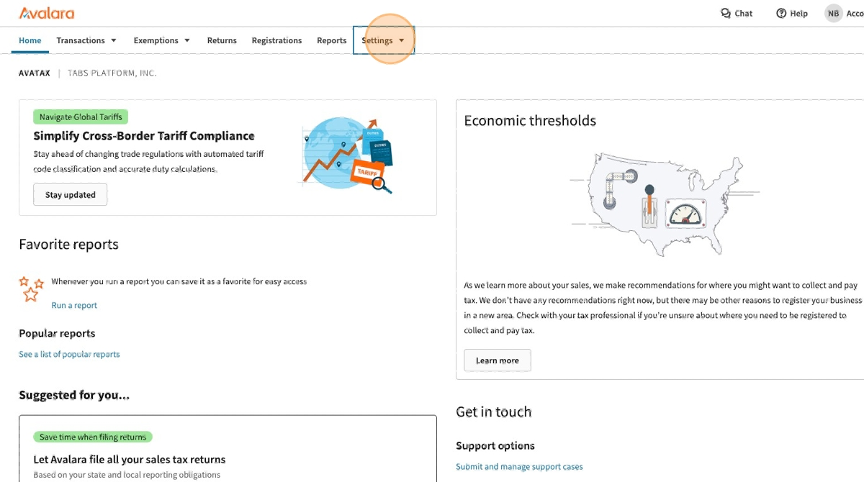
1. Navigate to the Avalara homepage and selected "Settings".
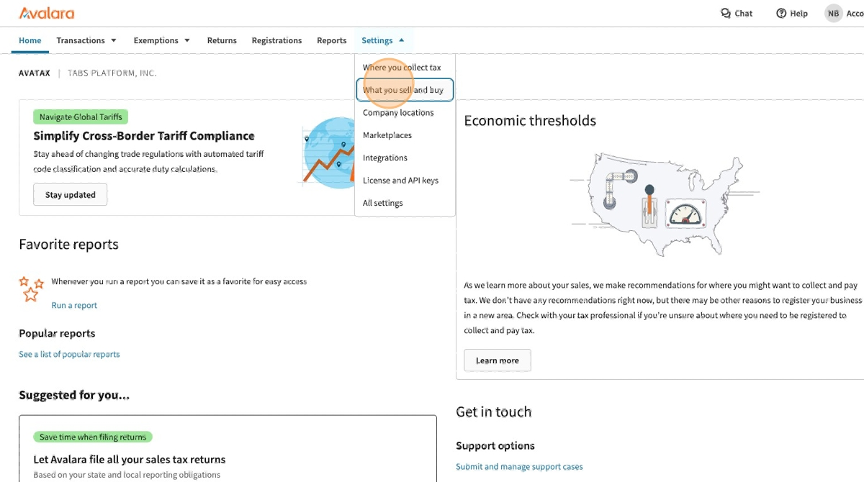
2. Select "What you sell and buy".
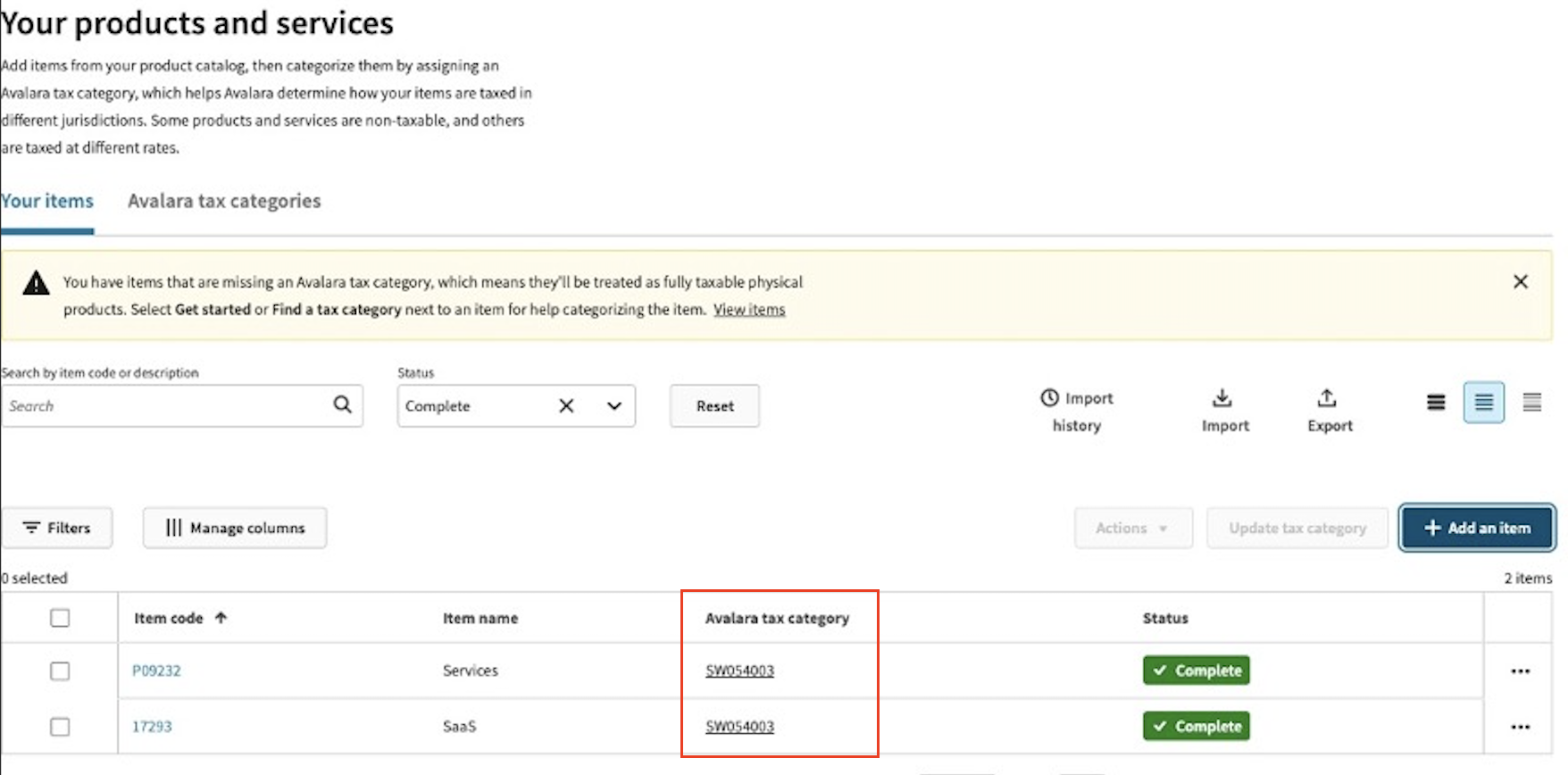
3. Here you will find all of your tax items, if they are already set up. Tax codes are found in the Tax category column.
If you do not yet have tax items set up, or you would like to create new ones, click "Add item".
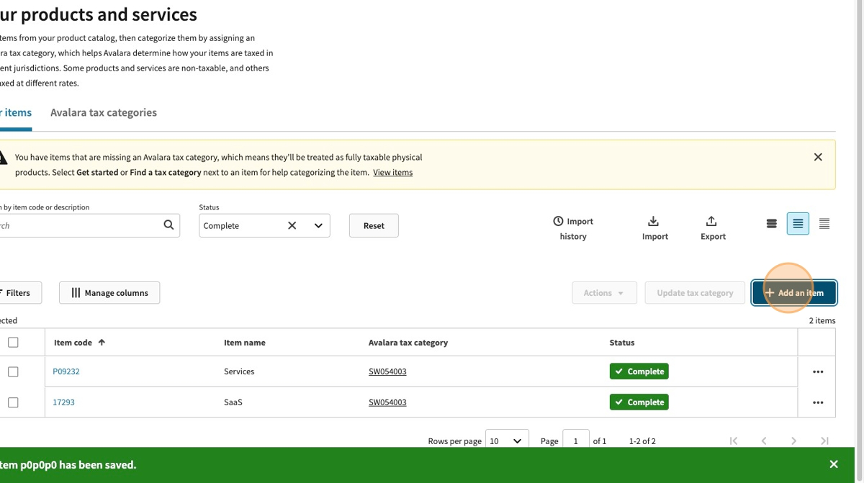
If you have a larger item list, you can choose to Import the list directly as opposed to adding the items one by one. This is found on the right side directly above the items table.
4. Add in your item code and name. This can be anything you want - if you have an item list you are from your ERP or other external system, you can use the name and code used there.
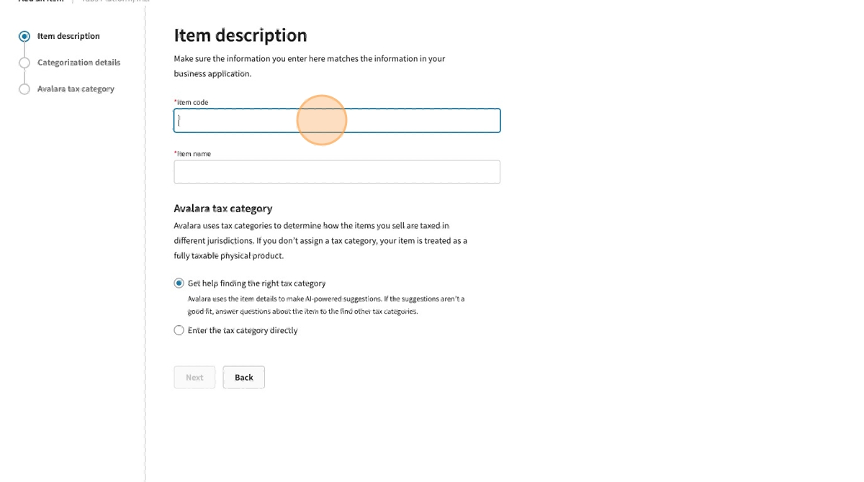
5. Assign an Avalara tax category by clicking on the bottom radio button, searching key word for the assign that most closely fits what you are selling, and selecting the applicable category. If you are unsure, you can use the first radio button in the section to do a more broad search and ensure you are choosing the correct category.
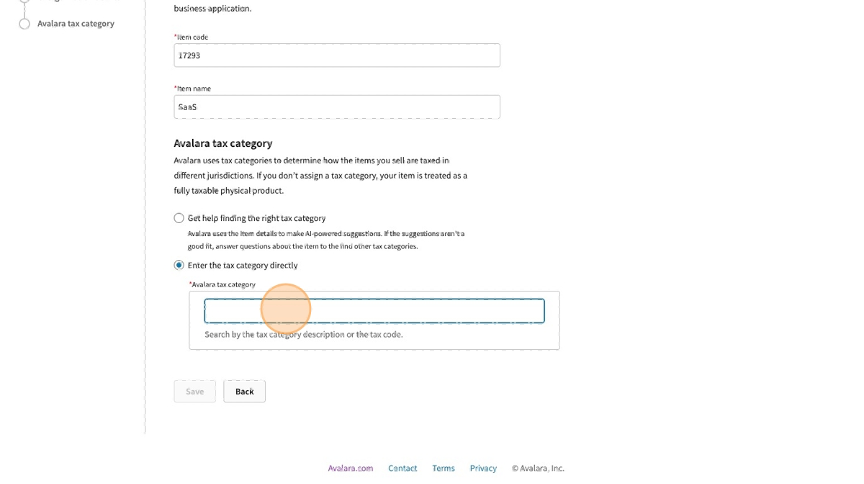
6. Once your category is selected, click "Save".
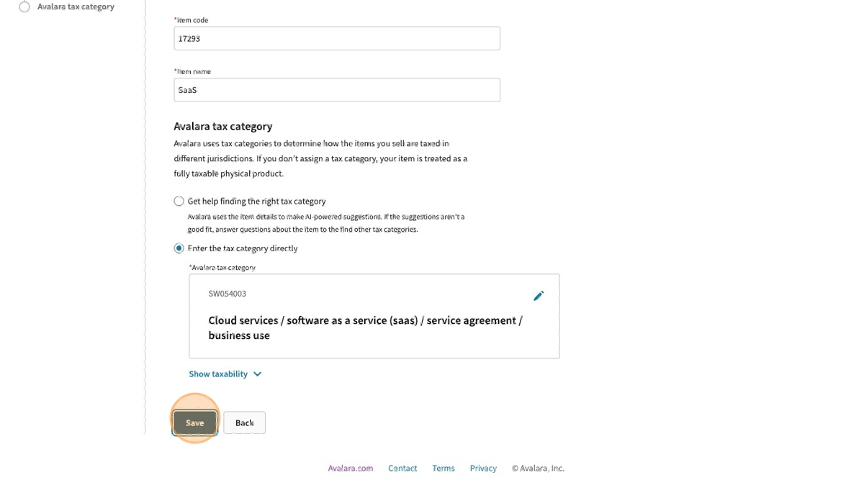
7. To find the tax codes on new items, refer to the Avalara tax category column. These are the tax codes that will be used to mapping items in Tabs.
Map tax codes to Integration Items in Tabs
Once you have found and configured your tax items in Avalara, they need to be mapped in Tabs. To do this, navigate to Integrations on the side navigation menu, and the select "Manage" to access the Avalara configuration page.
Here you will see a list of items. These are the items being pulled directly from your ERP. Upon first integrating, all items will be highlighted orange and will say Action required. This indicates that the item is not mapped to an Avalara tax code. There are two possible actions here:
Assign a tax code: This will ensure that the item is taxed properly on the Tabs invoice according to the tax requirements of the assigned Product ID.
Ignore: This should be used for items that will never be used on an invoice, such as sales tax, bank fees, or bad debt. Checking "Ignore will remove the
Action requiredbanner without forcing you to assign a Product ID.
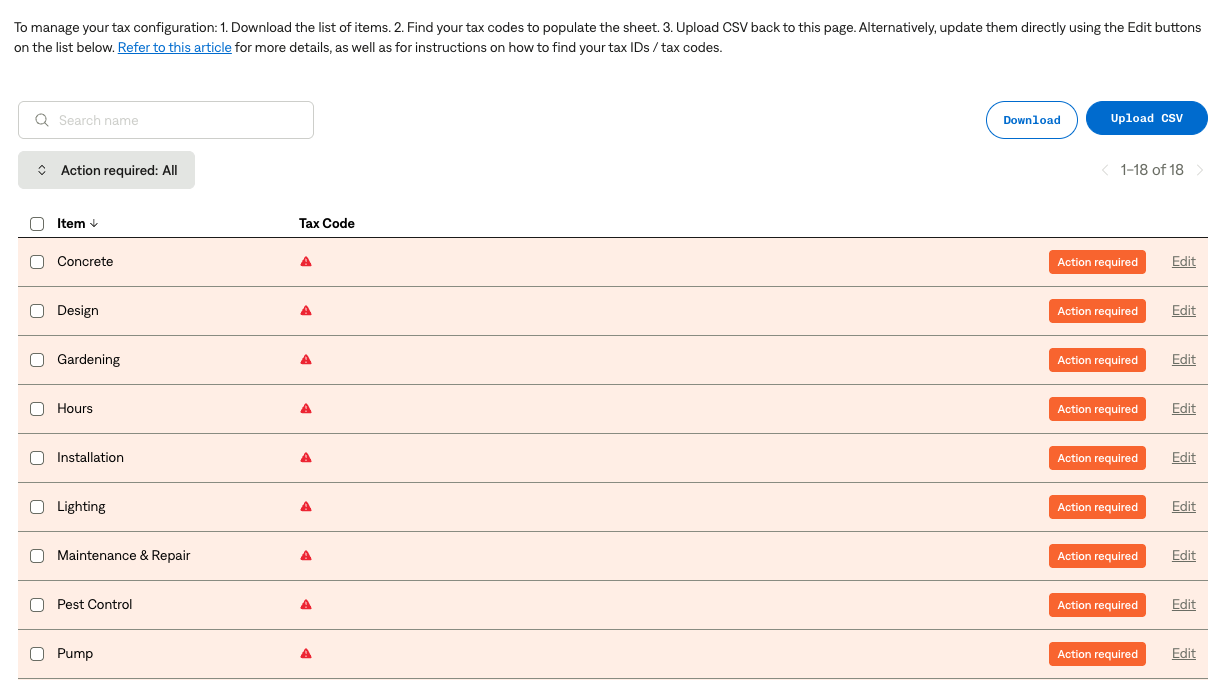
These actions can be done via bulk upload or directly on the page.
To bulk upload tax codes:
1. Click "Download" on the upper right of the page.
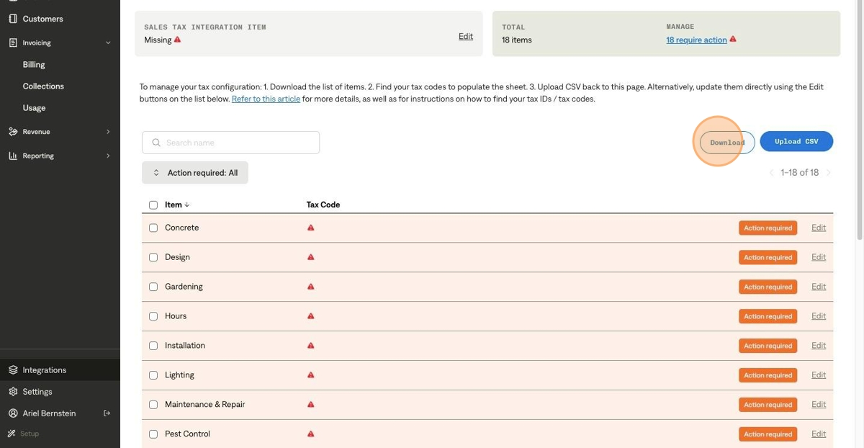
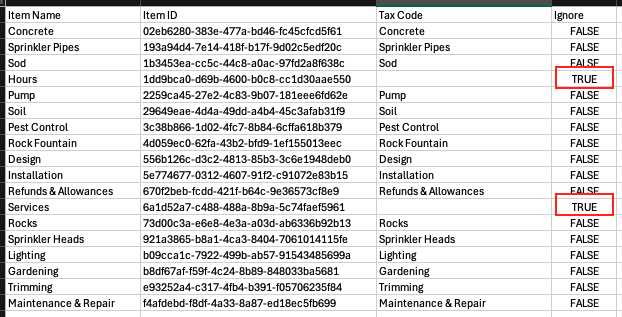
2. Open the CSV, and you will see 4 columns:
Item Name
Item ID
Tax code
Ignore
In the Tax code column, populate the associated Anrok Tax code for that item.
In the Ignore column, if the item should not be ignored, keep the value as FALSE . If the item does not need to be mapped to a tax code, type TRUE.
Leave the other two columns as is for the upload.
3. Once the CSV is populated, click "Upload" and select your file.
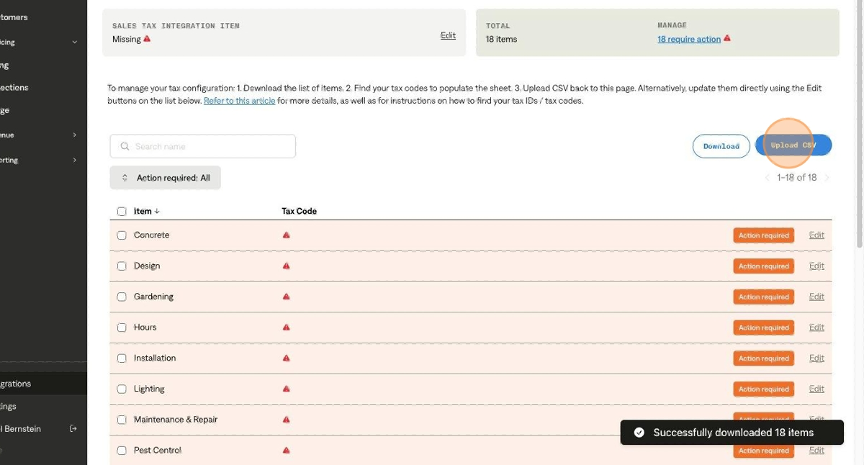
4. All of the items will now be updated accordingly.
To map tax code directly from the Avalara configuration page:
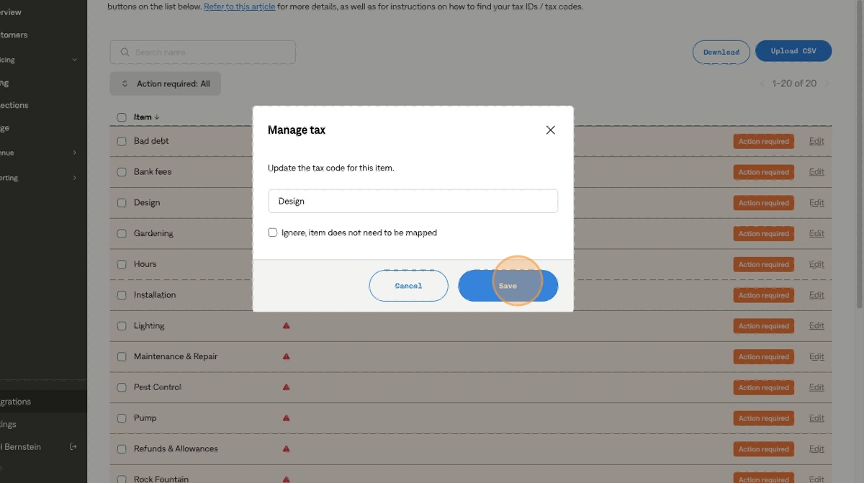
1. Select the "Edit" button on the right side of the item.
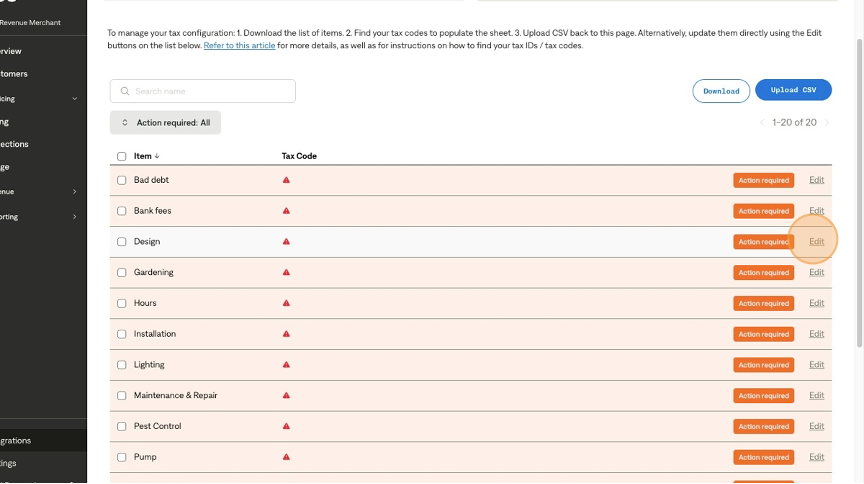
2. Type in the tax code or select "Ignore" if it does not need to be mapped. Then click "Save".
3. To bulk assign or ignore, select multiple items from the table by using the checkboxes on the left side of the item.

4. Select "Manage tax" to assign one tax code to all selected items. Or, select "Ignore mapping" to ignore all selected items.
