How do I set up a sales tax item in my ERP?
Last updated: May 30, 2025
Summary
When taxes in Tabs are calculated by an external tax solution that is not the ERP, Tabs will add a new line item to the invoice for sales tax when the invoice is synced with the ERP. In order for the invoice to properly send, Tabs needs to be able to link that new invoice line item to a specific item in the ERP ('items' in NetSuite and 'products & services' in Quickbooks). In Tabs, we call these integration items. This item is specifically used for sales tax, and therefore also needs to be linked to the proper GL account to ensure that any income from sales tax goes into the correct income account.
If you have already been using a third party tax solution with your ERP, then you likely already have this item/product created. However, if you are setting up a new tax solution, then this item needs to be added.
Note: This process differs for NetSuite users. If you use NetSuite as your ERP, please contact your account manager for assistance with Anrok configuration.
Set up tax item in ERP
The instructions below are for Quickbooks users. If you use an different ERP not supported by Tabs, this is not applicable.
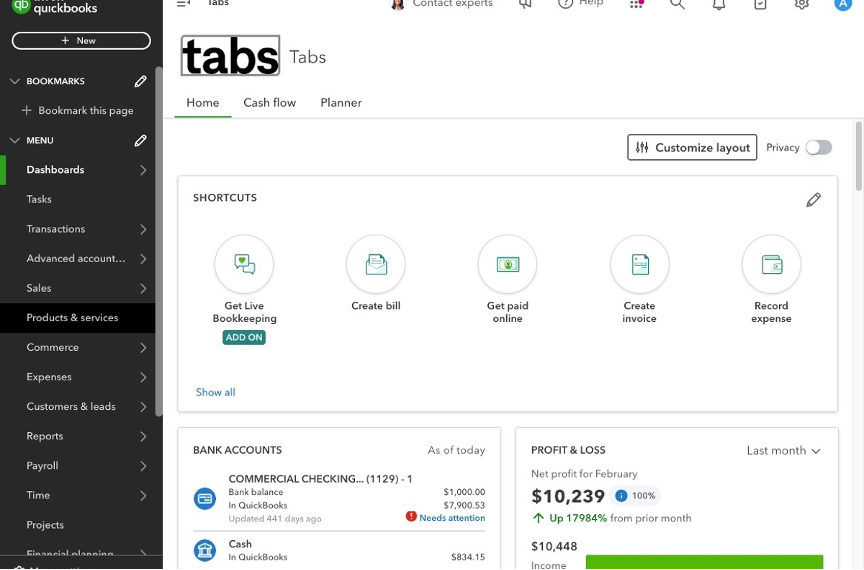
1. Navigate to Quickbooks homepage.
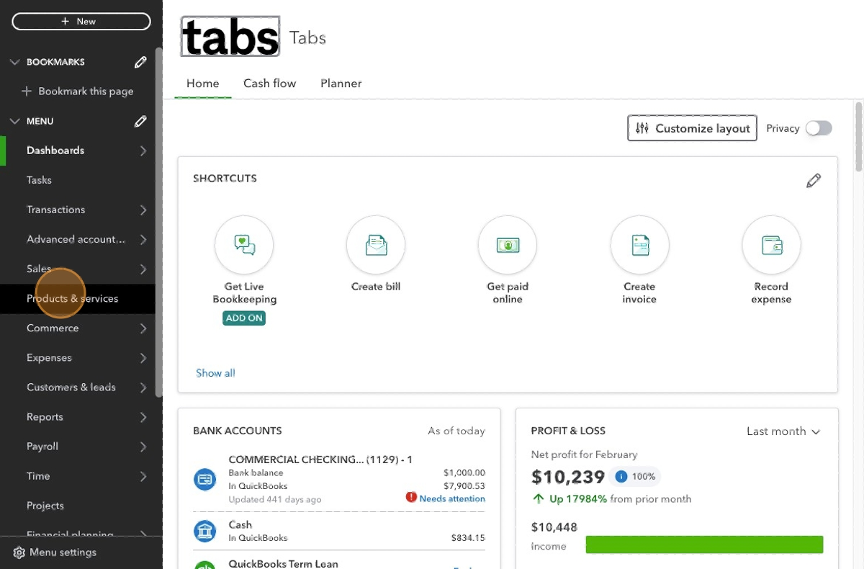
2. Select "Products & services" from the side navigation menu.
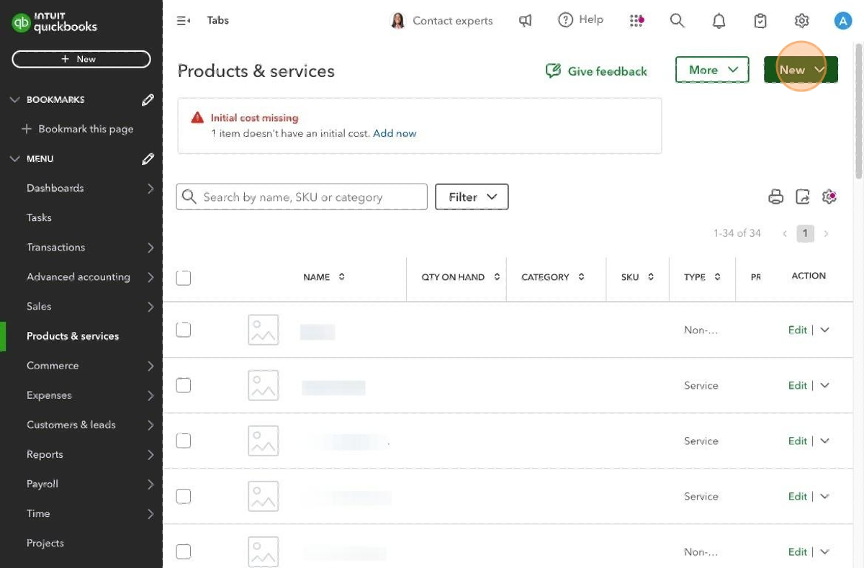
3. Select "New".
4. Select "Service".
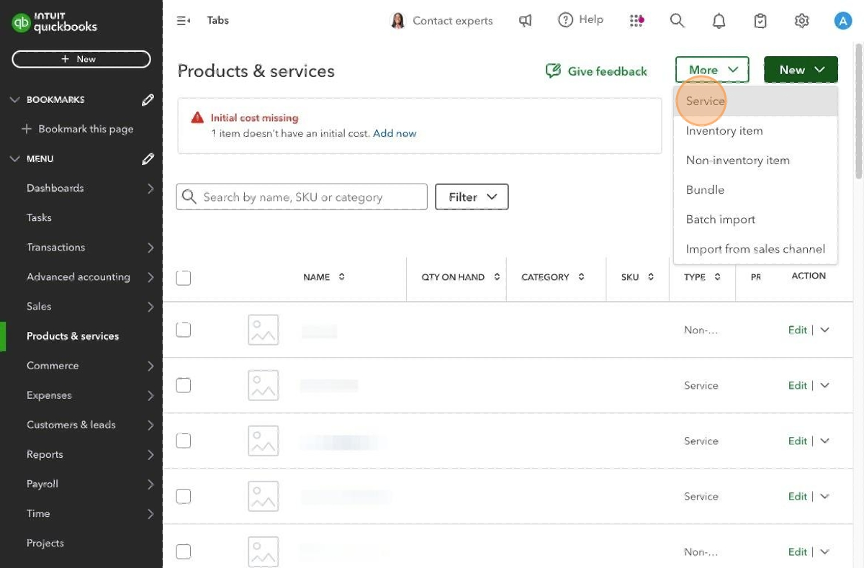
5. Type "Sales Tax" in the Name field.
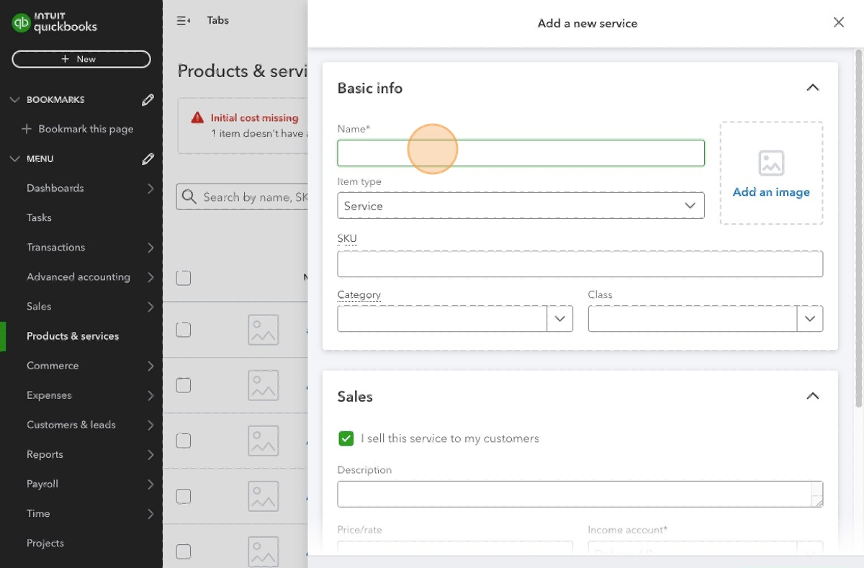
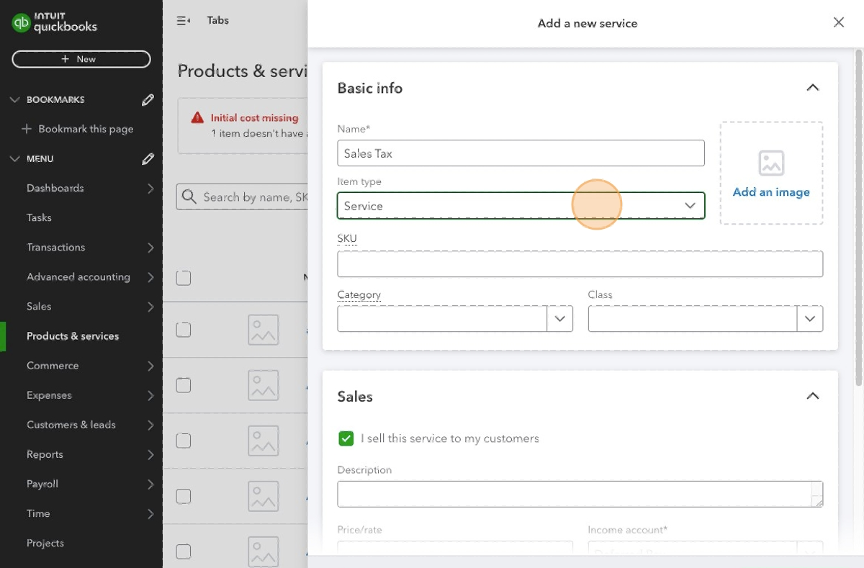
6. Ensure "services" is selected in the "Item type" field.
7. Move down to the Sales section. Type "Type "0.00" in the "Price/rate" field.
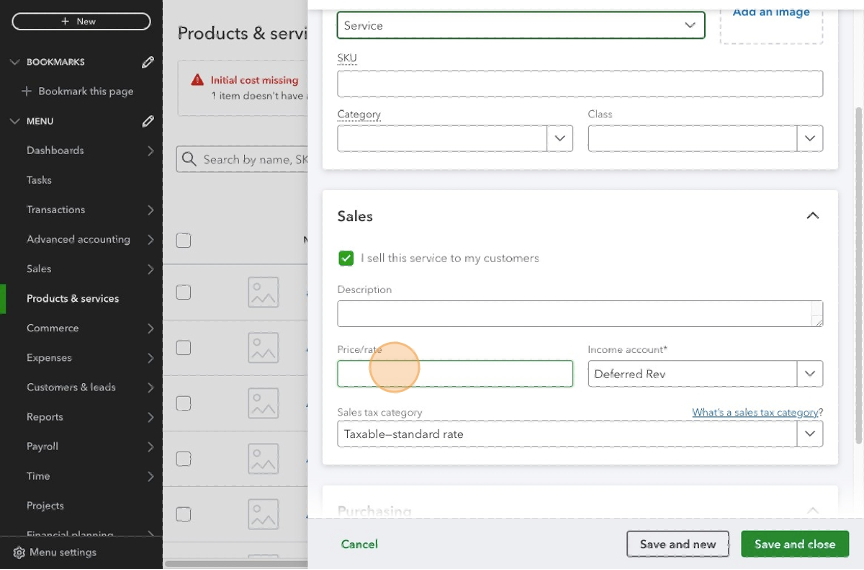
8. In the "Income account" field, select "Sales tax to pay". This is an account that comes as a default in Quickbooks, but if you would like for taxes to go into a different account, you can select a different one or create a new one.
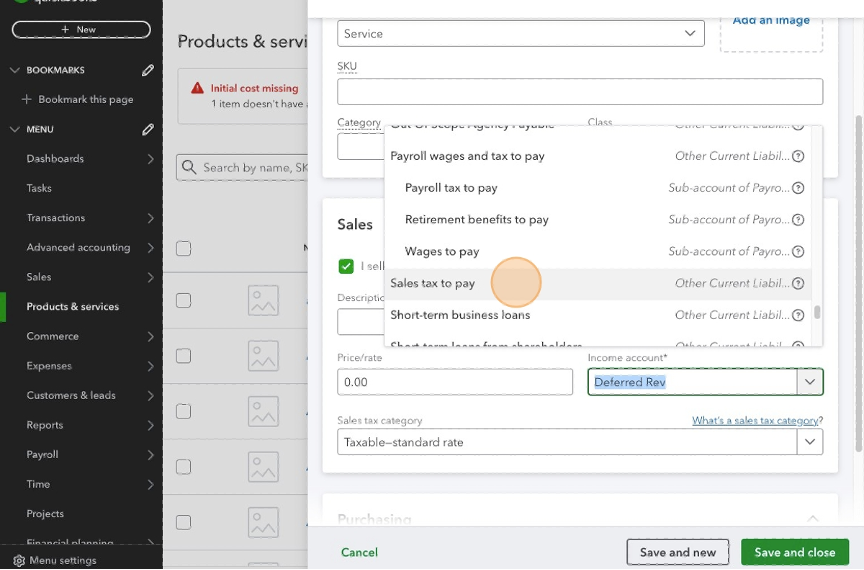
9. In the "Sales tax category" fields, select, "Nontaxable".
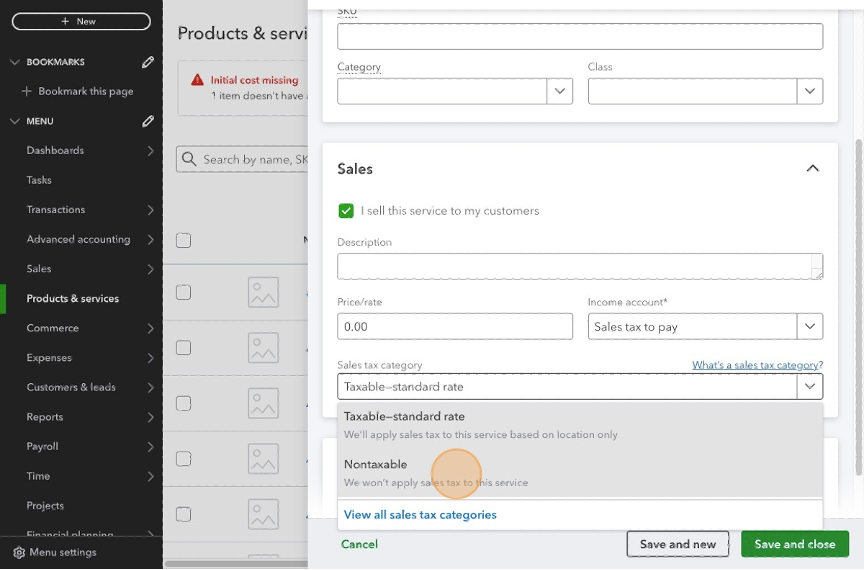
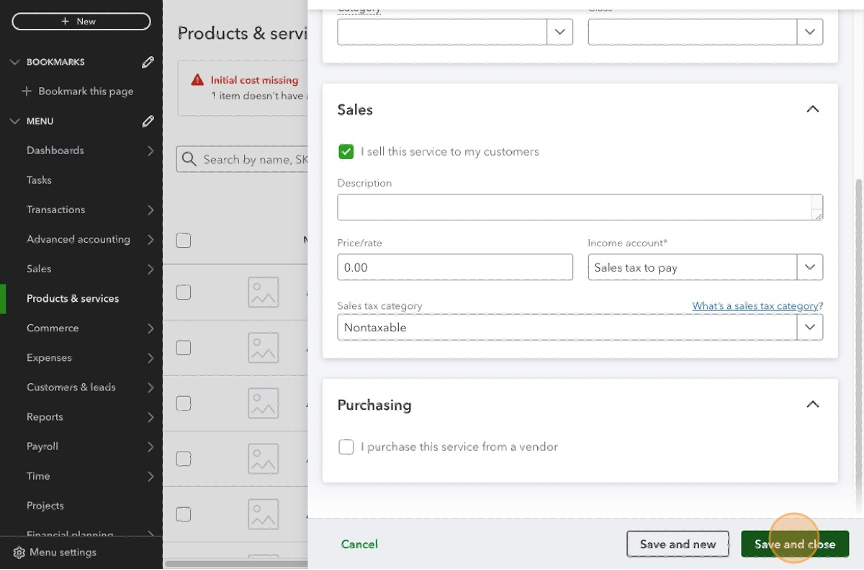
10. Click "Save and close".
Configure tax item in Tabs
Once the tax item has been added in the ERP, this needs to be configured in Tabs to ensure all sales tax maps to this items when invoices are sent.
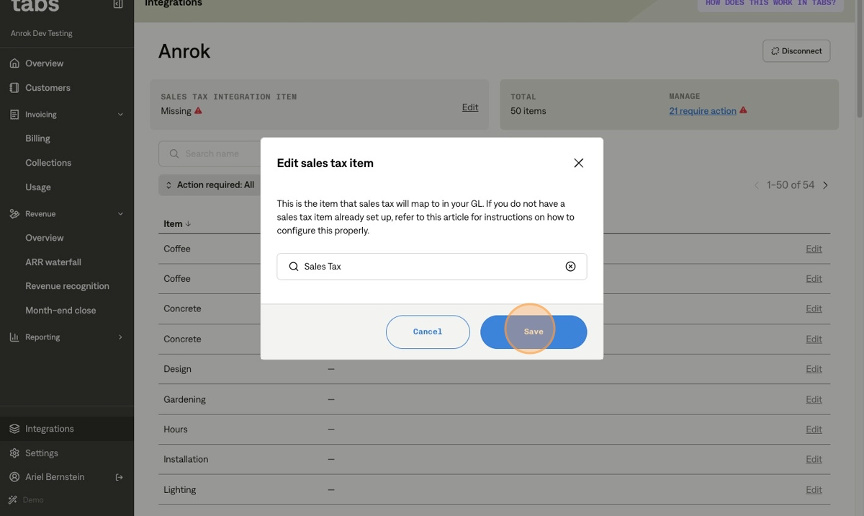
1. On the top left of the Anrok page in the Sales Tax Integration Item section, click "Edit".
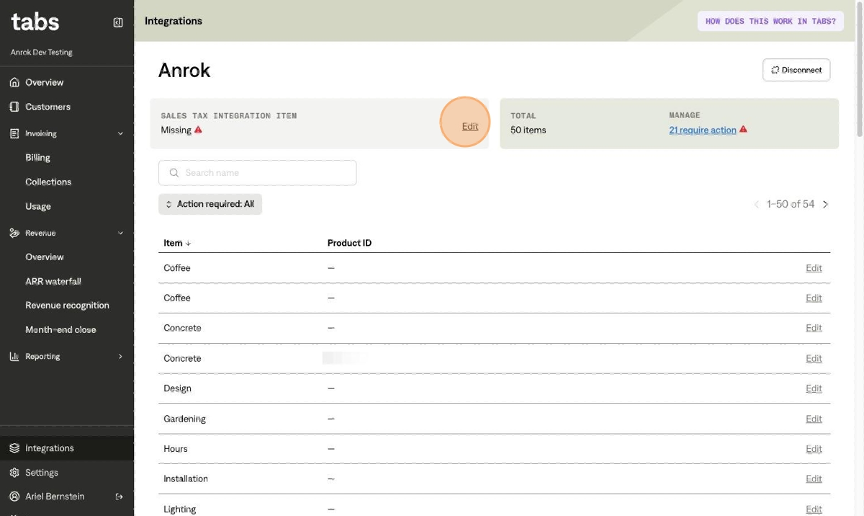
2. Select the item created in the steps above, and the item you have been previously using for sales tax.
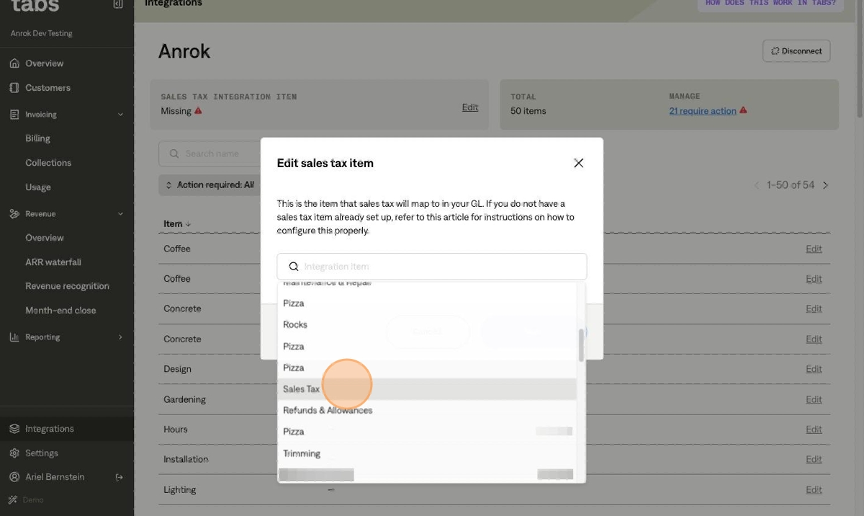
3. Click "Save".