How do I map product IDs in Anrok to items in Tabs?
Last updated: May 30, 2025
Summary
Anrok calculates tax for each individual item on an invoice through the use of what they call Product IDs. These IDs describe the specific offering that that are being sold to your customer, and are the main driver for taxability in Anrok. They are passed from Anrok to your ERP as the product/item that is listed on the invoice. Therefore, each product/item (what Tabs calls integration items) needs to be mapped to an Anrok product ID. This mapping is configured and maintained directly in Tabs.
If you have already been using Anrok, you should already have Product IDs that are being utilized. If you are new to Anrok, you will need to create new Product IDs for all products you sell.
Find/Create Anrok Product IDs
Follow the instructions below to find and/or create Product IDs in Anrok.
1. Navigate to the Anrok homepage.
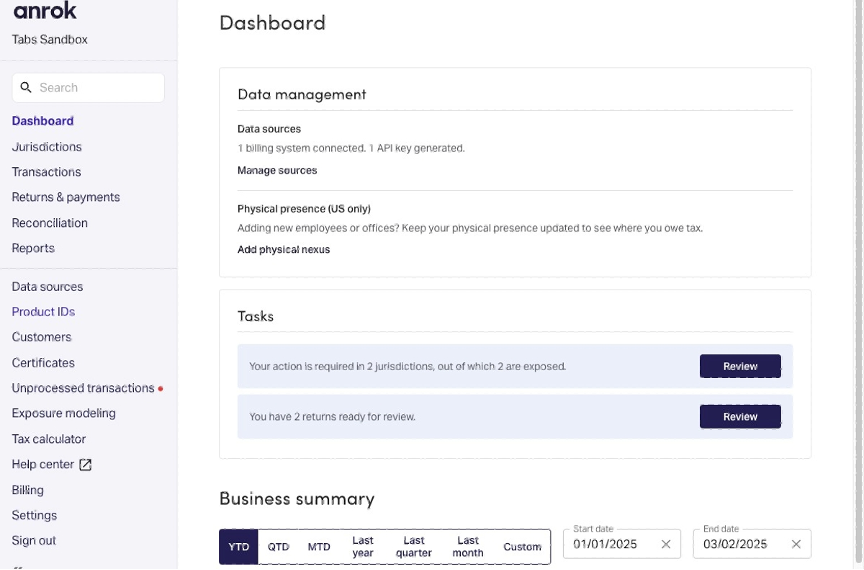
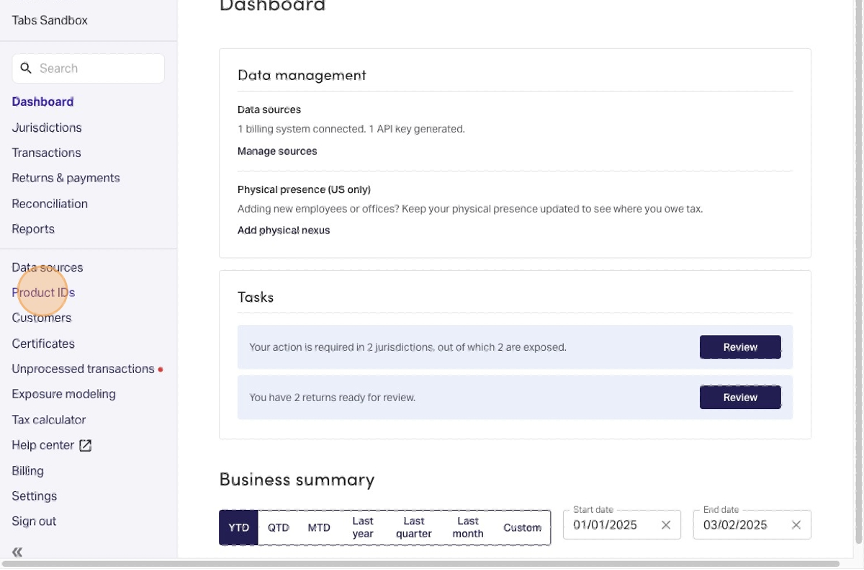
2. Select "Product IDs" from the side navigation menu.
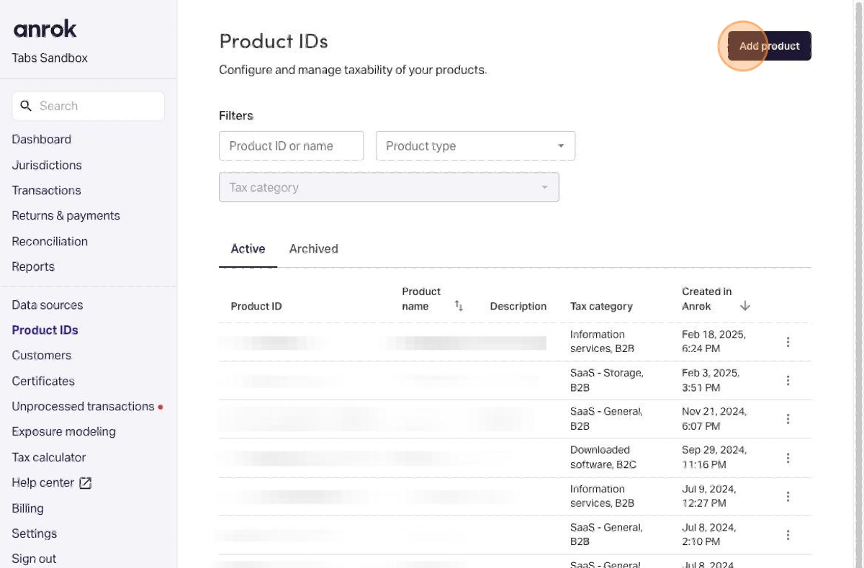
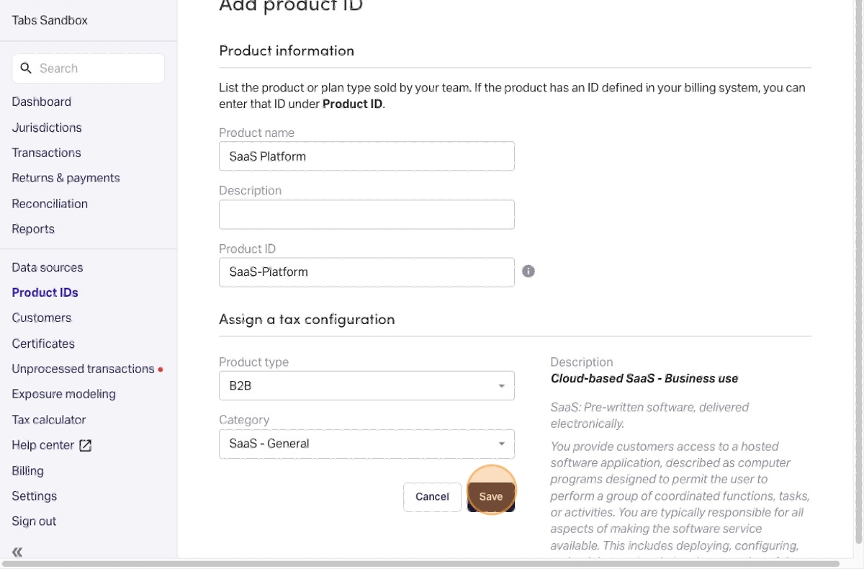
3. Here you will find all of your product IDs, if they are already set up. If you do not yet have Product IDs set up, or you would like to create new ones, click "Add product".
4. Type in the name of your product in the "Product name" field. Optional: Add a description.
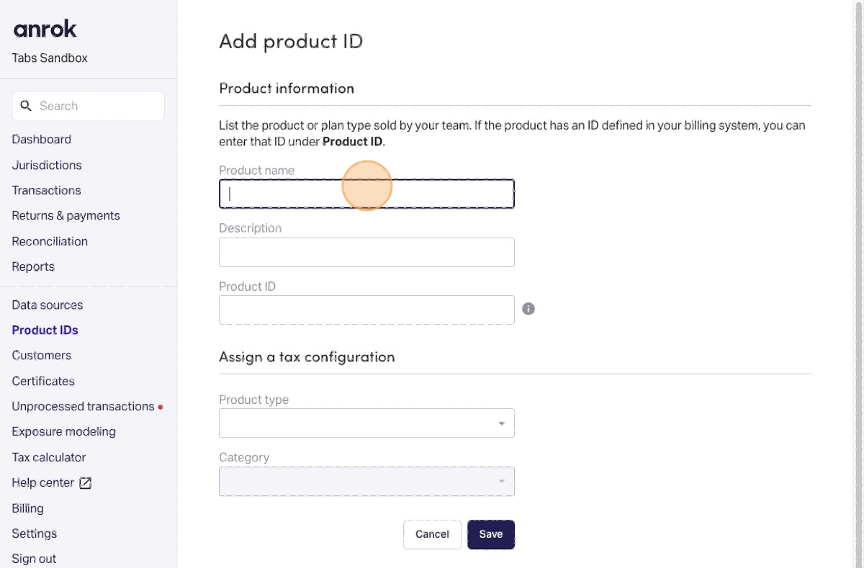
5. In the "Product ID" field choose an unique identifier for your product.
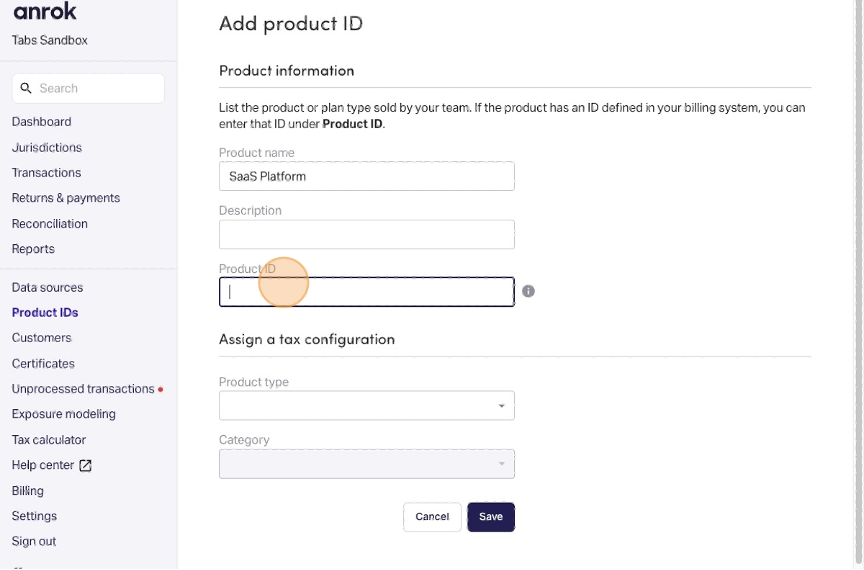
TIP: It is helpful to use the same name for your Product ID and your product/item in your ERP, as these are what show in Tabs as integration items that require tax mapping. For example, if you have a product/item called "SaaS-Platform" in your ERP, you can also name the Anrok Product ID "SaaS-Platform". This way, when mapping these items in Tabs, it is easy to see and validate which items should be mapped to one another.
6. Select your product type.
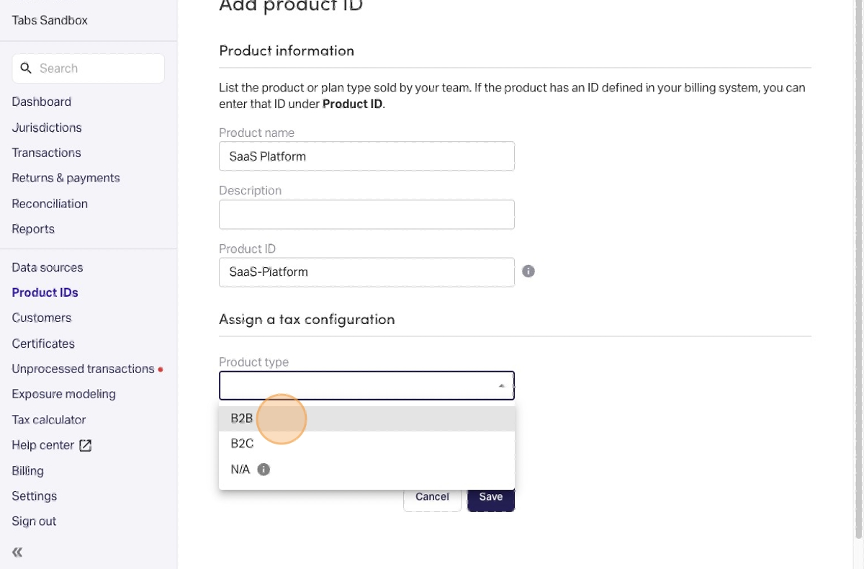
7. Select the product category that most closely aligns with the product you are selling.
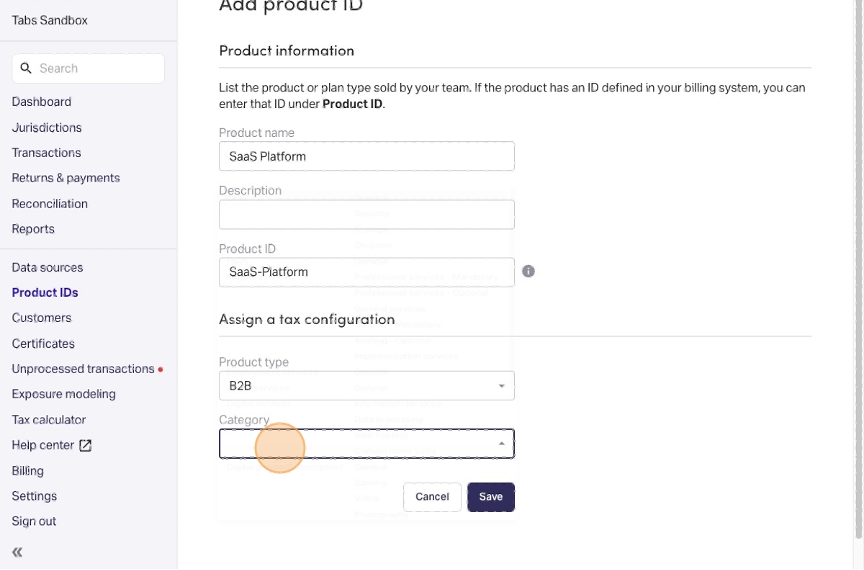
8. Click "Save".
Map Product IDS to Integration Items in Tabs
Once you have found and configured your Product IDs in Anrok, they need to be mapped in Tabs. To do this, navigate to Integrations on the side navigation menu, and the select "Manage" to access the Anrok configuration page.
Here you will see a list of items. These are the items being pulled directly from your ERP. Upon first integrating, all items will be highlighted orange and will say Action required. This indicates that the item is not mapped to an Anrok Product ID. There are two possible actions here:
Assign a Product ID: This will ensure that the item is taxed properly on the Tabs invoice according to the tax requirements of the assigned Product ID.
Ignore: This can be used for items that will never be used on an invoice, or that do not have Product ID equivalents in Anrok. This might apply to items such as Sales tax, Bank fees, or Bad debt. However, if you have Product IDs for these items set up in Anrok, you can map these in Tabs for consistency. This is an optional feature for items that do not have mapping. Checking "Ignore" will remove the
Action requiredbanner without forcing you to assign a Product ID.
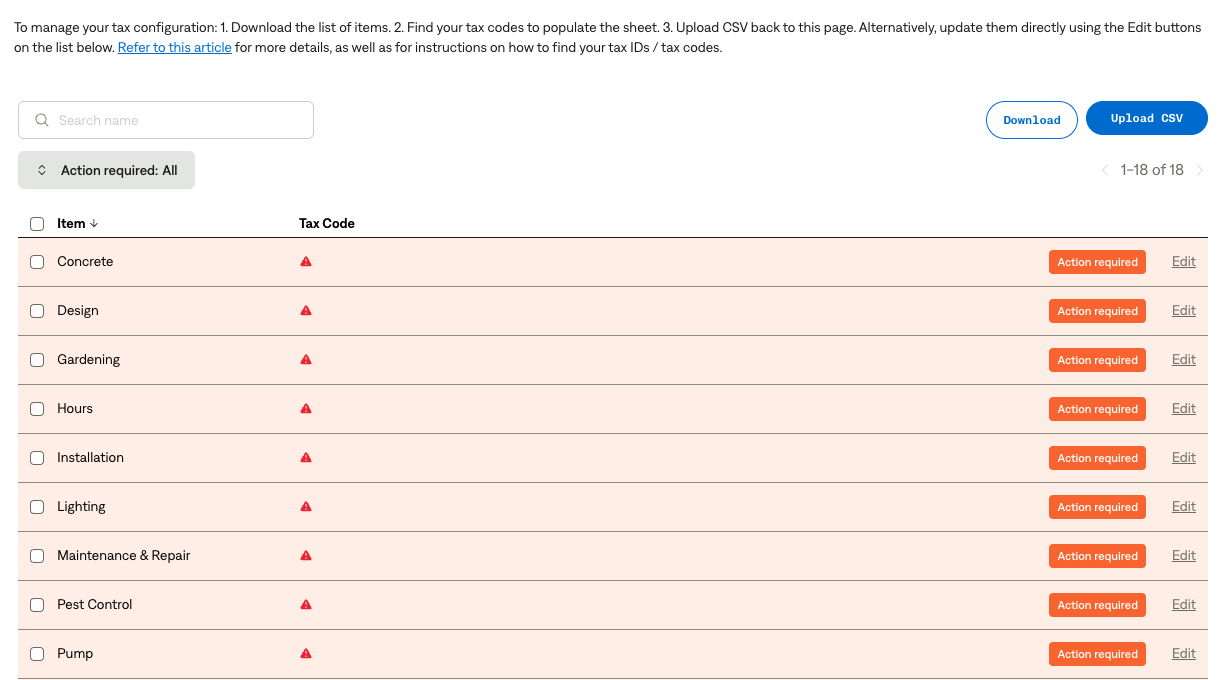
These actions can be done via bulk upload or directly on the page.
To bulk upload Product IDs:
1. Click "Download" on the upper right of the page.
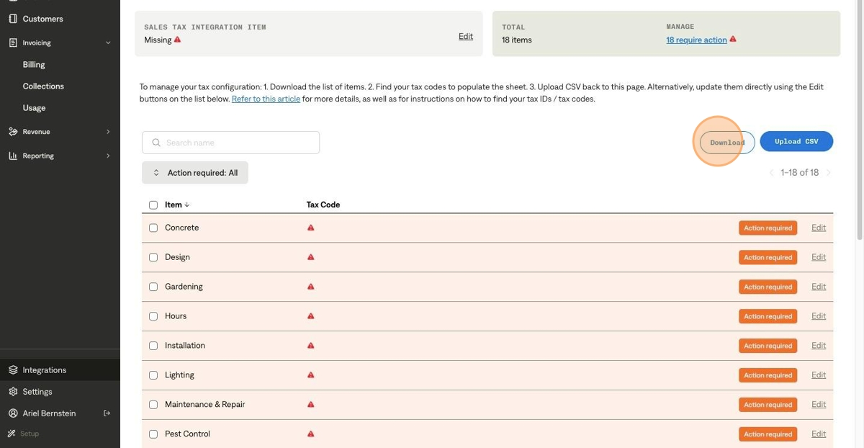
2. Open the CSV, and you will see 4 columns:
Item Name
Item ID
Product ID
Ignore
In the Product ID column, populate the associated Anrok Product ID for that item.
In the Ignore column, if the item should not be ignored, keep the value as FALSE . If the item does not need to be mapped to a Product ID, type TRUE.
Leave the other two columns as is for the upload.
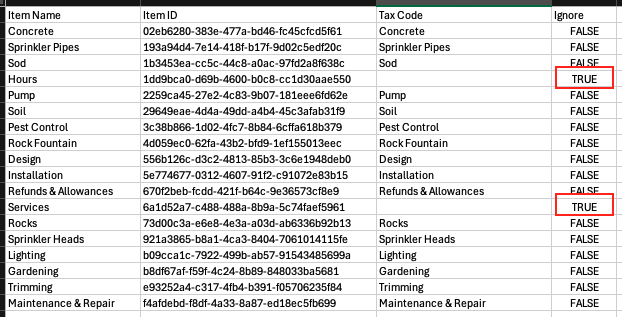
3. Once the CSV is populated, click "Upload" and select your file.
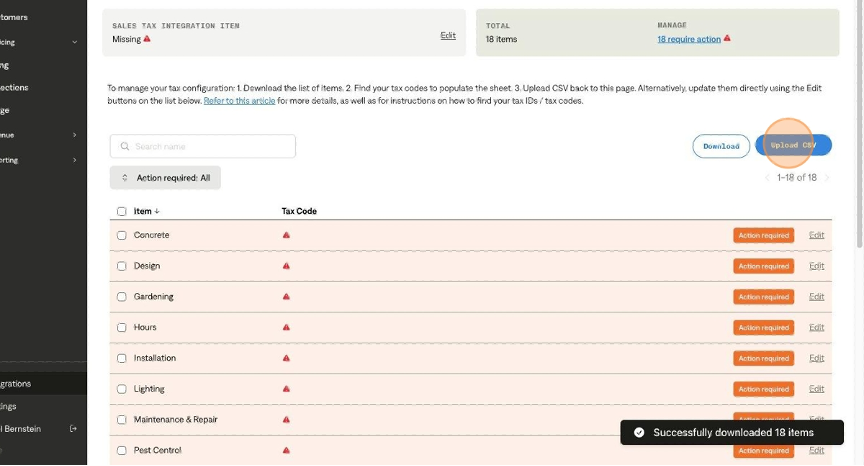
4. All of the items will now be updated accordingly.
To map Product ID directly from the Anrok page:
1. Select the "Edit" button on the right side of the item.
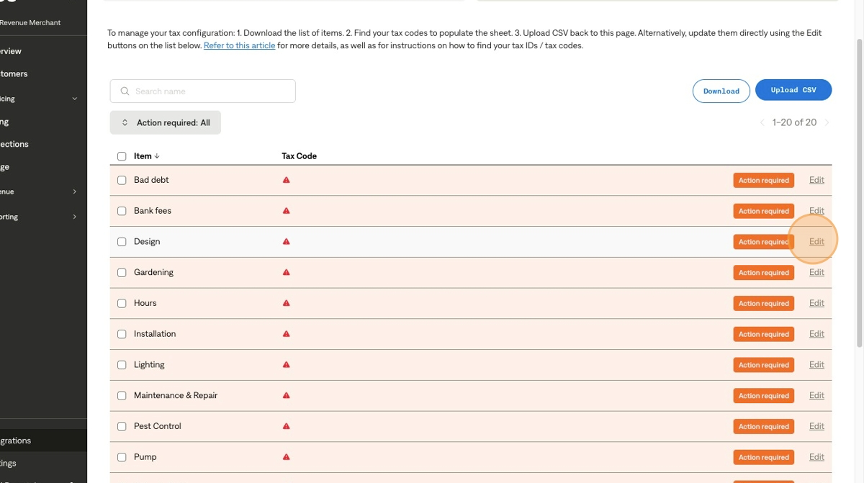
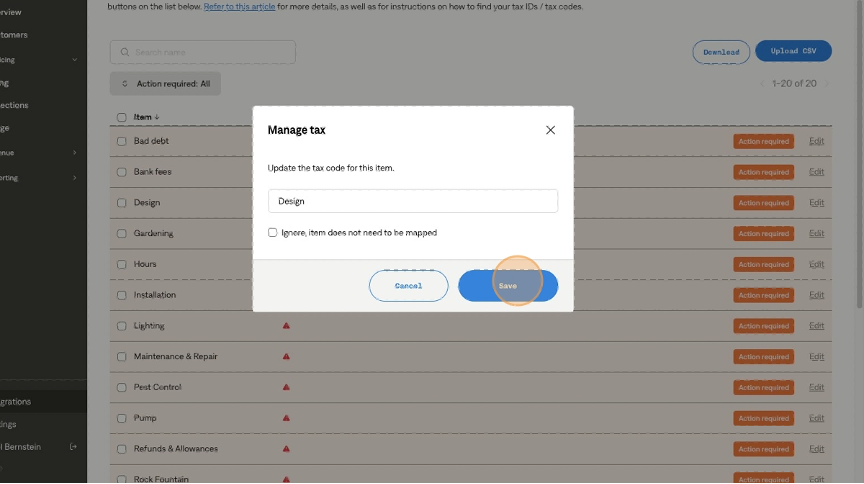
2. Type in the Product ID or select "Ignore" if it does not need to be mapped. Then click "Save".
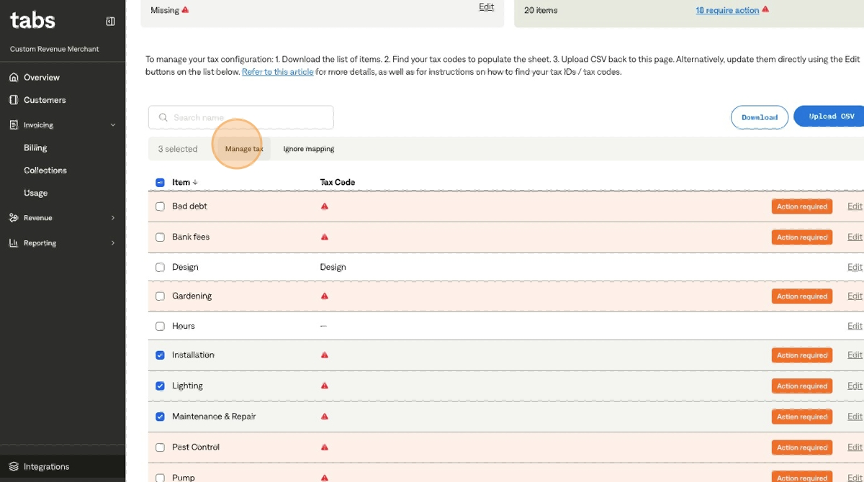
3. To bulk assign or ignore, select multiple items from the table by using the checkboxes on the left side of the item.
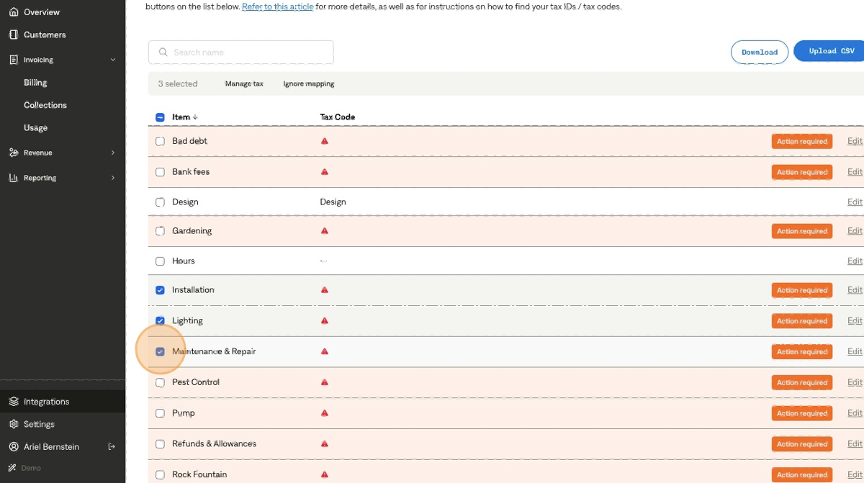
4. Select "Manage tax" to assign one Product ID to all selected items. Or, select "Ignore mapping" to ignore all selected items.