How do I manage event types?
Last updated: August 24, 2026
Managing Event Types
Overview
Event types are the categories of usage events that you track and bill for in your platform. Examples include "API Calls", "Storage GB", "Hours", etc. Each event type represents a specific metric that you want to measure and charge customers for.
The Event Types management interface allows you to:
Create new event types
View all event types with search and sorting capabilities
Edit existing event type names
Delete event types that are no longer needed
See which customers are using each event type
View the status (Active/Inactive) of each event type
Accessing Event Types Management
Navigate to Usage → Events in the main navigation.
Click the "Manage event types" button in the page header.
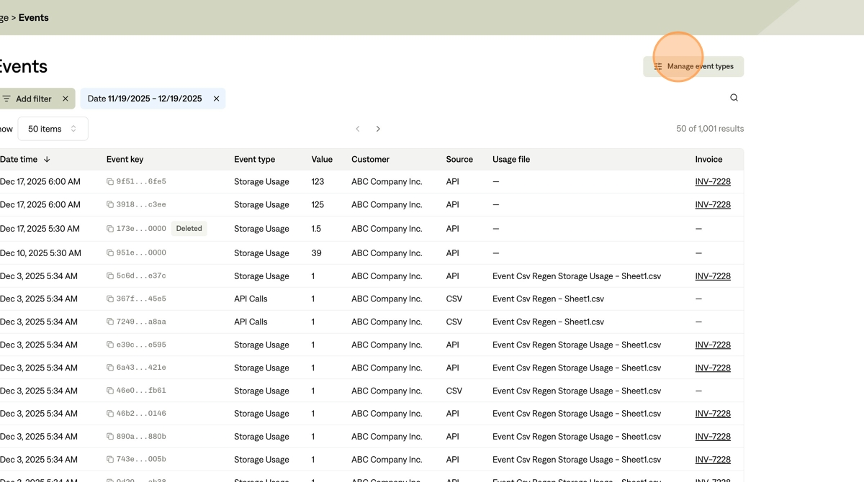
You'll be taken to the Event Types management page.
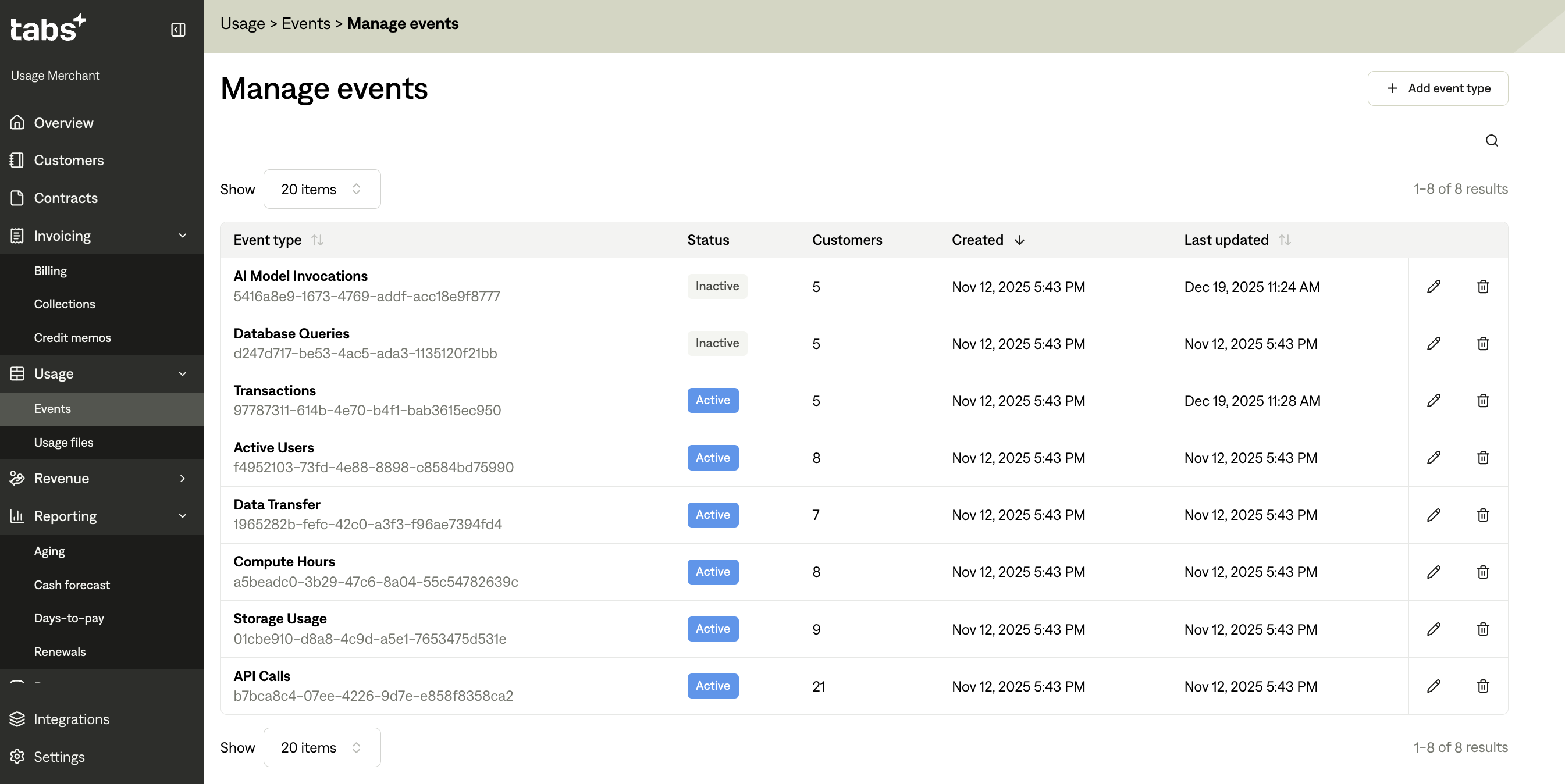
The Event Types table displays all your event types with the following information:
Event Type: Shows the event type name and its unique ID
Status: Indicates whether the event type is "Active" or "Inactive"
Active: The event type is currently being used by at least one customer
Inactive: The event type exists but is not currently associated with any customers
Customers: The number of customers currently using this event type
Created: The date and time when the event type was created
Last Updated: The date and time when the event type was last modified
Creating Event Types
Step-by-Step Process
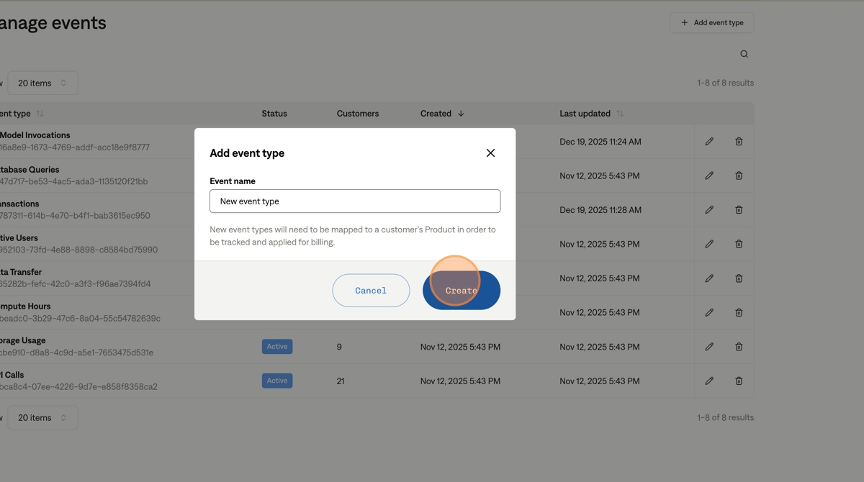
On the Event Types management page, click the "Add event type" button in the header.
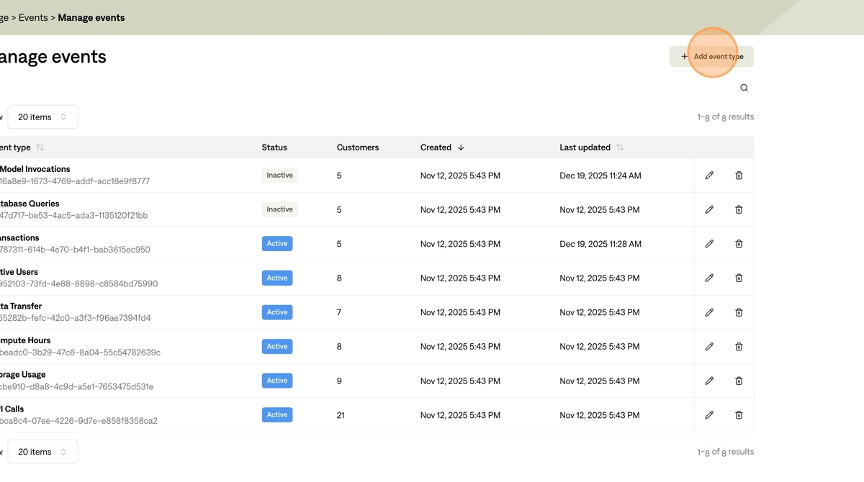
A modal dialog will appear.
Enter the event type name in the input field.
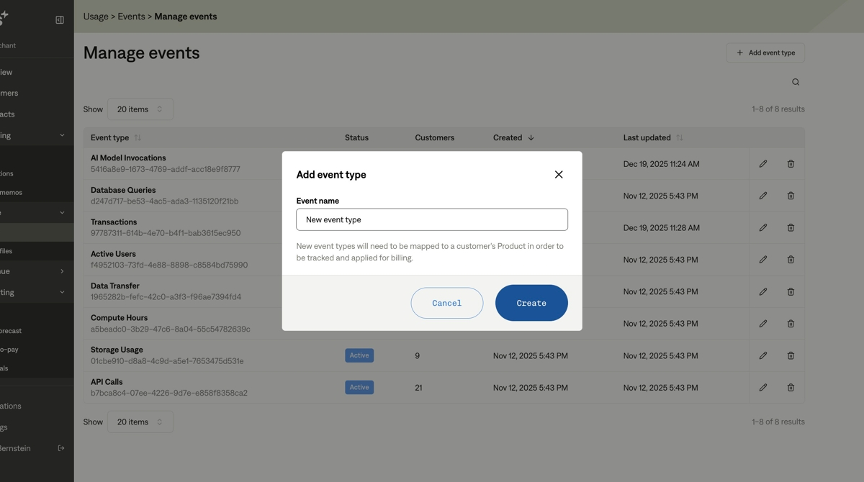
Important: Event type names are case-sensitive and must match exactly when uploading usage data
Use descriptive names that clearly identify what the event type measures (e.g., "API Calls", "Storage GB", "Bandwidth")
Click "Create" to save the new event type.
Important Notes
New event types must be mapped to customer Billing Terms in order to count toward billing: After creating an event type, you'll need to map it to a customer's Billing Term in order for it to be tracked and applied for billing
Event type names are used in CSV uploads: When uploading usage data via CSV, you must use the exact event type name (case-sensitive) in your CSV file
Event types are manufacturer-specific: Each event type belongs to your account and is available for all your customers
Editing Event Types
When to Edit
You may want to edit an event type name if:
You need to correct a typo
You want to rename it for clarity
You're standardizing naming conventions across your event types
Step-by-Step Process
Find the event type you want to edit in the table.
Click the Edit icon (pencil) in the row actions.
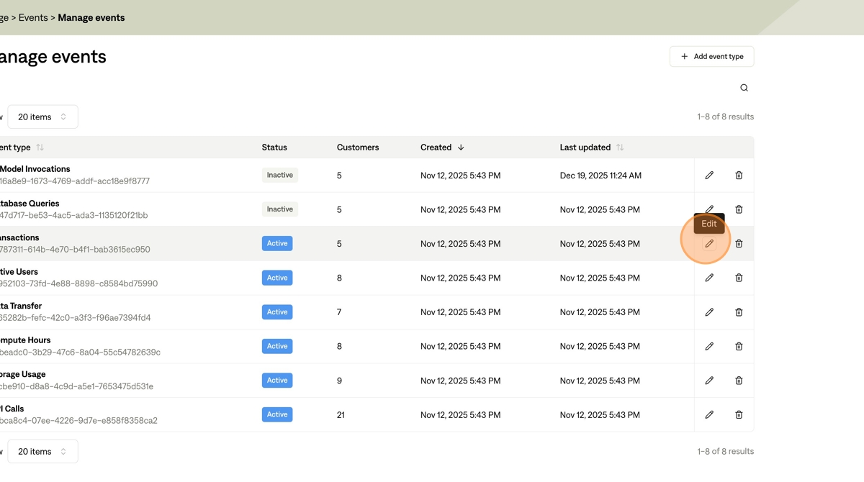
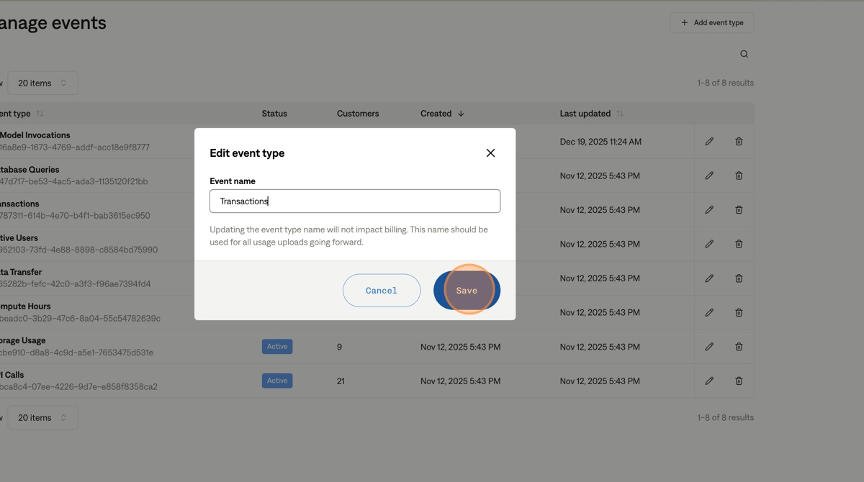
A modal dialog will appear with the current event type name pre-filled.
Modify the name as needed.
Click "Save" to update the event type.
Important Notes
Updating the name does not impact billing: Changing an event type name will not affect existing invoices or billing calculations
Use the new name going forward: After renaming, use the new name in all future usage uploads (CSV files, API calls, etc.)
Historical data is preserved: Past usage data will still reference the old name, but new data should use the updated name
Deleting Event Types
When to Delete
You may want to delete an event type if:
It was created by mistake
It's no longer being used and won't be needed in the future
You're cleaning up unused event types
Step-by-Step Process
Find the event type you want to delete in the table.
Click the Delete icon (trash) in the row actions.
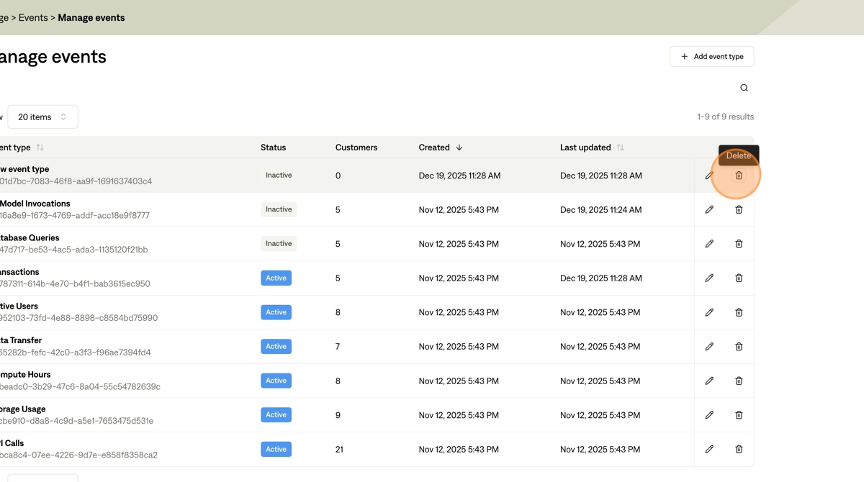
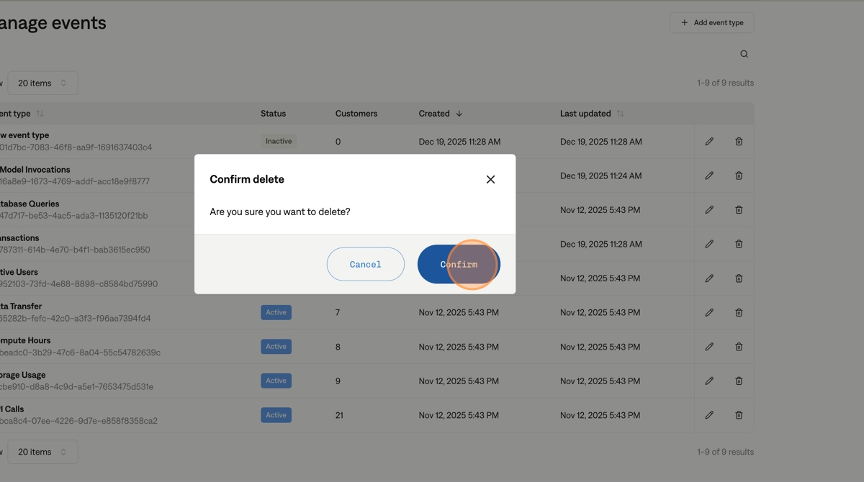
A confirmation modal will appear asking you to confirm the deletion.
Review the confirmation message.
Click "Confirm" to permanently delete the event type.
Important Notes
Deletion is permanent: Once deleted, an event type cannot be recovered
Check customer associations: Before deleting, verify that no customers are currently using the event type (check the "Customers" column)
Only Inactive event types can be deleted: Active event types are linked to Billing Terms that are actively billing, and therefore cannot be deleted.
Historical data: Past usage data associated with the deleted event type will remain in the system but cannot be linked to the deleted event type
CSV Uploads
Match names exactly: When uploading usage via CSV, ensure event type names match exactly (case-sensitive)
Download customer IDs: Use the "Download customer IDs" feature when preparing CSV files to ensure correct customer IDs
Verify before upload: Double-check that all event types in your CSV exist in the system before uploading
Troubleshooting
"Event type does not exist" error in CSV uploads
Problem: Your CSV file references an event type name that doesn't exist in the system.
Solution:
Check the Event Types management page to see all available event types
Verify the event type name in your CSV matches exactly (case-sensitive)
Create the event type if it doesn't exist
Re-upload your CSV file
Can't delete an event type
Problem: You're unable to delete an event type, or it shows as Active.
Solution:
Check the Customers column to see if any customers are using it
Remove the event type from all customer Billing Terms first
Wait for the status to change to Inactive
Then delete the event type
Event type shows as Inactive but should be Active
Problem: An event type you expect to be Active shows as Inactive.
Solution:
Verify the event type is mapped to at least one customer's Billing Term
Check that the Billing Term is active and the mapping is correct
The status updates automatically when mappings change
Can't find an event type in the list
Problem: You know an event type exists but can't find it in the table.
Solution:
Use the search box to search by name or ID
Check if you're on the correct page (use pagination if you have many event types)
Verify you're logged into the correct account
Check if the event type was deleted
Need Help?
If you encounter issues not covered in this guide:
Check the error messages in the interface—they provide specific details about what went wrong
Verify your event type names match exactly (case-sensitive) when uploading usage data
Ensure event types are properly mapped to customer Billing Terms before expecting them to be Active
Contact support with:
The event type name(s) you're working with
Screenshots of any error messages
Steps you took before encountering the issue