How do I upload a usage file?
Last updated: August 24, 2026
Overview
The CSV ingest process allows you to upload usage data in bulk by importing a CSV file. The platform uses a flexible column mapping system, so you can use any column names in your CSV file and map them to the required data fields during the upload process.
The upload process consists of three steps:
Upload - Select and upload your CSV file
Mapping - Map your CSV columns to the required data fields
Review - Review validation results and submit your data
How It Works
When you upload a CSV file:
File Upload: Your CSV file is uploaded to secure cloud storage.
Column Detection: The platform automatically detects all columns in your CSV file.
Column Mapping: You map your CSV columns to the required data fields (Customer ID, Event Type, Value, Date Time, etc.).
Validation: The platform validates your data before processing, checking for:
Valid customer IDs
Valid event types
Valid event types for each customer
Numeric values in the
ValuecolumnValid ISO datetime formats (any common format is accepted)
Events that fall within active service periods (warning - events will still be able to be created)
Processing: Once validated, the data is processed and events are created in the system.
Invoice Recalculation: Invoices are automatically recalculated to include the new usage data.
Step-by-Step Process
Step 1: Upload Your CSV File
Navigate to Usage → Usage files in the side navigation menu.
Click Upload CSV on the top right corner of the page.
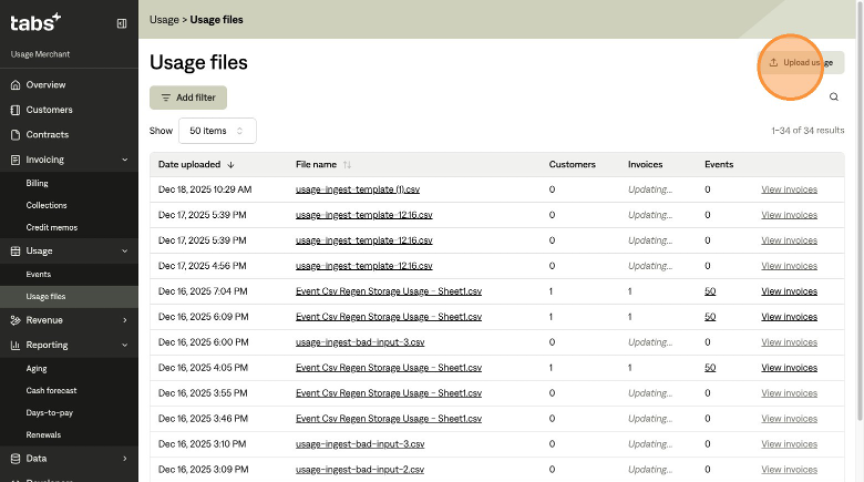
Prepare your usage data. This can be in any format with so long as it has the minimum requirements:
Customer ID: The ID of the customer this usage event belongs to
Event Type: The name of the event type (e.g., "API Calls", "Storage GB", etc.)
Value: The numeric value for this usage event
Date Time: The date and time when the usage event occurred (must be in ISO 8601 format, e.g.,
2024-01-15T10:30:00Z)
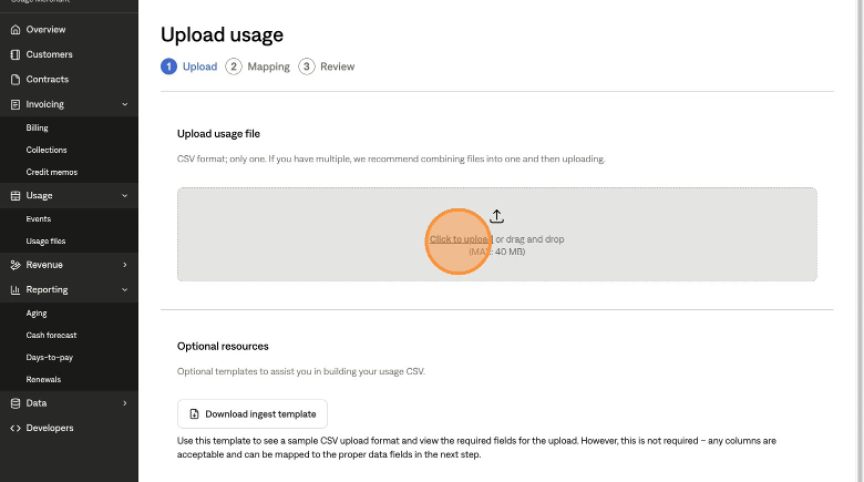
You can either Drag and drop your CSV file into the upload area, or Click the upload area to browse and select your file. File Requirements:
File format: CSV (
.csv)Maximum file size: 40 MB
Minimum columns: 4 columns required
The file must contain at least one data row (in addition to the header row)
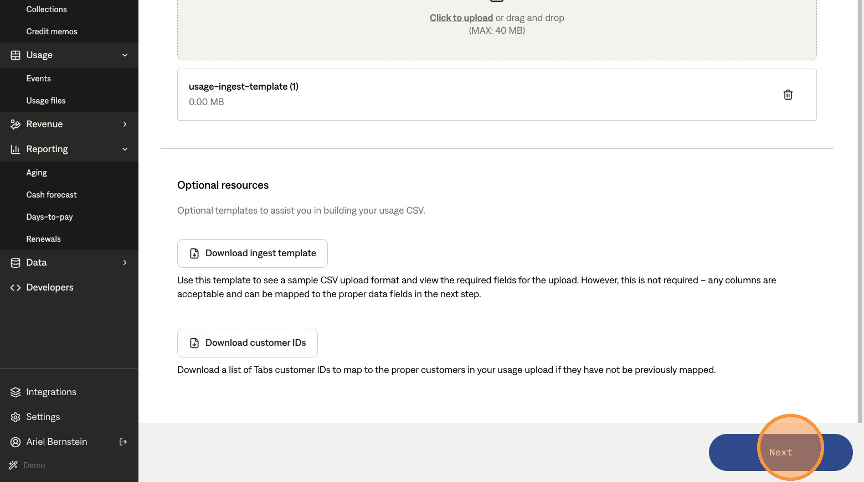
Once your file is selected, click Next to proceed to the mapping step.
Step 2: Map Your Columns
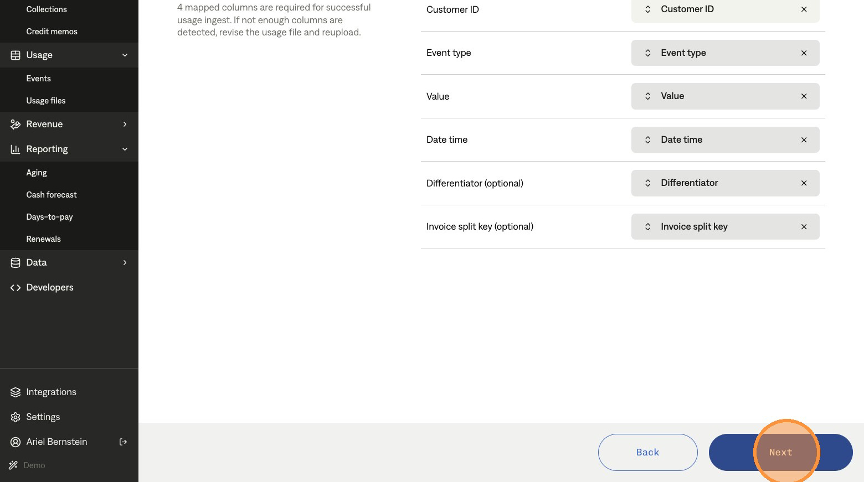
In this step, you'll map your CSV column names to the required data fields.
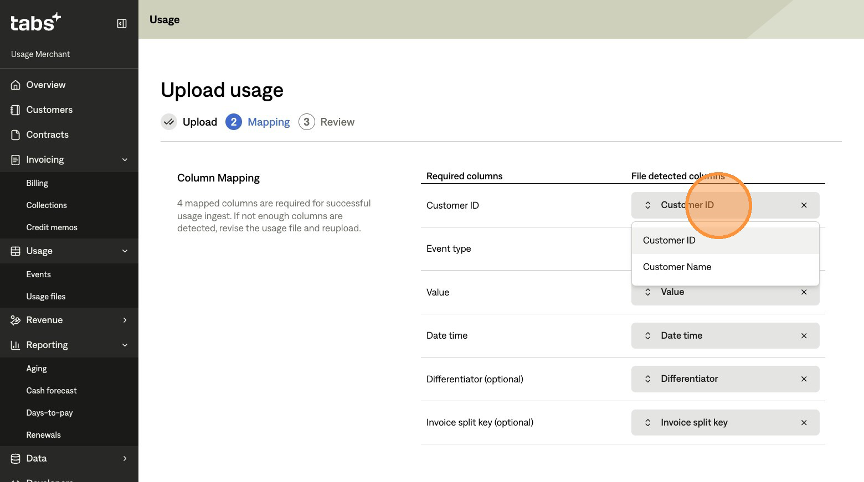
Required Columns (must be mapped):
Customer ID
Event Type
Value
Date Time
Optional Columns:
Differentiator (optional): Additional identifier to differentiate the same event type into different line items on the invoice. This value will be appended to the description of the invoice line item.
Invoice Split Key (optional): Key used to split events into a new invoice. This value will be appended to the invoice number, so it recommended to be a short numerical or alphabetical value or string.
How to Map:
For each required field, use the dropdown to select which column from your CSV file contains that data.
The platform will automatically suggest mappings based on column names when possible.
You cannot map the same CSV column to multiple fields.
Required fields are marked with a warning icon if not yet mapped.
Once all required columns are mapped, click Next to proceed to validation.
Step 3: Review and Submit
After mapping, the platform validates your data and shows you the results. If there Are Validation Errors, you'll see a summary of errors found in your data:
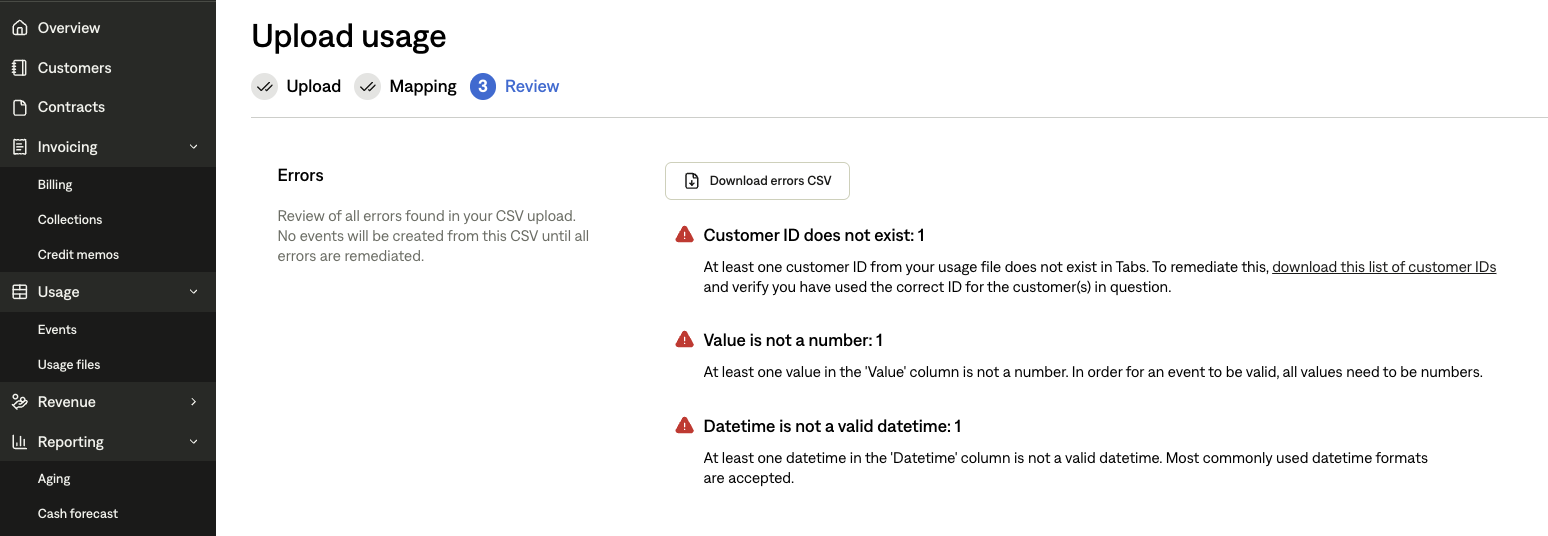
Customer ID does not exist: One or more customer IDs in your CSV don't exist.
Event type does not exist: One or more event type names don't exist.
Event type not valid for customer: An event type is not associated with the specified customer.
Value is not a number: One or more values in the Value column are not valid numbers.
Datetime is not valid: One or more datetime values are not an accepted ISO 8601 format.
To Fix Errors:
Click Download Errors CSV to download a file containing all rows with errors and their specific error messages.
Fix the errors in your original CSV file.
Start over from Step 1 with your corrected file.
Note: You cannot proceed with submission if there are validation errors. All errors must be resolved first. There are more detailed examples below to help with remediation.
If you see the warning:
Event does not fall within active service period
This means that the event date is outside the customer's active service period for that event type. This does not prevent submission, but might indicate potential issues that the Billing Term either does not exist, or does not cover the date of the event. Therefore, these events will not exist on an invoice. If the event is able to find an associated customer Billing Term in the future, it will populate on the associated invoice automatically.
If there are no errors (only warnings or no issues at all), you'll see a success message. Click Submit to process your usage data.
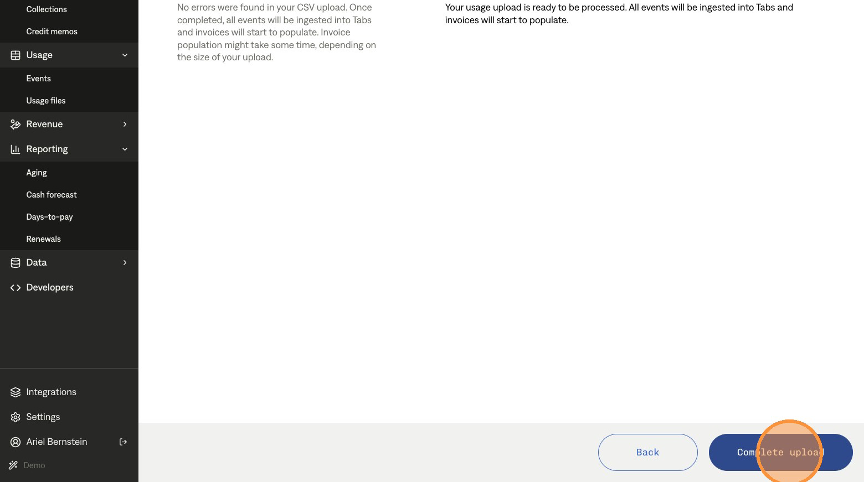
After Submission:
Your usage events will be created in the system, which can be found on the Events page from the side nav bar.
Invoices will be automatically recalculated to include the new usage
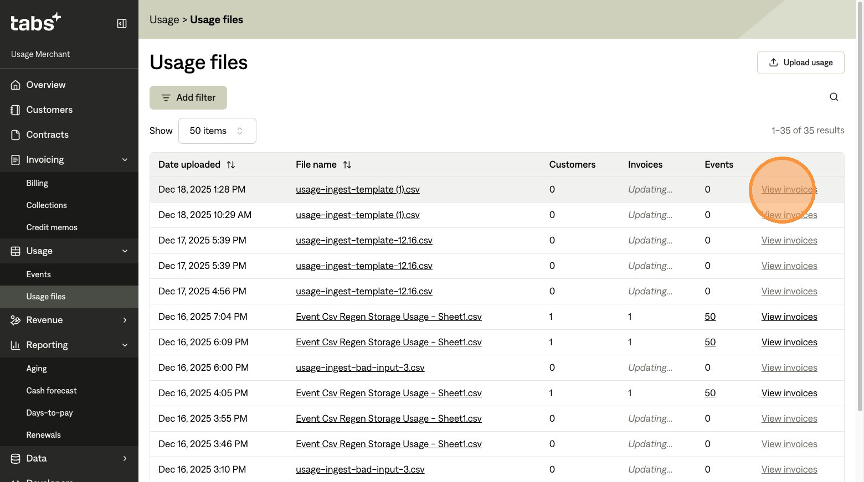
You'll be redirected to the Usage Files page where you can see the status of your upload
To see invoices populated by the usage file, click the "View Invoices" link on the right side of the usage file.
Note: updating all invoices might take a few minutes. You will know when your invoices are ready when the invoices column shows a number instead of Updating...
Troubleshooting
"CSV file must have at least 4 columns"
Solution: Ensure your CSV file has at least 4 columns. You need columns for Customer ID, Event Type, Value, and Date Time at minimum.
"Customer ID does not exist" errors
Solution:
Download the Customer IDs CSV from the upload page to get the correct customer IDs
Verify you're using the exact customer ID format (case-sensitive)
Ensure the customer exists in your account
"Event type does not exist" errors
Solution:
Verify the event type name matches exactly (case-sensitive) with event types in your account
Check for typos or extra spaces in event type names
Ensure the event type is created in your account before uploading
"Event type not valid for customer" errors
Solution:
This means the event type exists but isn't associated with that specific customer
Associate the event type with the customer in your account settings, or
Remove those rows from your CSV file
"Value is not a number" errors
Solution:
Ensure all values in your Value column are numeric (no text, no special characters except decimal points)
Remove currency symbols, commas used as thousands separators, or other formatting
Examples of valid values:
100,5.5,1000.00Examples of invalid values:
$100,1,000,100 USD
"Datetime is not valid" errors
Solution:
Ensure dates are in ISO 8601 format or in another commonly used date format. Accepted formats are (with any delimiter):
YYYY-MM-DD(e.g., 2024-01-15, 2024.01.15, 2024/01/15)YY-MM-DD(e.g., 24-01-15, 24.01.15)MM-DD-YYYY(e.g., 01-15-2024, 01.15.2024, 01/15/2024)MM-DD-YY(e.g., 01-15-24, 01.15.24)
All formats support optional time: HH:mm or HH:mm:ss:
YYYY-MM-DDTHH:mm:ssZYYYY-MM-DDTHH:mm:ss±HH:mm
Examples of invalid formats:
01/15/2024 10:30 AM2024-01-15 10:30:00Jan 15, 2024
"Event does not fall within active service period" warnings
Solution:
This is a warning, not an error—you can still submit
Verify the event date is correct
Check the customer's service period dates for that event type
If the event is outside the service period but should be included, you may need to adjust service period dates or the event date
If there is not a Billing Term for that customer with that event type, then it will need to be created
File upload fails or times out
Solution:
Ensure your file is under 40 MB
Check your internet connection
Try uploading again
If the issue persists, try splitting your CSV into smaller files
Best Practices
Verify Customer IDs: Download the Customer IDs CSV before creating your usage file to ensure you're using correct IDs
Check Event Types: Verify all event type names in your CSV exist in your account and are spelled correctly
Validate Dates: Ensure all dates are in ISO 8601 format before uploading
Review Warnings: Even though warnings don't block submission, review them to ensure data accuracy
Monitor Processing: After submission, check the Usage Files page to monitor the processing status. When the Updating... status switches to a number, that means the files is done processing. You might need to refresh the page for the latest updates.