How do I use the Events page?
Last updated: August 24, 2026
Overview
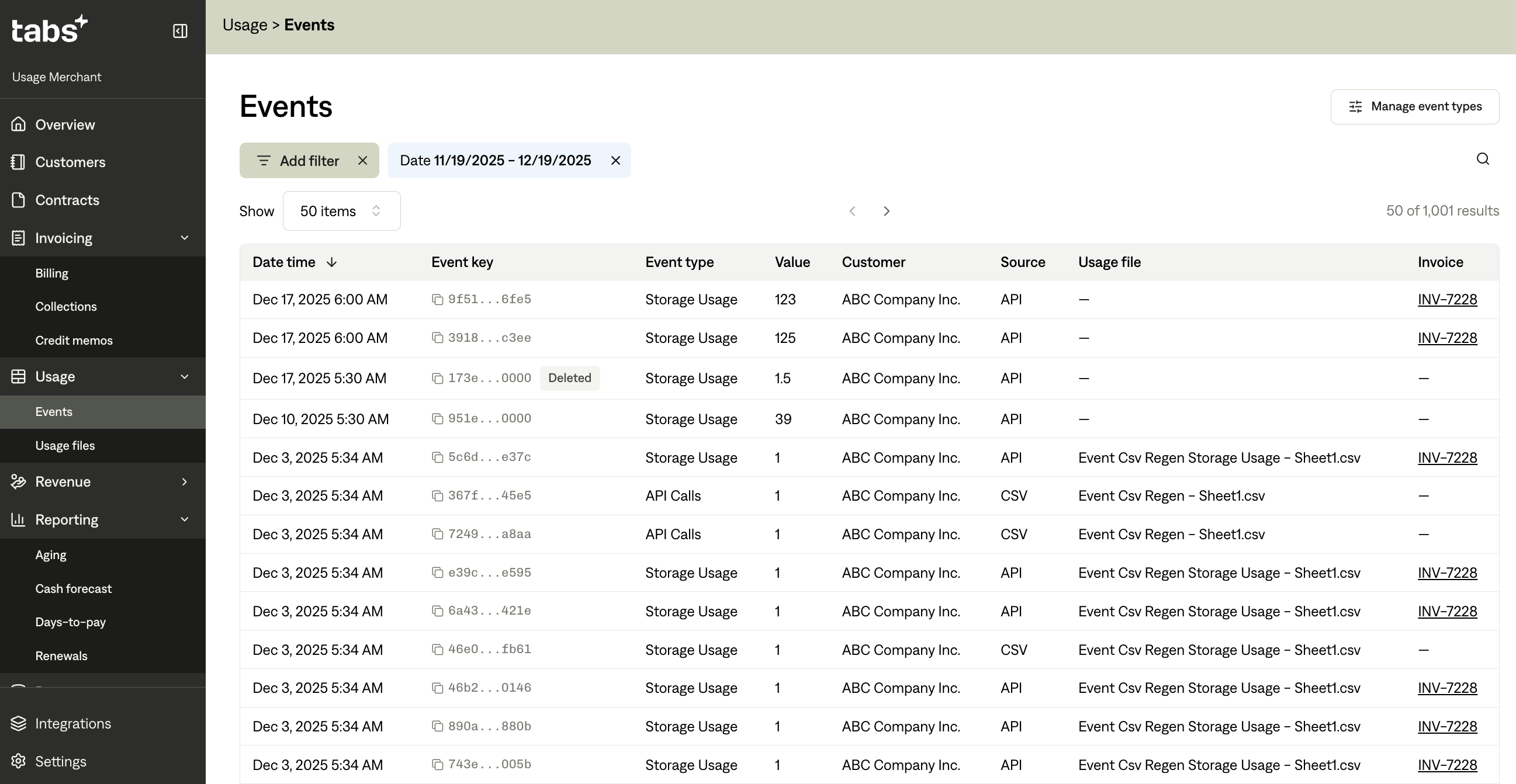
The Events page displays all usage events that have been recorded in your system. Events represent individual instances of usage that are tracked and billed for, such as API calls, storage usage, hours, etc. This page provides a comprehensive view of all events with powerful filtering, searching, and sorting capabilities.
To access the Events page: Navigate to Usage → Events in the main navigation.
What Are Events?
Events are individual data points that represent usage activity. Each event contains:
Date and time when the usage occurred
Event type name (e.g., "API Calls", "Storage GB")
Value (the numeric amount of usage)
Customer who generated the usage
Source (how the event was created: API, CSV, or Invoice update)
Event key (idempotent unique identifier for the event)
Associated invoice (if the event has been billed)
Events are the building blocks of usage-based billing and are aggregated to calculate charges on invoices.
Understanding the Events Table
The Events table displays all events in a sortable, filterable format. Here's what each column shows:
Table Columns
Date Time
When the usage event occurred
Formatted as:
MM/DD/YYYY HH:MM AM/PM(e.g.,01/15/2024 10:30 AM)Sortable: Click the column header to sort by date (newest or oldest first)
Event Key
Unique identifier for each event (also called "idempotency key")
Used to prevent duplicate events
Includes a copy button to easily copy the key
Shows a "Deleted" badge if the event has been deleted
Note: This is automatically generated for events uploaded via CSV, but is a required input when sending events to Tabs via API
Event Type
The category of usage (e.g., "API Calls", "Storage GB", "Hours")
Aligns with the metric or SKU you are tracking usage for in your system
Case-sensitive when uploading usage via CSV
Value
The numeric amount of usage for this event
Formatted with thousand separators (e.g.,
1,500or25.5)Used in billing calculations
Customer
The name of the customer who generated this usage
Source
How the event was created:
API: Created via API integration
CSV: Uploaded via CSV file
Invoice: Created directly on an invoice by editing the quantity of a usage based line item
Usage File
For CSV-uploaded events, shows the name of the CSV file
Empty for API or Invoice-sourced events
Invoice
The invoice number where this event was billed (if applicable)
Clickable link that opens the invoice detail page
Format:
INV-12345(prefix + number)Empty if the event does not tie to an invoice (usually means that a Billing Term has not been set up to bill for this
Filtering Events
The Events page provides powerful filtering options to help you find specific events.
Date Range Filter
Filter events by when they occurred:
Click the "Date" filter dropdown
Select a date range:
Preset ranges: Last 7 days, Last 30 days, Last 90 days, etc.
Custom range: Select specific start and end dates
The table automatically updates to show only events within the selected range
Default behavior: If no date range is selected, the page defaults to showing events from the last 30 days.
Tips:
Use date ranges to focus on specific billing periods
Narrow ranges improve performance when viewing large datasets
Date ranges are saved in the URL, so you can bookmark filtered views
Source Filter
Filter events by how they were created:
Click the "Source" filter dropdown
Select one or more sources:
API: Events created via API integration
CSV: Events uploaded via CSV files
Invoice: Events created directly on invoices by editing the quantity of a usage based line item
The table updates to show only events from selected sources
Multiple selection: You can select multiple sources at once to see events from different sources combined.
Searching Events
Use the search box at the top of the table to find specific events.
What Can You Search?
The search function looks for matches in:
Customer name: Find all events for a specific customer
Event type name: Find all events of a specific type
Event key (idempotency key): Find a specific event by its unique identifier
How to Search
Click in the search box at the top of the table
Type your search term
Results update automatically as you type
Clear the search box to see all events again
Search behavior:
Case-insensitive
Partial matches supported (e.g., searching "API" will find "API Calls")
Works in combination with filters
Sorting Events
Sort events to organize them in different ways:
How to Sort
Click any column header that has a sort icon
Click again to reverse the sort direction
The current sort is indicated by an arrow (↑ ascending, ↓ descending)
Sortable Columns
Date Time: Sort by when events occurred (newest or oldest first)
Note: Currently, only the Date Time column is sortable. Other columns may become sortable in future updates.
Deleted Events
Most events in the table are active and being used for billing calculations. But some events may show a "Deleted" badge next to the Event Key:
What it means: The event has been deleted but is still visible for historical reference
Why it's shown: Maintains audit trail and data integrity
Impact: Deleted events are not included in billing calculations
Visual indicator: Gray "Deleted" badge next to the event key
Common Questions
Why don't I see all my events?
Possible reasons:
Date range filter is limiting results (defaults to last 30 days)
Source filter is excluding some events
Search term is filtering out events
Events haven't been created yet
Solution: Clear filters and expand the date range to see all events.
Why are some events missing invoice links?
Possible reasons:
Invoices haven't been generated yet for those events
Events are outside the billing period
Events are for customers without active billing terms
Solution: Check if invoices should have been generated, or verify customer billing configurations.
What's the difference between Event Key and Event Type?
Event Key: Unique identifier for a specific event instance (like a serial number)
Event Type: Category of usage (like "API Calls" or "Storage GB")
Can I edit or delete events from this page?
Currently, events cannot be edited or deleted directly from the Events page. Events are typically deleted through:
CSV file deletion (for CSV-sourced events)
Invoice adjustments (for invoice-sourced events)
API calls (for API-sourced events)
How far back can I view events?
There's no hard limit, but:
Very old date ranges may take longer to load
Use date range filters to focus on specific periods
Default view shows last 30 days for performance