How do I see which events are associated with an invoice?
Last updated: December 19, 2025
Overview
When invoices are generated from usage data, they include events that have been aggregated and billed. This guide explains how to view which events are associated with a specific invoice, allowing you to audit billing, verify usage calculations, and understand what usage data contributed to an invoice.
There are multiple ways to view invoice-event relationships:
From the Invoice Detail Page - View all events for a specific invoice
From the Events Page - Filter events by invoice
From CSV File Details - See which invoices were generated from a CSV upload
Method 1: Viewing Events from the Invoice Detail Page
This is the most direct way to see all events associated with a specific invoice.
Step-by-Step Process
Navigate to the Invoice
Go to Billing → Invoices (or navigate directly to a customer's invoices)
Find and click on the invoice you want to view
This opens the Invoice Detail Page
Locate the Usage Section
Scroll to the bottom of the invoice detail page
Find the "Usage" section in the invoice metadata (footer area)
This section appears if usage tracking is enabled for your account
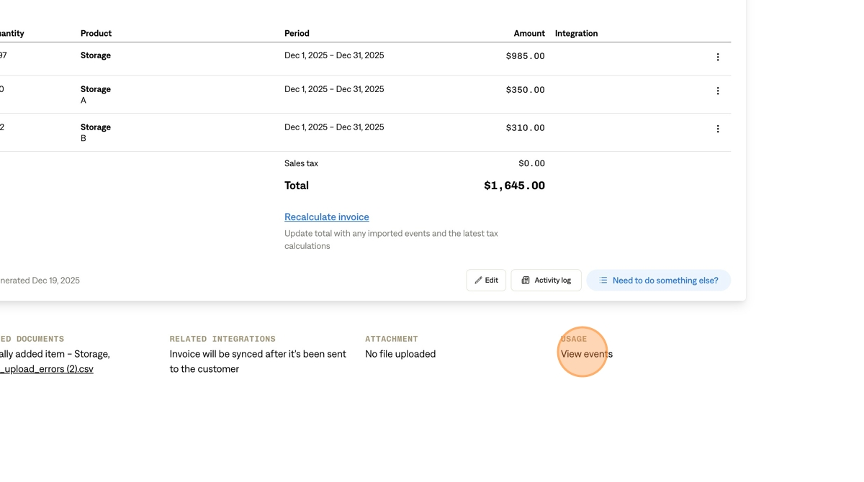
Click "View events"
Click the "View events" link in the Usage section
This automatically filters the Events page to show only events associated with this invoice
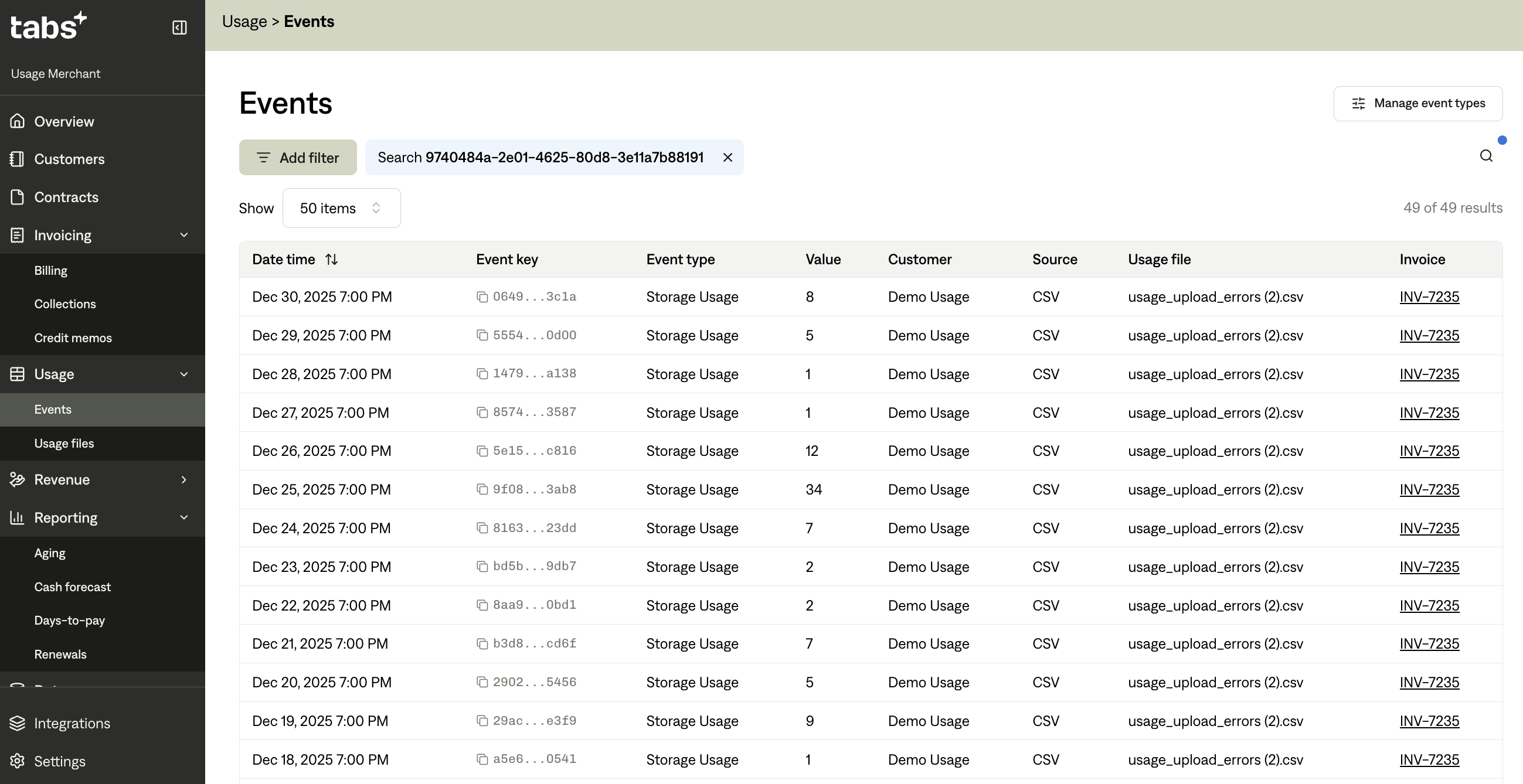
Review the Filtered Events
You'll be taken to the Events page with the invoice ID pre-filled in the search
All events shown will be associated with the selected invoice
The Invoice column will show the invoice number for all displayed events
Important Notes
The "View events" link only appears if usage tracking is enabled for your account
Events are shown in a filtered view—you can clear filters to see all events
The search automatically filters by invoice ID, so you'll only see events for that specific invoice
Method 2: Filtering Events by Invoice on the Events Page
You can manually search for events associated with an invoice from the Events page.
Step-by-Step Process
Navigate to the Events Page
Go to Usage → Events
Use the Search Function
Locate the search box at the top of the Events table
Enter the invoice ID or invoice number
The table will automatically filter to show matching events
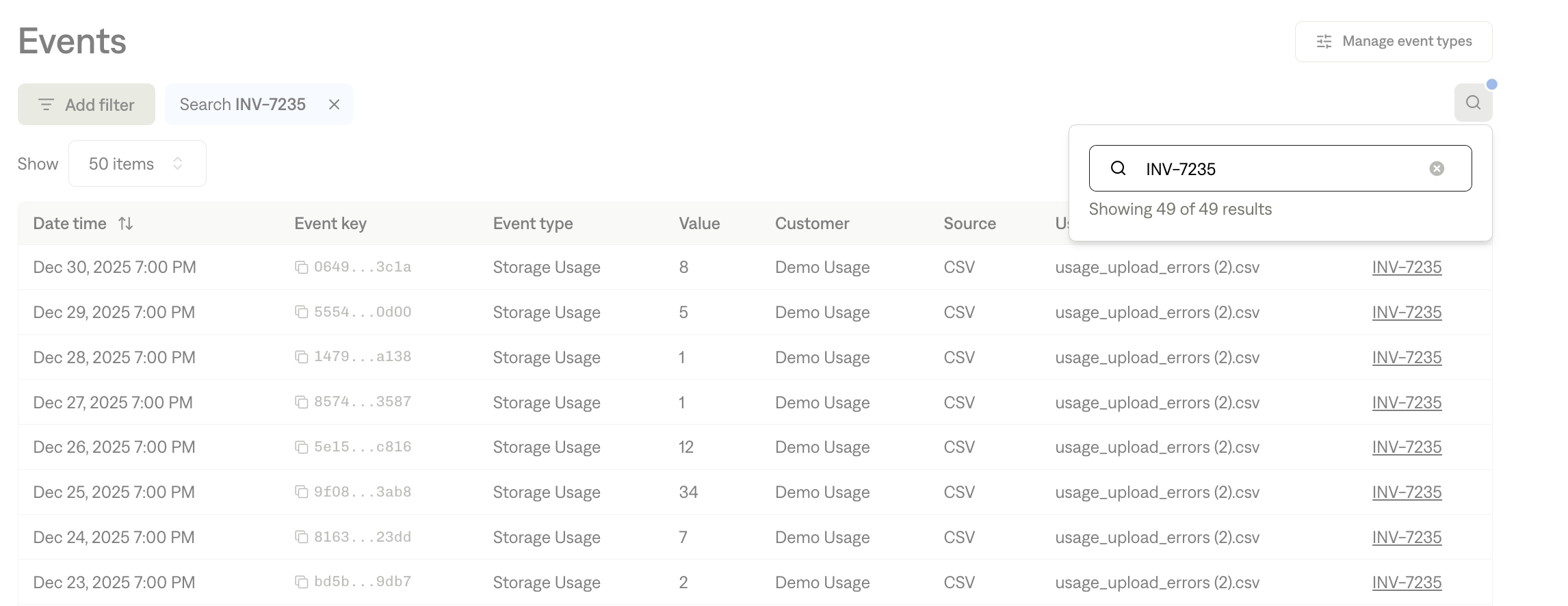
Review Results
Events associated with the invoice will appear in the results
Check the Invoice column to verify the invoice number matches
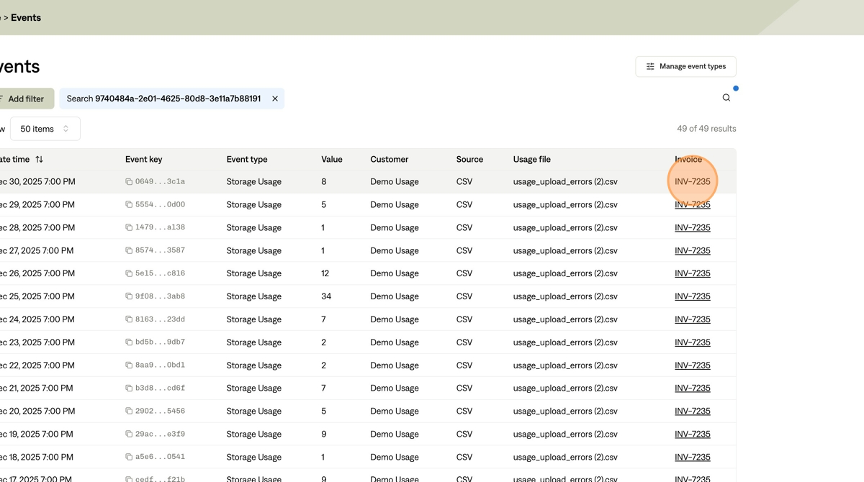
Alternative: Use the Invoice Column
If you can see invoice numbers in the Invoice column:
Look for events with the invoice number you're interested in
Click the invoice link in any event row to go to the invoice detail page
Tips
Invoice ID vs. Invoice Number: You can search by either the invoice ID (UUID) or the invoice number (e.g., "INV-12345")
Partial matches: The search supports partial matches, so you can search for part of an invoice number
Combine with filters: Use date range or source filters along with the search to narrow results further
Method 3: Viewing Invoices from CSV File Details
If events were uploaded via CSV, you can see which invoices were generated from that CSV file.
Step-by-Step Process
Navigate to Usage Files
Go to Usage → Files (or Usage → Upload CSV → view uploaded files)
View Related Invoices
Find the "View Invoice" link on the right of file you are interested in
This will take you to the invoices page filtered for that CSV file

Click Invoice Links
Click any invoice link to view the invoice detail page
Then use Method 1 to see all events for that invoice
What This Shows
All invoices that include events from the selected CSV file
Invoice numbers and status
Quick access to invoice detail pages