Managing Credit Memos in Tabs
Last updated: October 28, 2025
Once a credit memo is created, you can view, edit, download, or apply it to invoices. This article covers the impact on accounting, notifications, and advanced usage.
Syncing with the General Ledger
Tabs → GL
Both the credit memo and invoice adjustment sync immediately.GL → Tabs
QuickBooks: Credit memos created in QuickBooks sync back as a payment (closing the invoice, but not affecting revenue).
NetSuite: Credit memos created in NetSuite do not sync back to Tabs.
Accounting Impact
When a credit memo is created in Tabs:
Credit: Accounts Receivable
Debit: Account(s) tied to the integration item(s)
Revenue impact:
Revenue GL account: Revenue is reduced.
Expense GL account: No revenue impact.
These effects flow into:
Revenue Recognition Report
ARR Waterfall
Revenue Close Management journal entries
Viewing and Downloading Credit Memos
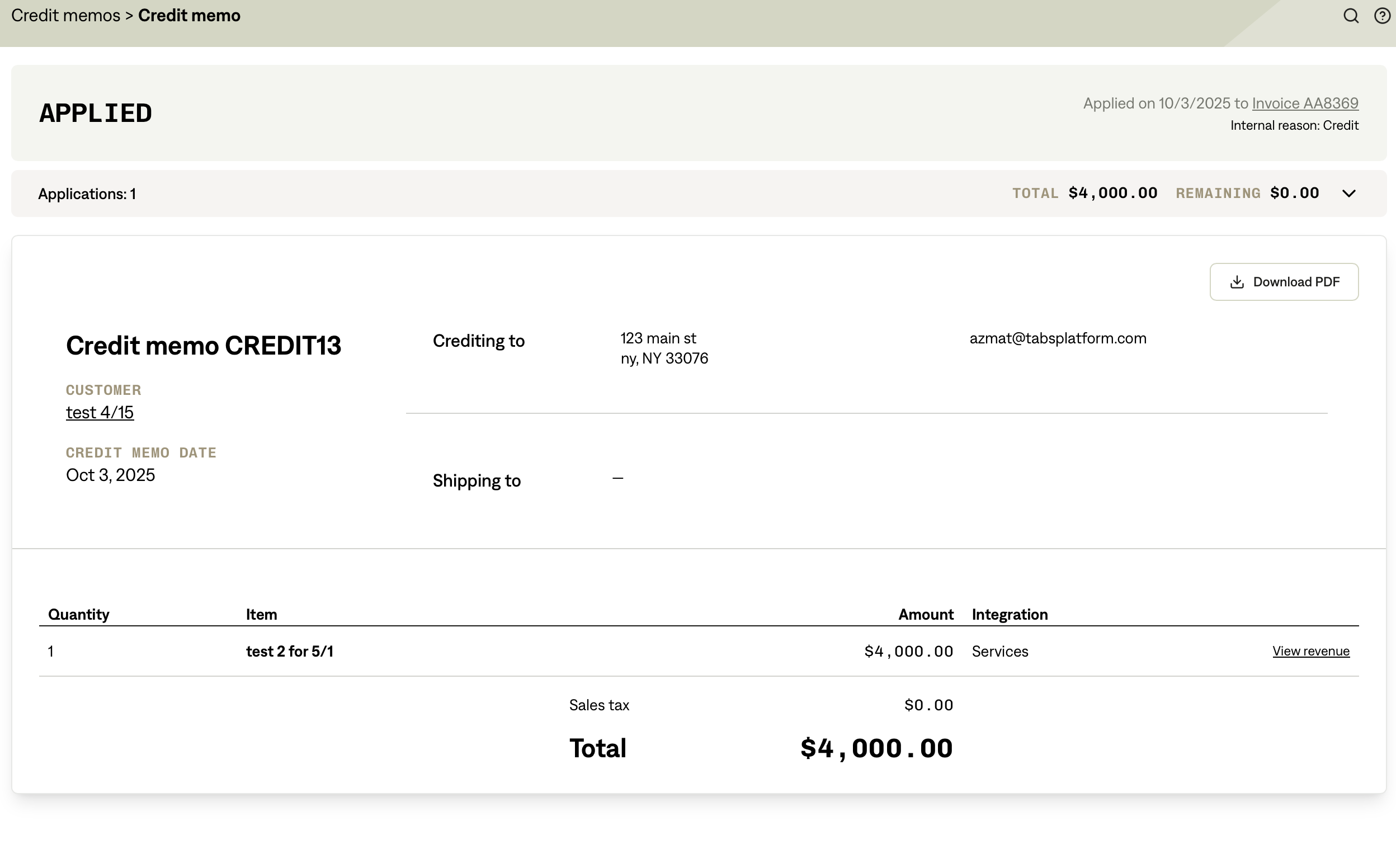
From Sidebar: Go to Invoicing > Credit Memos
From Invoice: Open the invoice → three dots (⋮) → View Details
Download PDF: Available in credit memo details or via invoice action menu
Customer Notifications
Customers are notified only when a credit is applied to an invoice.
They receive an email with a PDF of the updated invoice.
Customization
Update the credit memo prefix in Billing Settings.
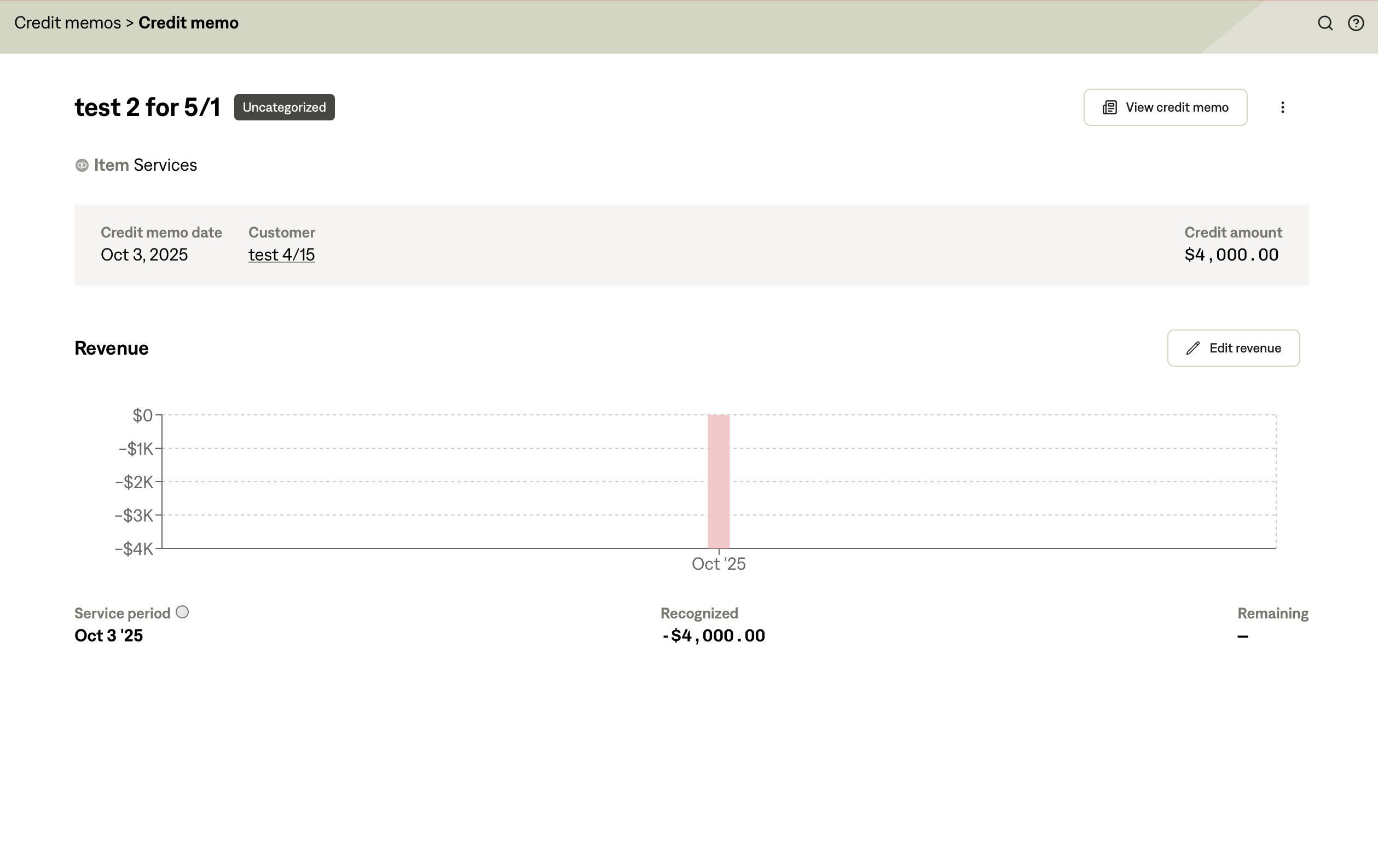
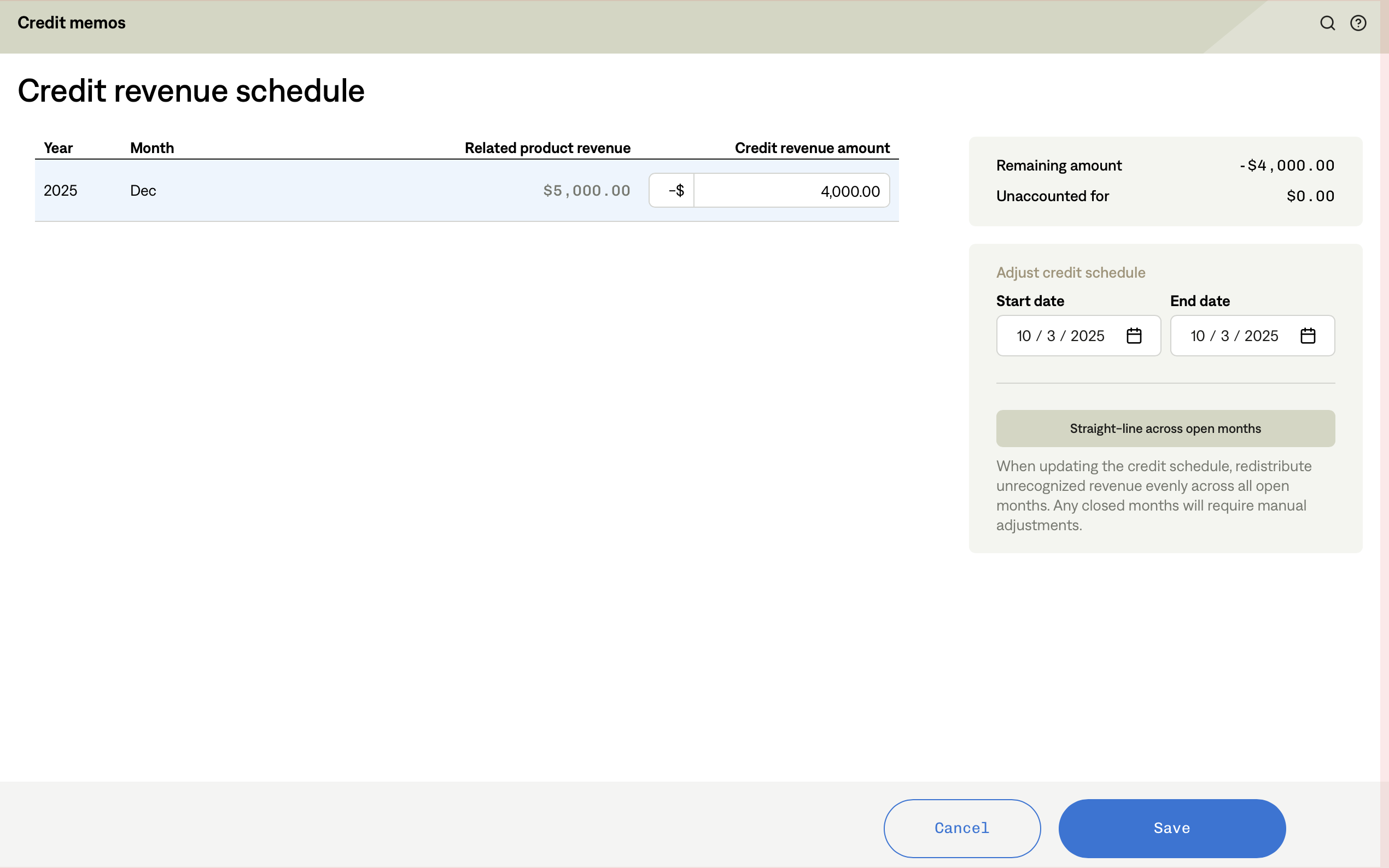
To adjust revenue impact: Credit Memo Details > View Revenue > Edit Revenue.
API and Advanced Use
Create via API: Yes.
Customer-Level Credit Memos: Apply credit at the customer level for future invoices.
Future Use: Create a credit memo now and apply it later.
Multiple Invoices: Open credit memos can be applied across multiple invoices.
Key Takeaways
Credit memos sync to the GL automatically.
Revenue impact depends on the GL account tied to the product.
Customers are notified only when credits are applied.
Advanced API options allow future use and multi-invoice application.