Create and Apply Later Credit Memo
Last updated: October 24, 2025
Credit memos in Tabs can either be applied immediately to an invoice or created and left open to apply at a later time. This guide shows you both flows.
Creating a Credit Memo Without Applying
Find the Invoice
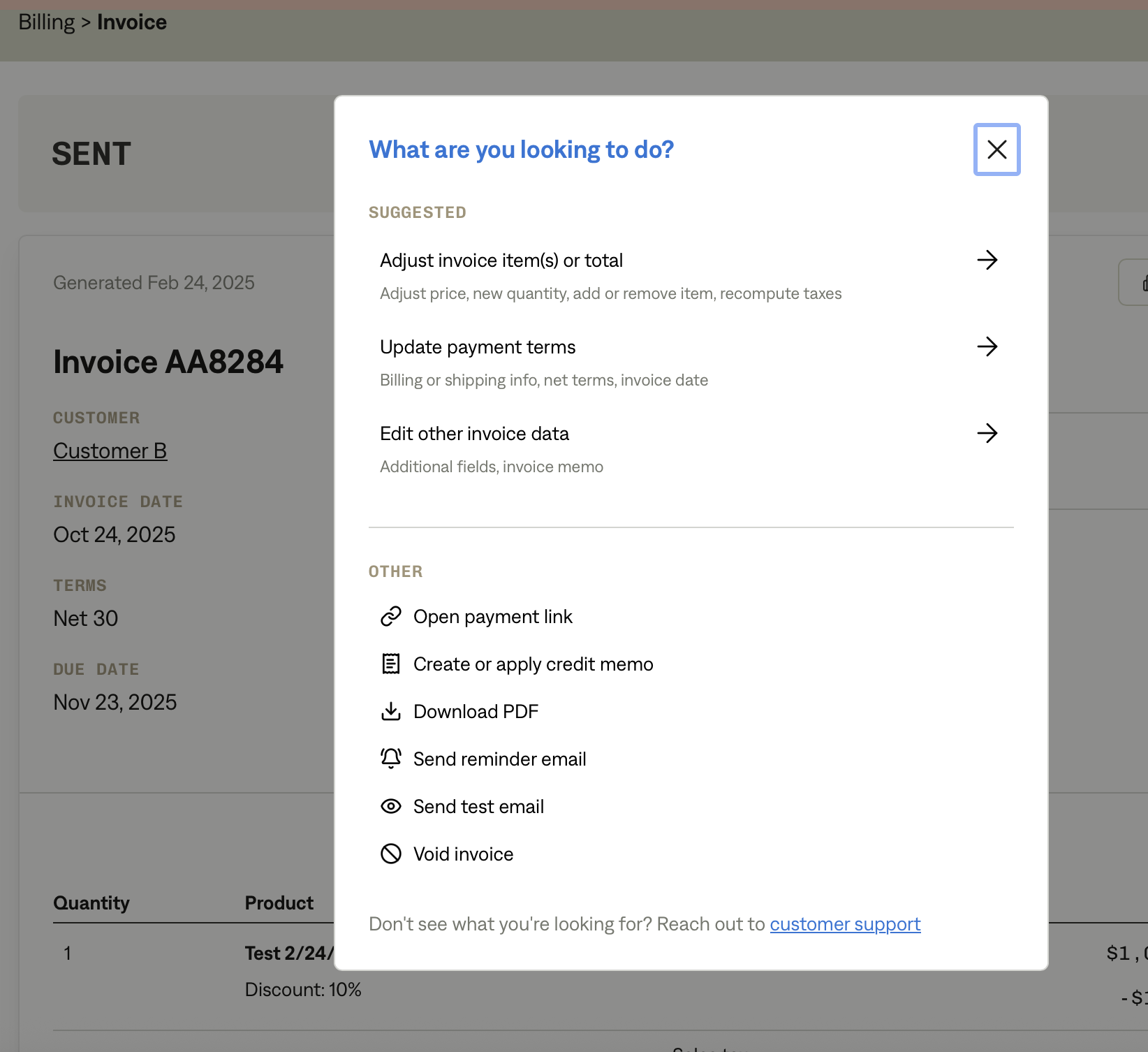
From Invoicing > Billing, select any invoice that is applicable for a credit (already sent and has an outstanding balance)
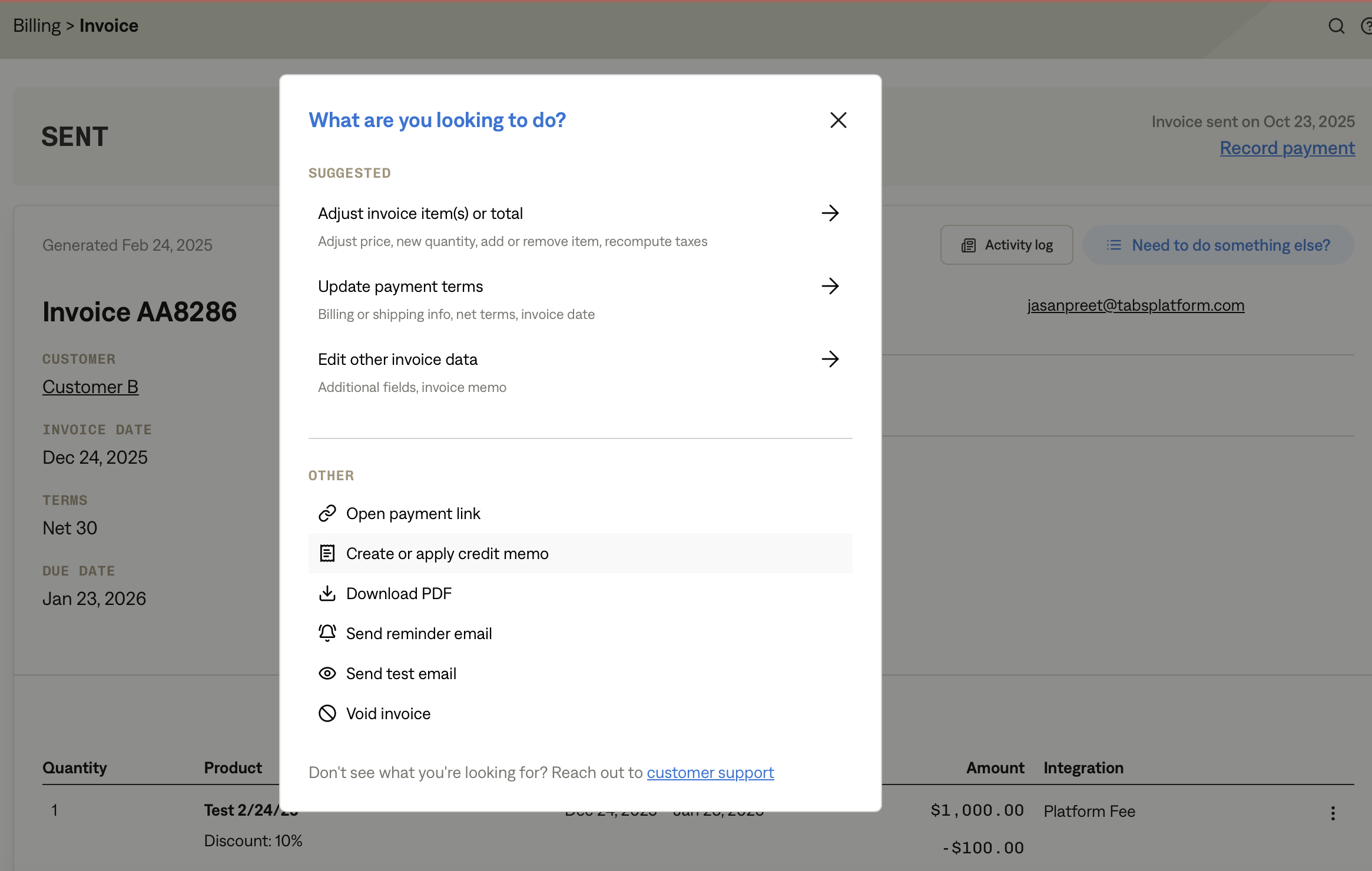
Click "Need to do something else?" and choose “Create or apply credit memo.”
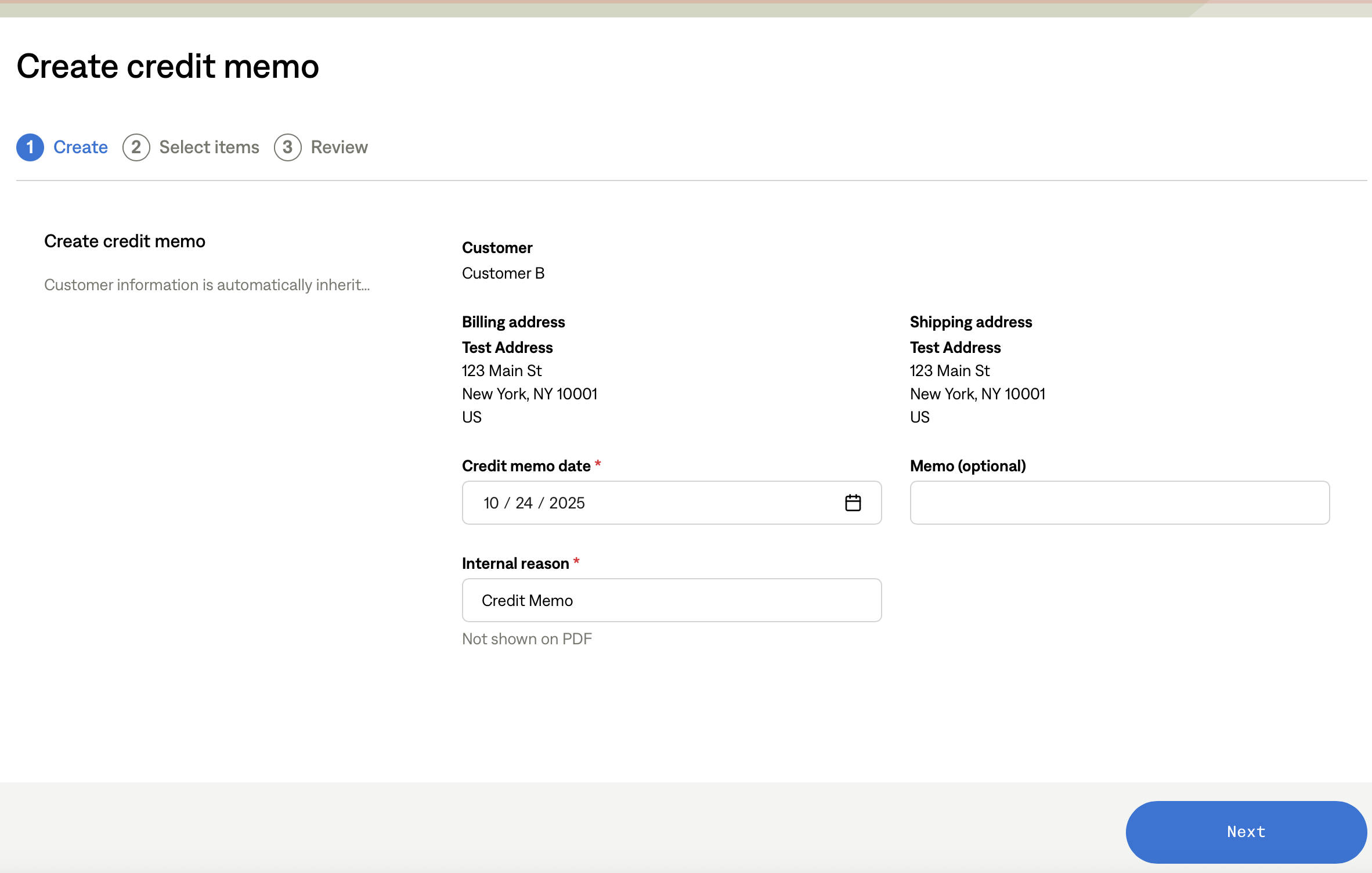
Create the Credit Memo
Follow the create flow:
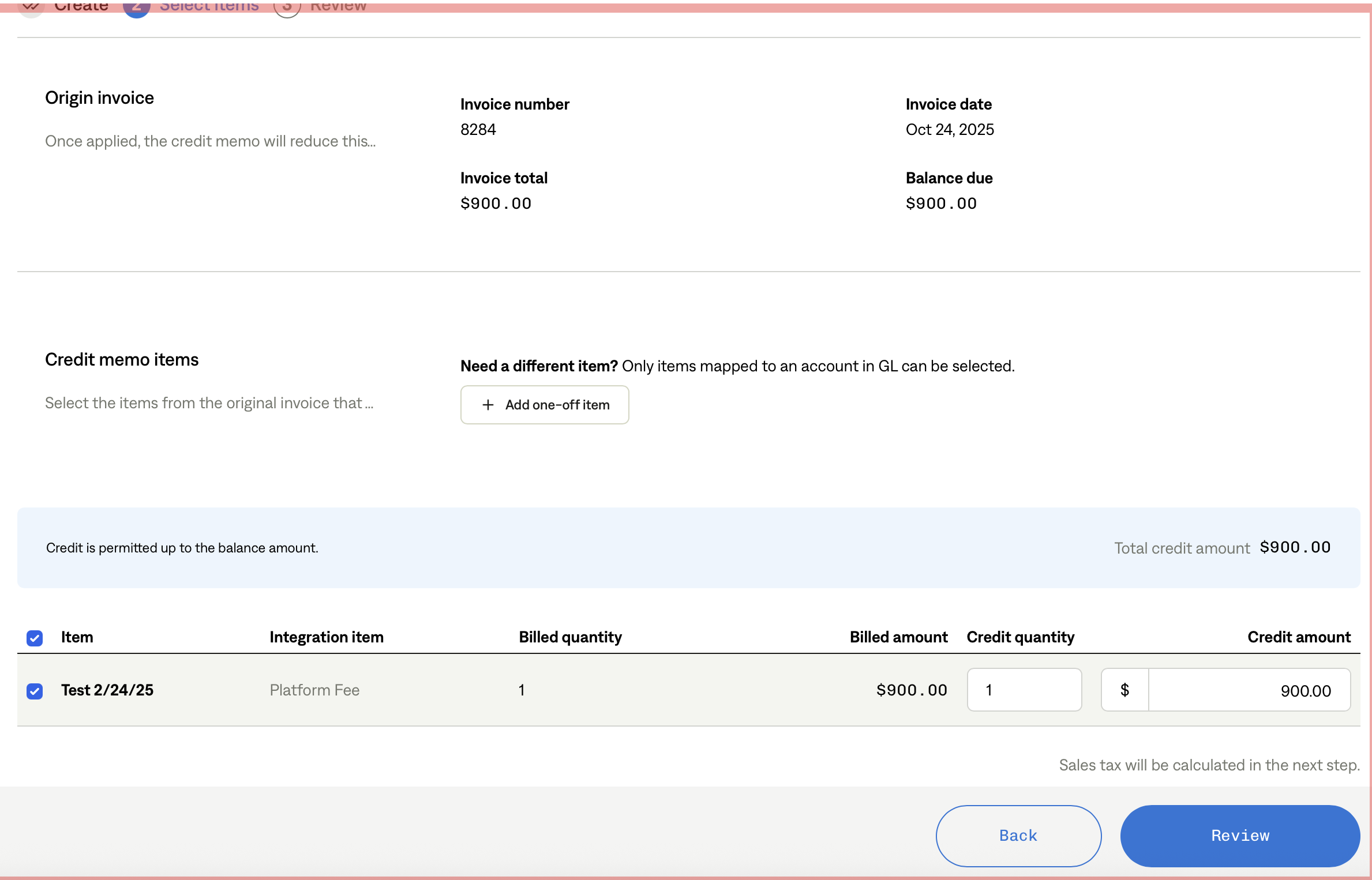
Select items or add one-off items.
Enter credit quantities and amounts.
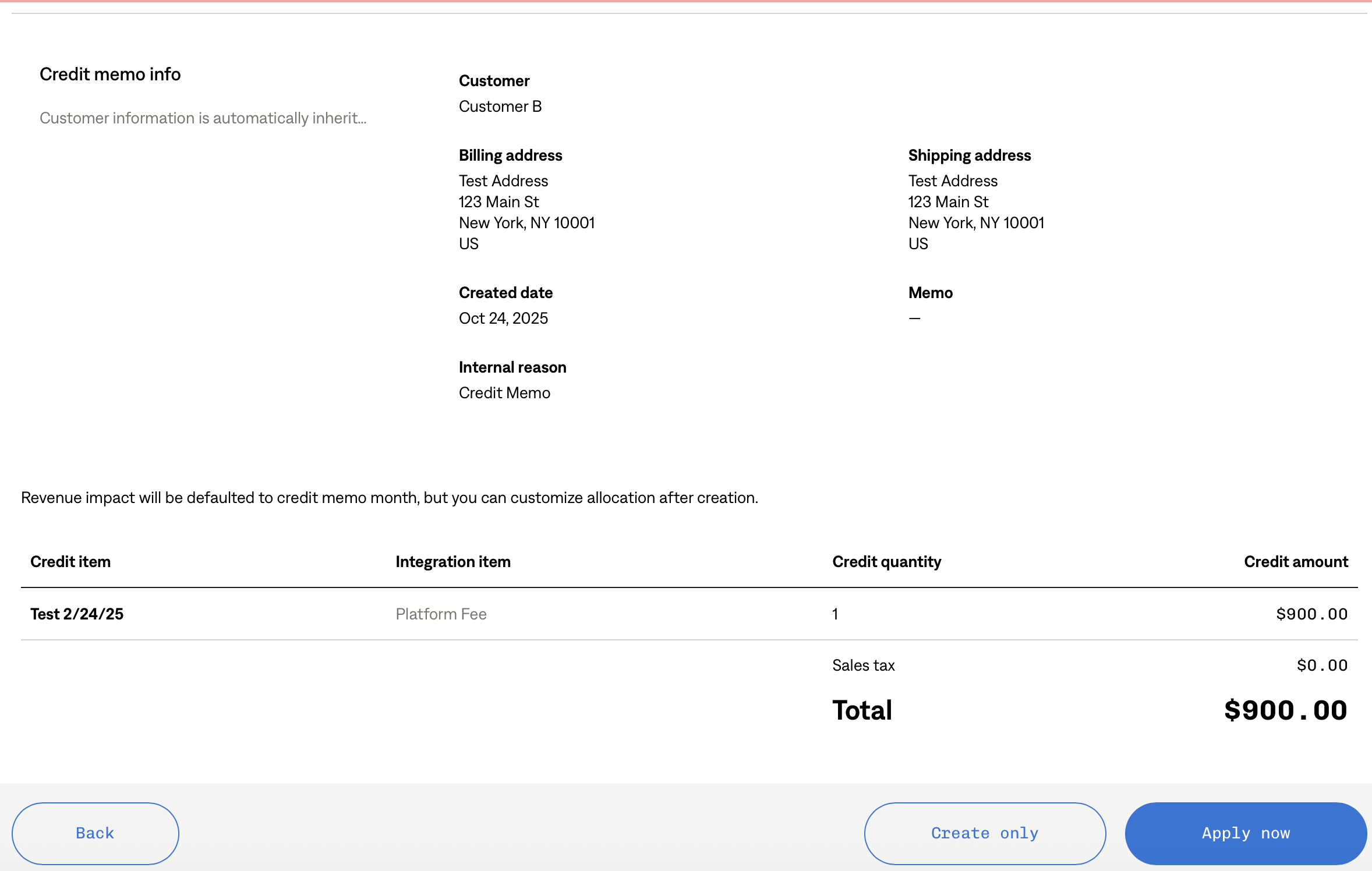
Review credit details.
Choose “Create only”
At the final step, select Create only (instead of “Apply now”).
This creates the credit memo but leaves it open, not yet applied to an invoice.
Result
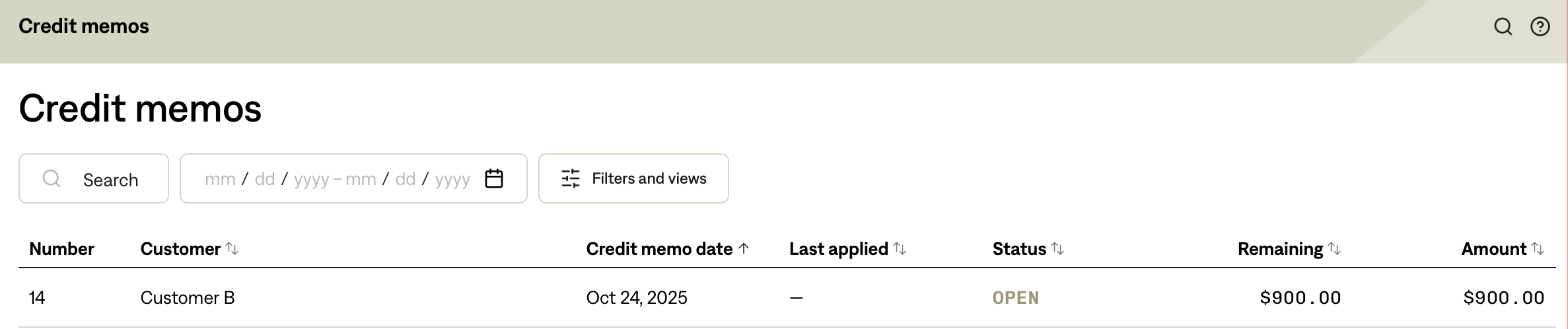
The credit memo is listed under Invoicing > Credit memos with a status of OPEN.
Viewing Open Credit Memos
Go to Invoicing > Credit memos.
You’ll see:
Number
Customer
Credit memo date
Last applied
Status (OPEN or APPLIED)
Remaining balance
Amount
Open credit memos show as OPEN until you apply them.
Applying a Credit Memo Later
Find the Invoice to Apply To
Navigate to the invoice you want to reduce.
Click the "Need to do something else?" menu.
Select “Create or apply credit memo.”
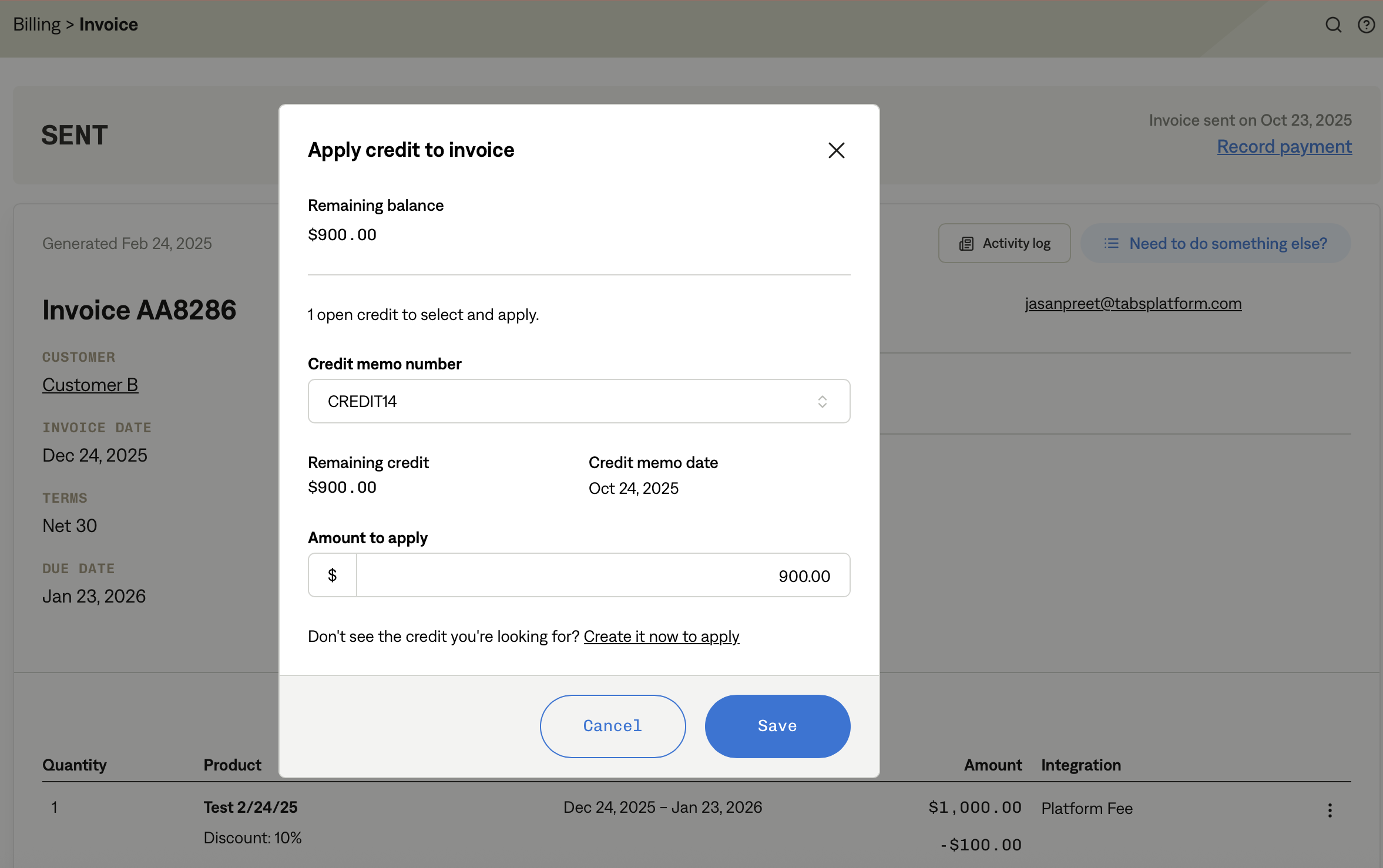
Select an Existing Credit Memo
Tabs will show available open credit memos for that customer.
Choose the one you want to apply.
Enter a credit amount that does not exceed the balance due or total available credit.
Apply the Credit
Confirm the application.
The credit memo status will update to APPLIED.
The invoice balance will be reduced accordingly.
Key Points
Create only = leaves the memo open for later use.
Apply now = immediately applies the credit to the selected invoice.
Open credit memos can be applied to future invoices or across multiple invoices.
Customers only receive notifications once a credit is applied (not when created).