How do I edit an invoice that has already been sent?
Last updated: September 16, 2026
Summary
There are 2 types of invoice edits that Tabs Supports:
Edits that do not impact General Ledger (GL)
Edits that impact General Ledger
Edits that do not impact GL
What sections of an invoice can I edit that does not need to be sent to the GL?
Customer Information
Billing POC
Purchase Order number
Invoice Memo
Edits that impact GL
Any edits that require information to be sent back to the general ledger (GL), the invoice will need be reset, edited, then resent.
What information gets sent to GL?
Invoice Number
Dates - Invoice date & due date
Payment Terms - Impacts due date
Line item specifics
Name
Quantity
Service Period
Amount
Integration Item
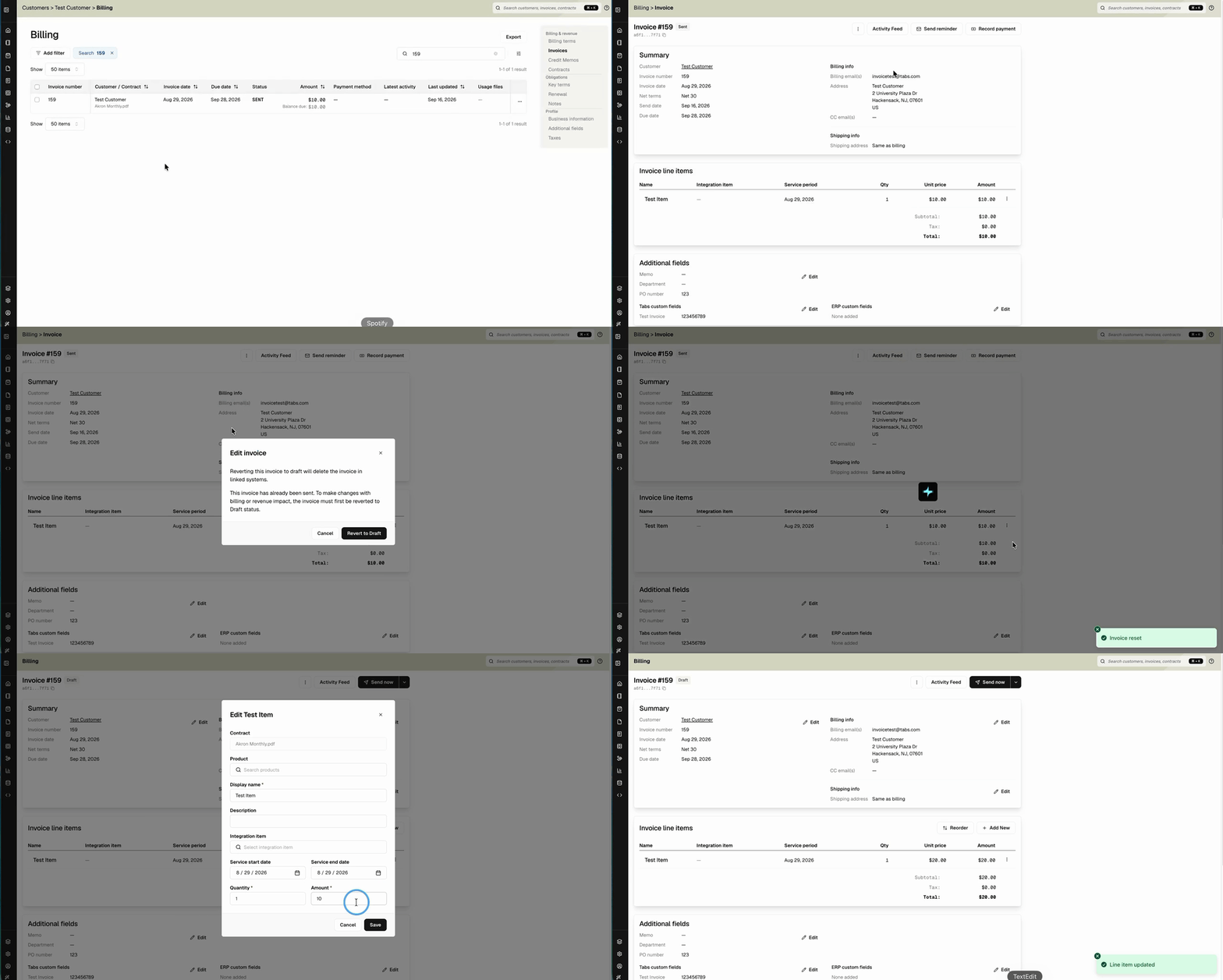
Steps to edit a sent invoice:
Navigate to the billing page
Click on the invoice that you want to edit
Select the three vertical dots at the top of the invoice.
Click Revert to Draft
This will reset the invoice to DRAFT status & remove the invoice from ERP
Make edits
Select Apply
Send updated invoice to customer (will send new invoice to GL)