Settings Overview
Last updated: February 17, 2026
The Settings page controls the information and rules used when generating invoices and processing customer payments.
You should review and configure these settings:
During onboarding
Before sending your first invoice
Anytime your billing or payment policies change
Incorrect configuration can result in:
Invoices missing legal details
Payment failures
Incorrect numbering
Credit memos not applying properly
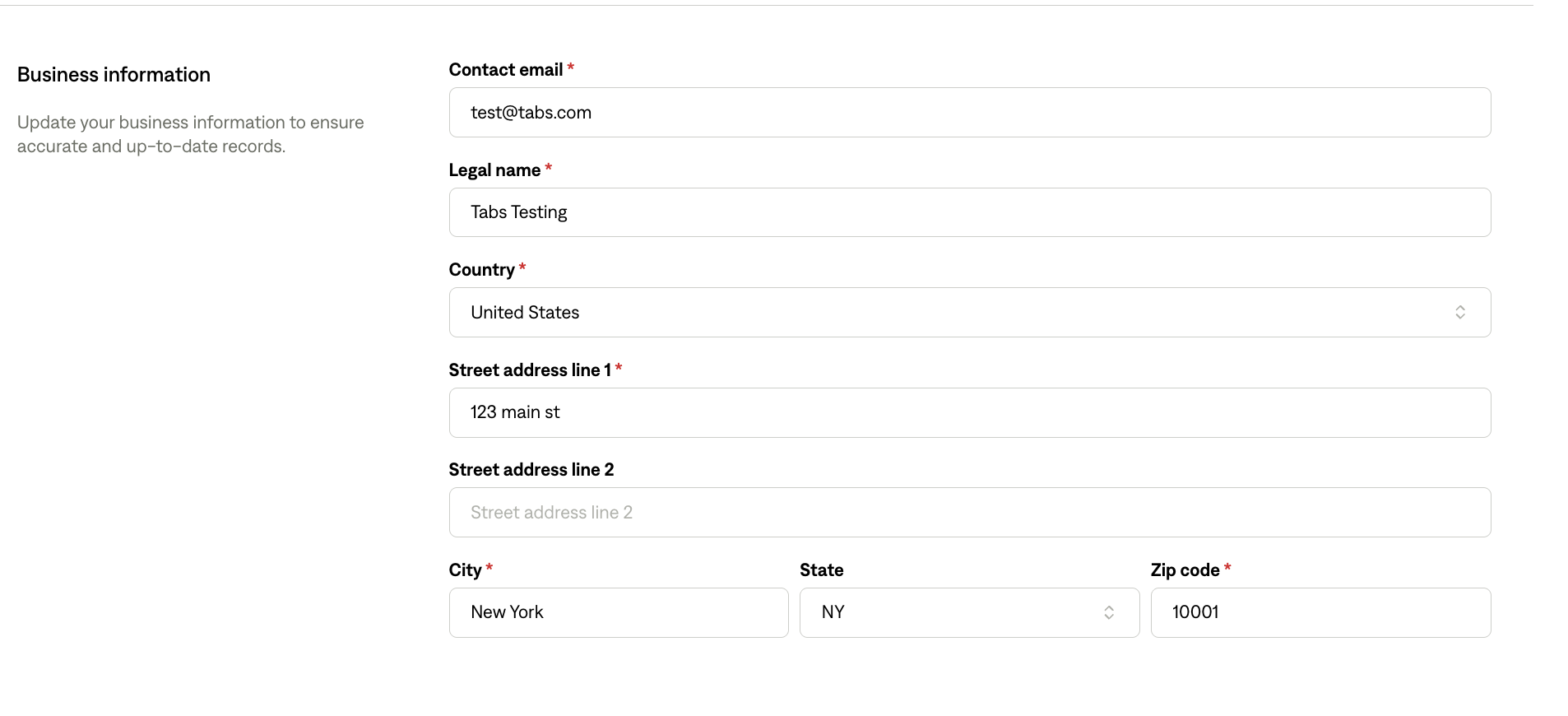
Business Information
This information appears on all customer-facing invoices.
Ensure this section is accurate before sending invoices.
Required Fields
Contact Email
Email shown on invoices for billing questions.
Use a monitored inbox (e.g., billing@yourcompany.com).Legal Name
Your registered business name. This should match contracts and tax documentation.Street Address
Official business address shown on invoices.City, State, Zip Code
Used for tax, compliance, and invoice formatting purposes.
Best Practices
Double-check spelling and formatting — invoices are customer-facing documents.
Update immediately if your business address changes.
Billing Settings
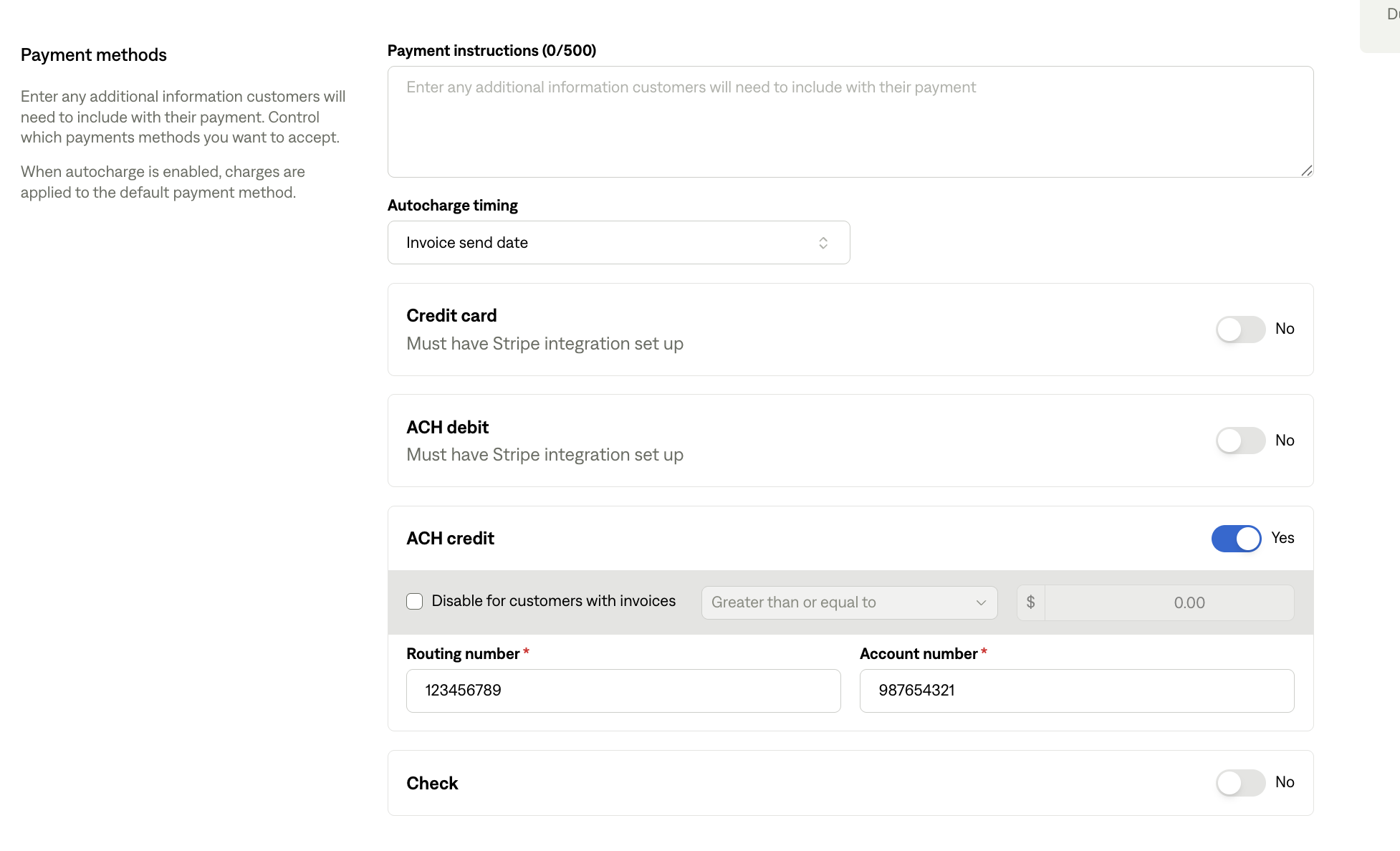
Billing Settings controls how customers can pay and how payments are processed.
Payment Methods
You can enable or disable the following:
ACH Debit (Stripe Integration Required)
Credit Card (Stripe Integration Required)
Pass Through Credit Card Fees (Stripe required)
Check
ACH Credit
Disabling a payment method removes it as a payment option on invoices going forward.
⚠ Changes do not retroactively impact already-issued invoices.
Additional Settings
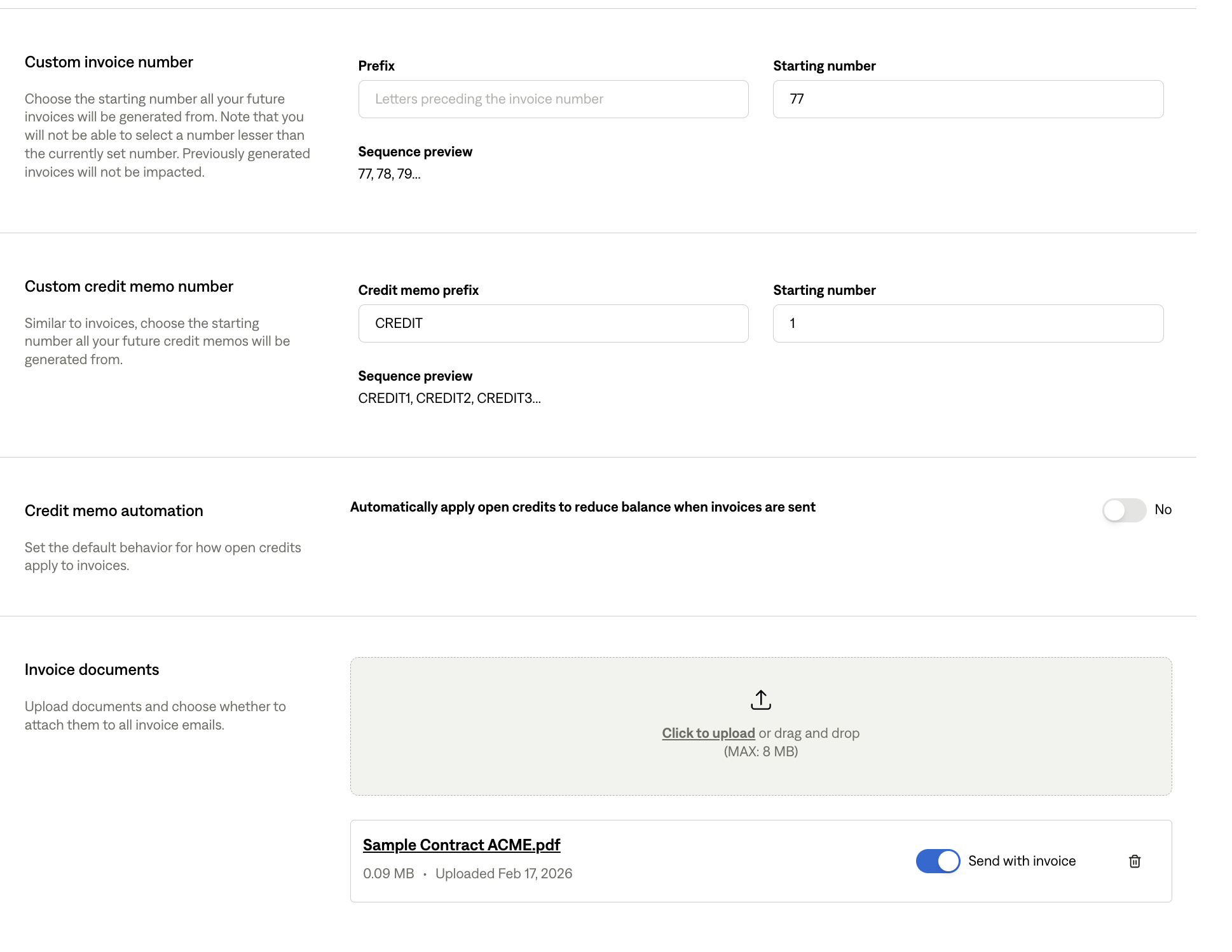
These settings control invoice numbering, credit memo behavior, and document attachments.
Custom Invoice Number
Define how invoice numbers are generated.
Prefix – Optional label before the number (e.g., INV)
Starting Number – The number your sequence begins from
Example:
Prefix: INV
Starting Number: 77
Result: INV-77, INV-78, INV-79…
You are migrating from another system
You need continuity in numbering
Custom Credit Memo Number
Similar to invoice numbering.
Define a prefix (e.g., CM)
Set a starting number
Example:
CM-1, CM-2, CM-3…
This keeps your accounting records clean and traceable.
Auto Apply Credit Memo
When enabled, credit memos automatically apply to open invoices when invoices are sent.
Enable this if:
You frequently issue credits
You want automatic reconciliation
Disable if:
You prefer manual application for review or approval workflows
Invoice Documents
You can upload documents that attach automatically to every invoice.
Examples:
W-9 forms
Banking details
Contract terms
Compliance documents
Use the toggle to control whether the document:
Is stored only
Or sent with every invoice
Best practice:
Only attach documents that customers regularly need. Avoid cluttering invoices with unnecessary files.