Uploading Contracts to Tabs via API
Last updated: June 9, 2026
A one-page guide for merchants using HubSpot, Salesforce, and QuickBooks
Overview
Tabs supports multiple ways to get contracts into the platform. Your CRM integrations can automatically sync contract documents from closed deals — and you can also upload contracts directly through the Tabs Integrators API when that fits your workflow better.
Channel | What it does |
|---|---|
HubSpot integration | Automatically syncs PDFs from closed-won Deals |
Salesforce integration | Automatically syncs contract documents from configured Salesforce opportunities |
Tabs Integrators API | Lets you upload contracts programmatically from any source |
QuickBooks | Handles accounting downstream (invoices, customers) — it does not upload contracts into Tabs |
All three inbound channels (HubSpot, Salesforce, API) feed into the same Tabs contract processing pipeline. QuickBooks remains your ERP layer after contracts are processed.
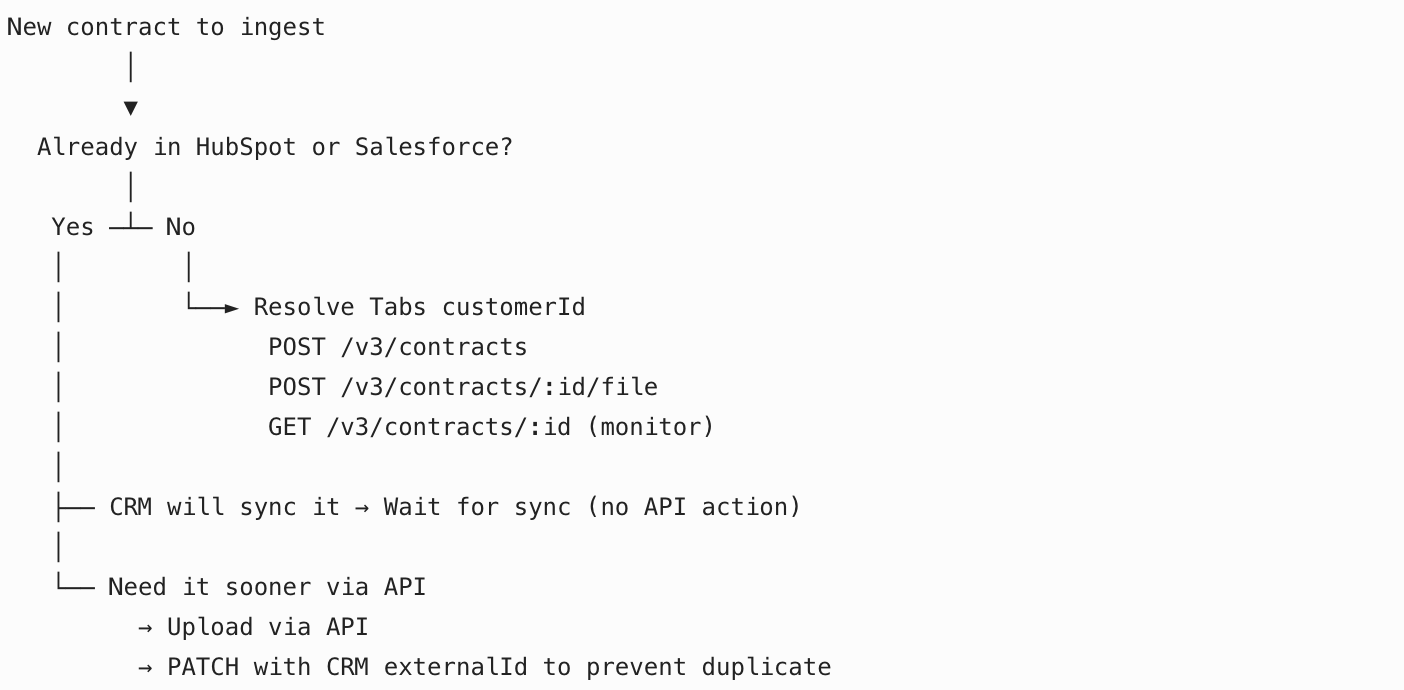
Note: For contracts that already live in your CRM, letting your CRM integration handle sync is usually the simplest path. The API is best suited for contracts that fall outside CRM — or whenever your team has a specific workflow that calls for a direct upload.
When to use the API vs. your CRM
Situation | Recommended approach |
|---|---|
Contract PDF is on a closed-won HubSpot Deal | Let HubSpot sync handle it |
Contract PDF is on a closed Salesforce Opportunity | Let Salesforce sync handle it |
Contract is not in your CRM (legacy agreements, partner paper, amendments, one-offs, internal sources) | Upload via API |
You have a custom workflow that requires uploading a contract directly (e.g. a proprietary system, batch migration, or operational process outside CRM) | Upload via API — your CRM sync can continue running alongside |
One deal has multiple PDFs | CRM sync creates one Tabs contract per file — use the API for any additional documents your CRM won't sync |
Avoiding duplicates: CRM sync skips files it has already ingested. API uploads without a CRM external ID are treated as separate contracts. If the same file could arrive through both channels, link them explicitly (see Step 5).
Prerequisites
Before uploading, confirm you have:
Tabs API key — provided by your Tabs team
API base URL
Production:
https://integrators.prod.api.tabsplatform.comDevelopment:
https://integrators.dev.api.tabsplatform.com
A Tabs customer ID — required for every contract
Customers are often already in Tabs from HubSpot or Salesforce sync (you'll see these as
Created by HUBSPOTor similar in the UI)You can also create customers via
POST /v3/customers
A valid PDF — must be a real PDF file (max ~50 MB)
Authentication: Include your API key in the Authorization header on every request.
Upload in two steps
Tabs uses a two-step upload: create the contract record, then attach the PDF.
Step 1 — Create the contract
POST /v3/contracts
Content-Type: application/json

{
"name": "Acme - 2026 Order Form",
"customerId": "{your-tabs-customer-uuid}",
"closeDate": "2026-01-15"
}
Save the id from the response. The contract is created with status NEW; processing has not started yet.
Step 2 — Upload the PDF
POST /v3/contracts/{contract-id}/file?shouldProcess=true
Content-Type: multipart/form-data

file: <your-contract.pdf>
With shouldProcess=true (the default), Tabs stores the file and begins contract processing. The response includes a jobId you can use to track progress.
Verify the upload
Action | Endpoint |
|---|---|
Check contract status |
|
List all contracts |
|
Download the uploaded file |
|
You can also confirm the contract appears under the customer in the Tabs dashboard.
Step 5 — Using the API alongside your CRM
Your CRM integrations keep running on their normal schedule. You do not need to disable HubSpot or Salesforce sync to use the API.
Typical pattern: Let CRM handle CRM-sourced contracts, and use the API for everything else — whatever your team's reason. Common examples include legacy contracts, documents from systems outside your CRM, batch imports, or any internal process where a direct upload makes more sense.
If a contract could appear in both places
This is uncommon, but if the same file might be ingested by CRM sync and uploaded via API, you have a few options:
Option A — Split by source (most common): CRM sync handles CRM deals; API handles non-CRM contracts. No overlap, no extra steps.
Option B — Link after API upload: If you've uploaded via API and want CRM sync to recognize it as the same document, attach the CRM file ID:
PATCH /v3/contracts/{contract-id}

{
"externalId": "{crm-file-or-attachment-id}",
"sourceType": "HUBSPOT"
}
Use "sourceType": "SALESFORCE" for Salesforce attachments. Future CRM syncs will skip that file.
Option C — Check before uploading:
GET /v3/contracts?filter=externalIds.externalId:{crm-attachment-id}If a match exists, skip the upload.
How CRM sync handles customers
HubSpot and Salesforce syncs create and update customers automatically before syncing contracts — which is why you may see customers labeled Created by HUBSPOT in the UI. Contract sync then links each deal to that customer record. For API uploads, you need an existing Tabs customerId (often one your CRM sync already created).
CRM sync behavior to keep in mind
One PDF = one contract. Multiple attachments on a single deal create multiple Tabs contracts.
Only eligible deals sync. HubSpot syncs closed-won Deals; Salesforce syncs based on your configured opportunity criteria.
Customer sync must be enabled. If customer sync is off or a company hasn't synced yet, CRM contract sync may skip that deal.
QuickBooks note
QuickBooks does not upload contracts into Tabs. After a contract is processed, billing terms, invoices, and revenue data may sync to QuickBooks per your ERP configuration. Customers created by HubSpot may show EXISTS IN QBO once linked to QuickBooks — that's the ERP connection working downstream, separate from how the contract arrived in Tabs.
Quick reference
New contract to ingest
Common issues
Issue | What to do |
|---|---|
Duplicate contracts | Split sources (CRM vs. API), or link a CRM |
Missing | Look up via |
Upload rejected | Confirm the file is a valid PDF starting with |
Processing didn't start | Complete Step 2 (file upload) with |
CRM sync skipped a deal | Verify customer sync is enabled and the deal meets closed-won criteria |
API documentation
Full endpoint reference, request schemas, and examples are at docs.tabsplatform.com under Integrators API v3 — Contracts and Customers.
For integration setup (HubSpot, Salesforce, or QuickBooks), contact your Tabs solutions team.