How to Manually Create Invoices in Tabs
Last updated: August 24, 2026
Summary / Introduction
Learn how to create new billing periods and invoices in the Tabs merchant application.
Step-by-Step Instructions
Navigate to Customer Page: Go to the customer's account page
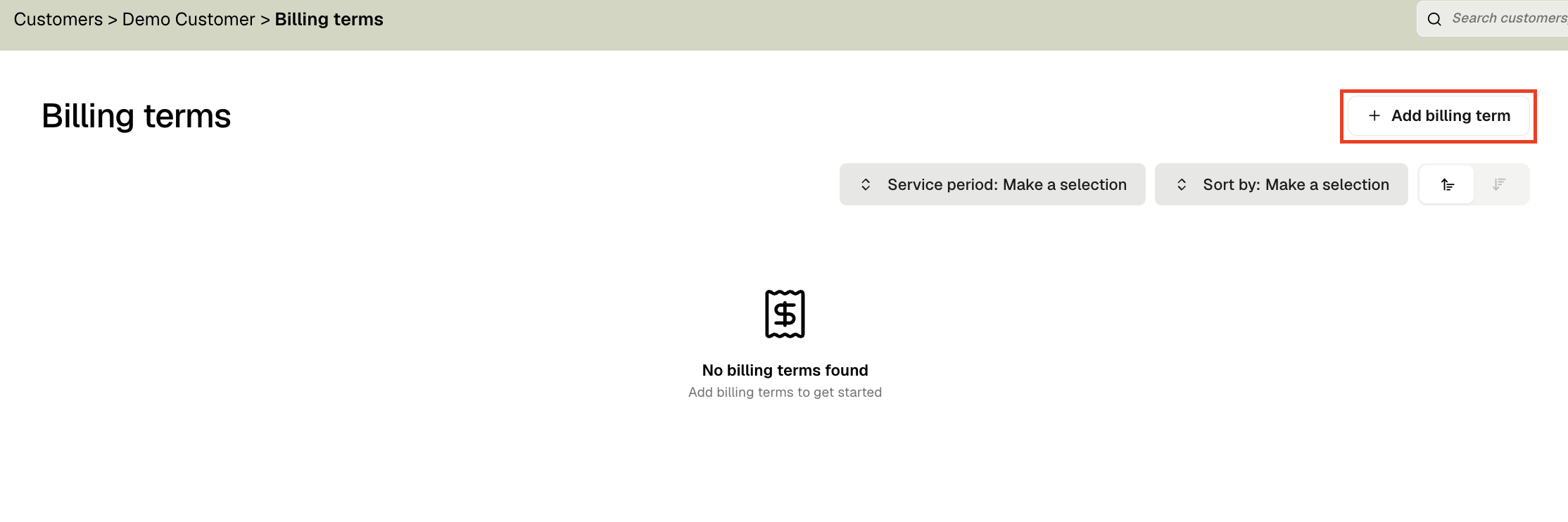
Access Billing Terms: Click on the "Billing Terms" tab
Add New Billing Term: Click the "+ Add billing term" button
Enter Billing Term Details: Fill in the necessary billing term information
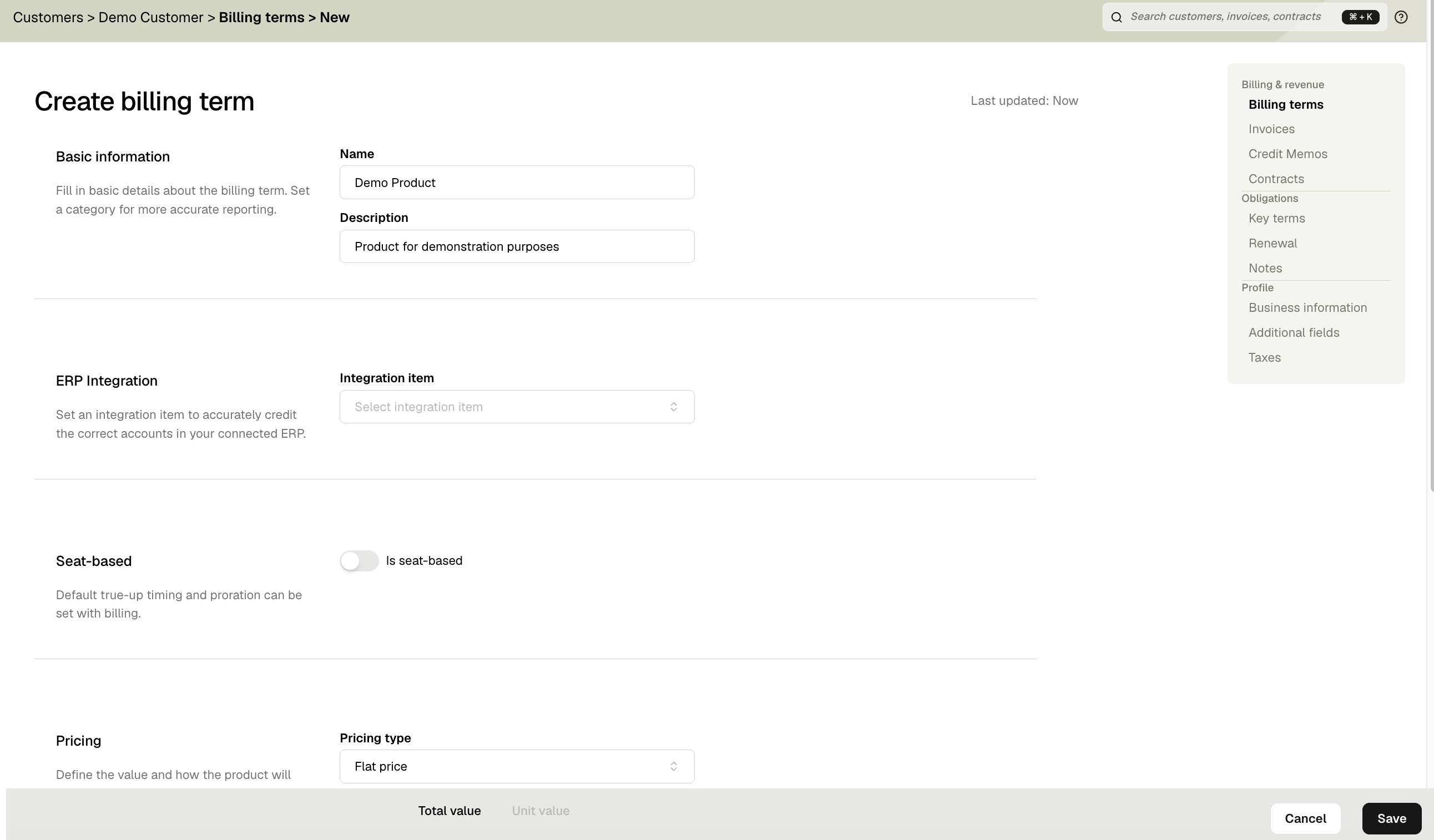
Save Billing Term: Click the "Save" button to create the billing term
Set Up Billing: Click "+ New billing schedule" to configure the billing schedule (See screenshot)
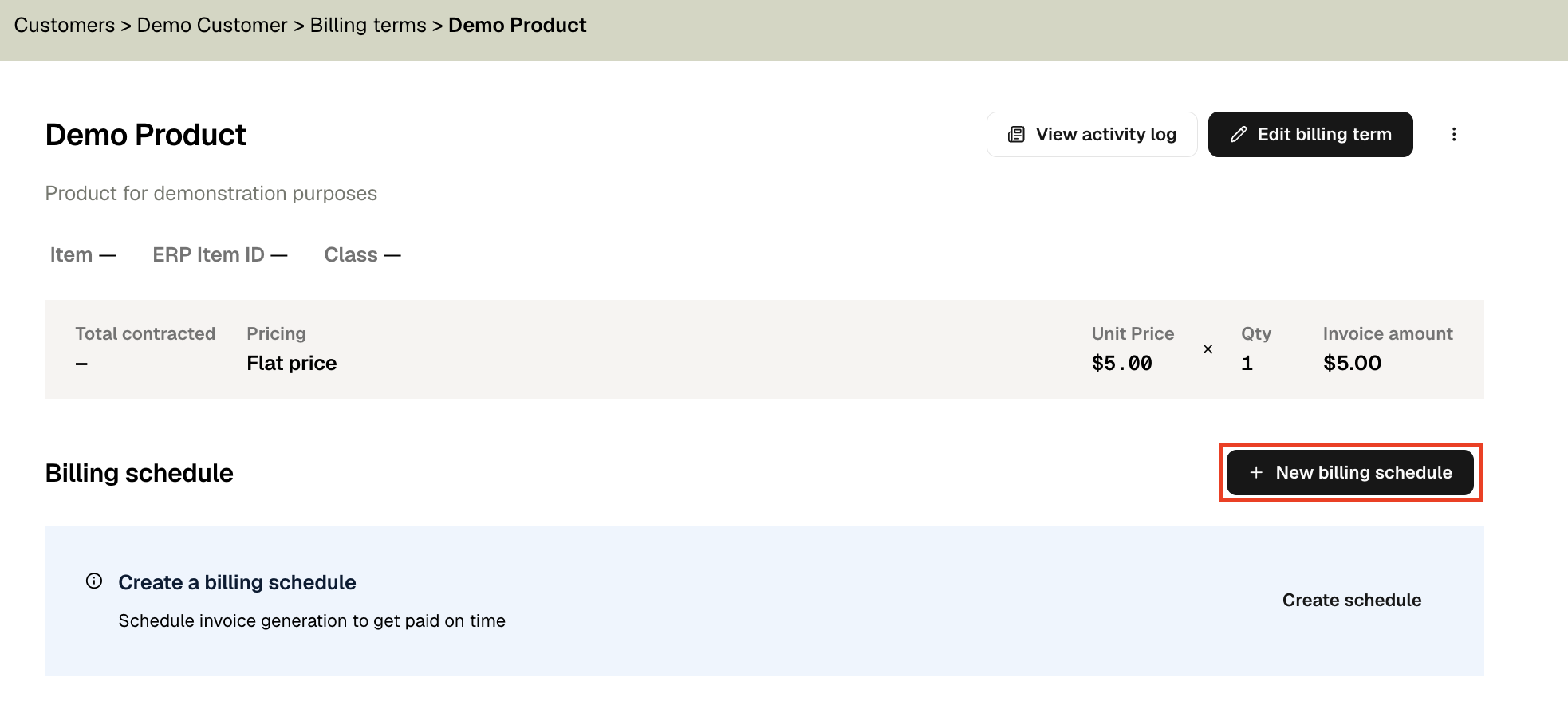
Configure Schedule: Enter the desired billing schedule details
Save Schedule: Click the "Save" button to generate the new invoices
Tips & Best Practices
Review Before Saving: Double-check all billing term and billing details before saving to ensure accuracy
Document Changes: Make note of any billing schedule changes for accounting purposes
Managing Created Invoices
Delete Duplicate Invoices: If you accidentally create duplicate invoices, click "Need to do something else" > "Delete invoice" to remove the unwanted duplicate
Edit Invoice Dates: To modify invoice dates after creation, click "Edit" and make the necessary date changes
Review Invoice Periods: Double-check that billing periods match your contract start dates before finalizing invoices