How do I send an invoice?
Last updated: February 17, 2026
Sending an Invoice
There are two ways to send an invoice in Tabs:
Send immediately (“Send now”)
Schedule the invoice for a future date
Sending an Invoice from invoice details page
Use this option when you want the invoice sent right away.
Steps
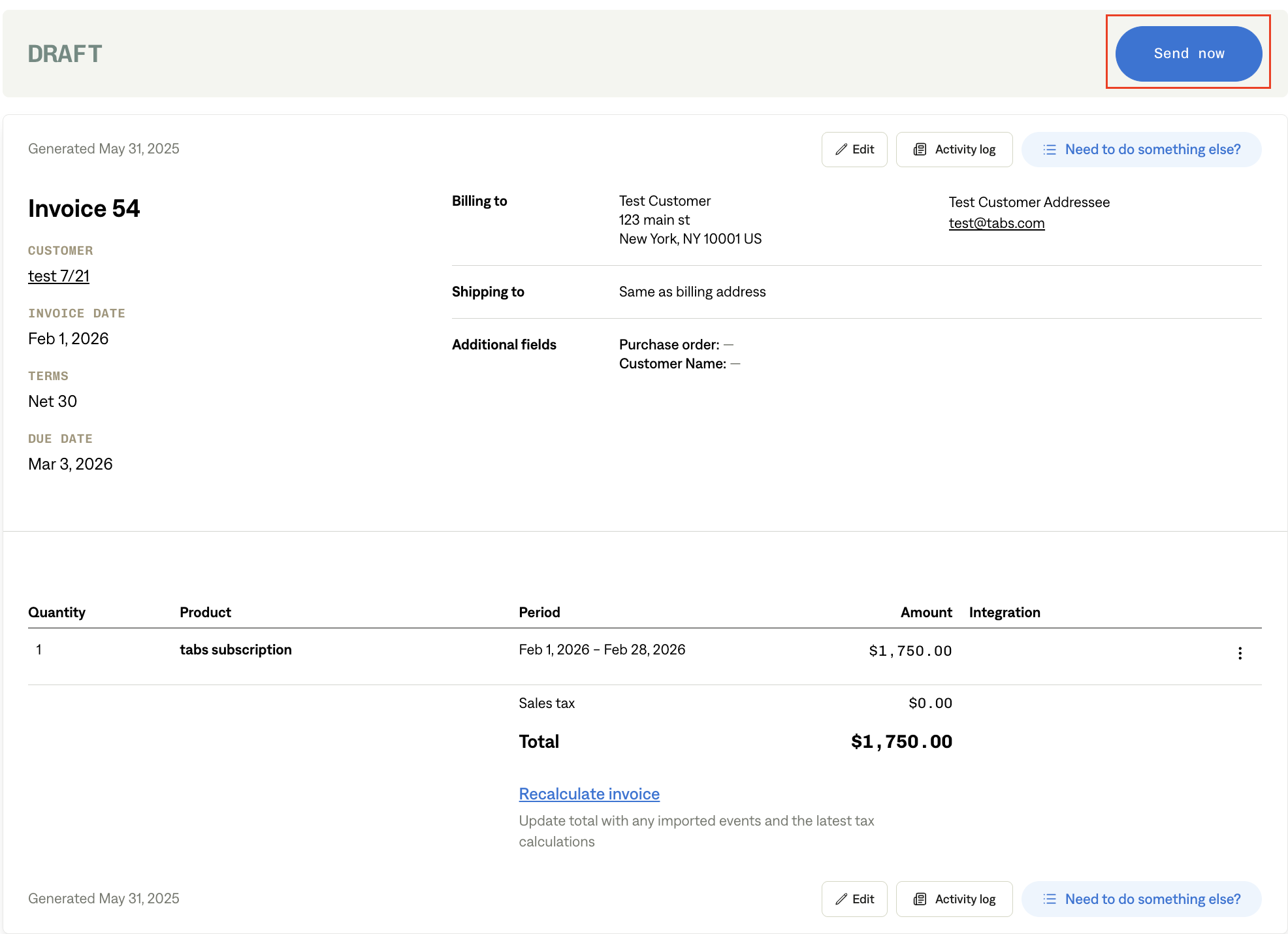
Navigate to the Invoice details page.
Click Send now in the top-right corner.
The invoice will be sent immediately to the customer email listed on the invoice.
Send Invoices in Bulk
Use this option when you want to send multiple invoices immediately.
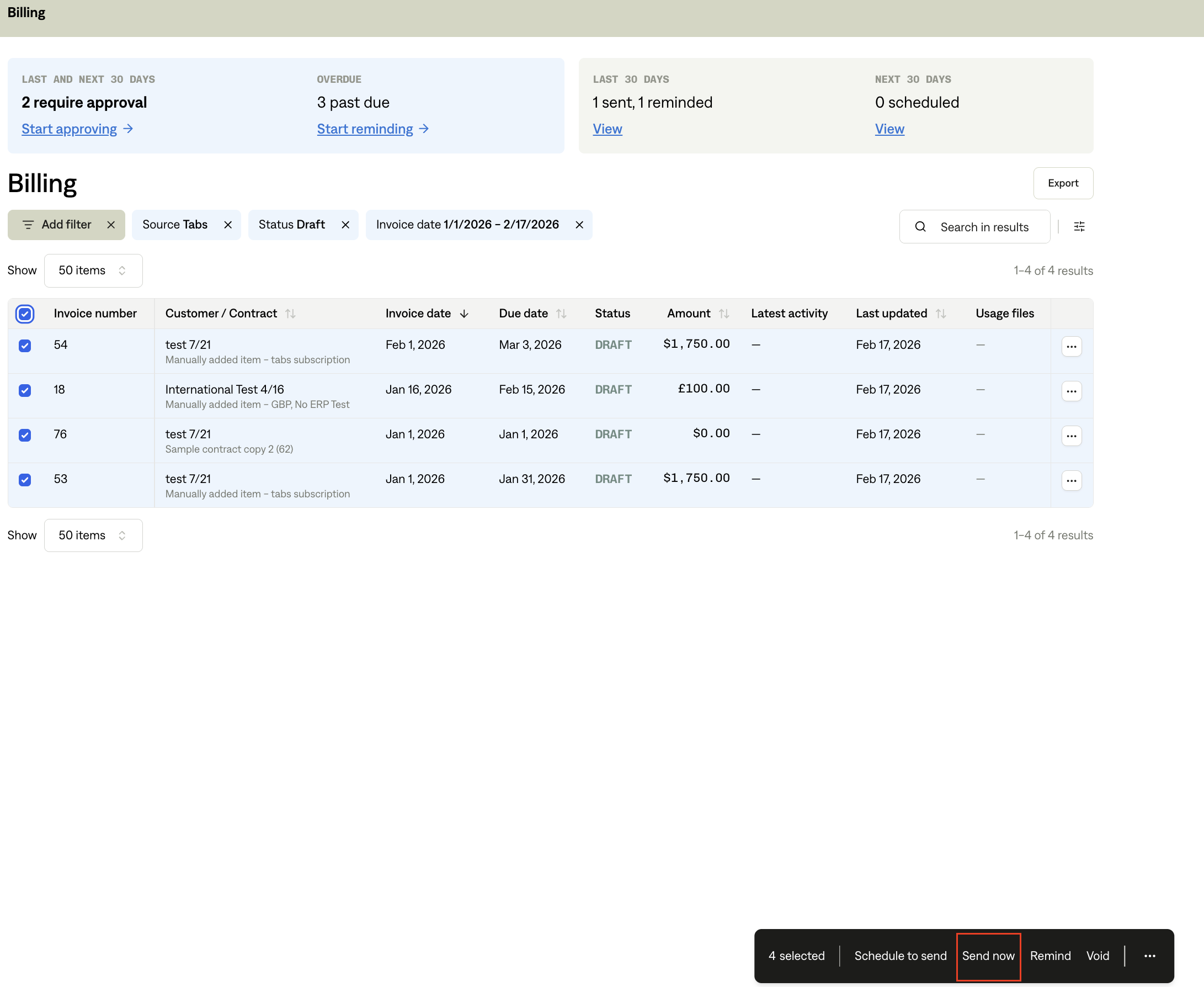
Navigate to the Billing page.
Select the invoices you want to send.
Click Send now.
All selected invoices will be sent immediately to their respective customer emails.
Scheduling an Invoice
You can schedule invoices to be sent on a future date.
Important:
Scheduled invoices are sent at 9:00 AM Eastern Time (ET) on the selected send date.
Invoices can only be scheduled for future dates.
Schedule an Individual Invoice
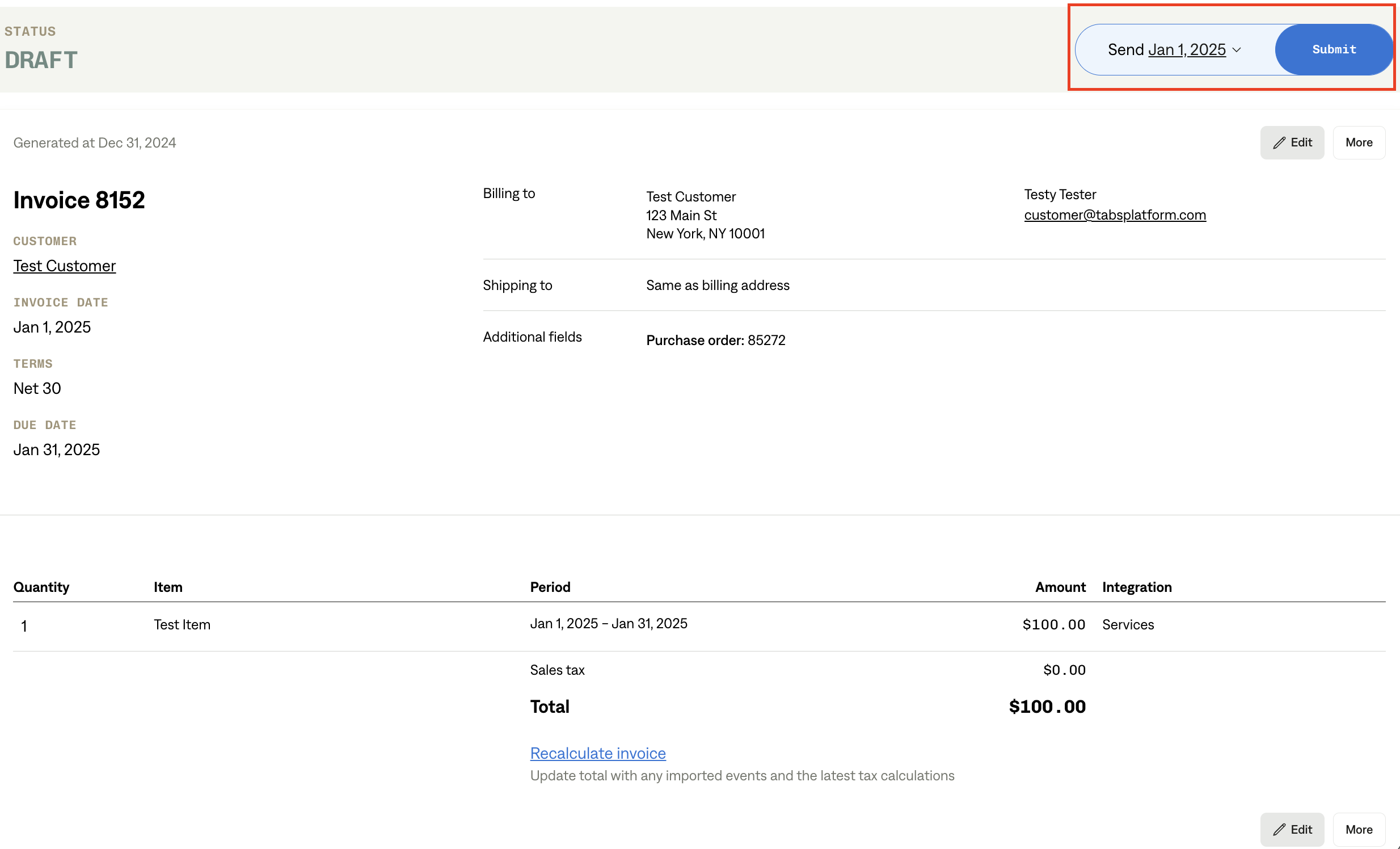
Navigate to the Invoice details page.
Edit the Send date field.
Click Submit in the top-right corner.
The invoice will automatically be sent at 9:00 AM ET on the selected date.
Schedule Invoices in Bulk
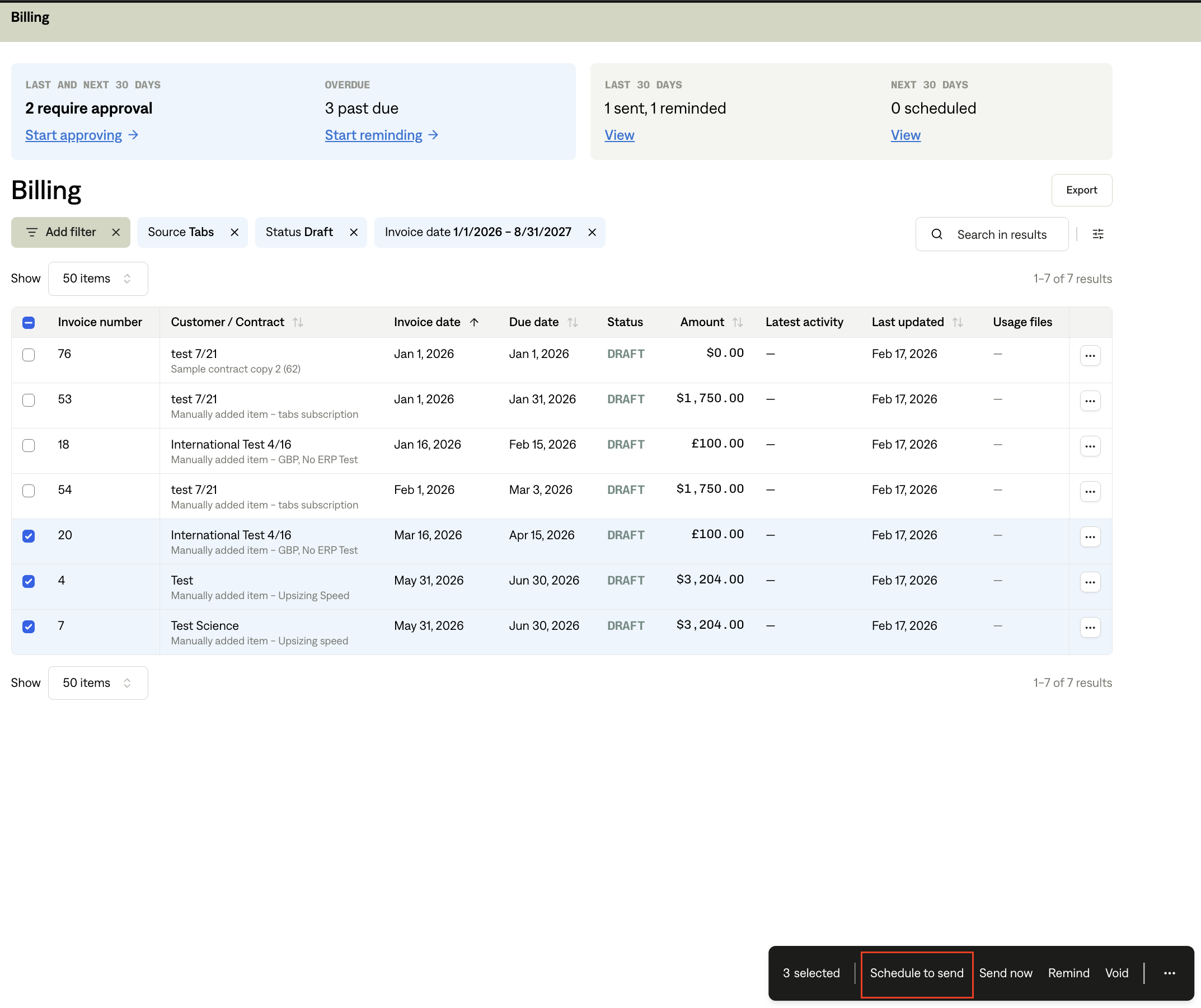
Navigate to the Billing page.
Select the invoices you want to schedule.
Click Schedule to send.
Each selected invoice will be sent at 9:00 AM ET on its scheduled send date.
Things to Know & Best Practices
Invoice Dates
The invoice date must fall within an open accounting period in your general ledger (GL).
Scheduling Rules
Tabs recommends scheduling all future invoices to ensure they are sent on time.
Invoices with a status of SCHEDULED cannot be edited.
To make changes to a scheduled invoice:
Cancel the schedule.
Make your edits.
Reschedule the invoice.