Payments assistant
Last updated: November 6, 2025
The Tabs Agent payment assistant brings direct visibility to open transactions that have come into your bank accounts integrated to our platform via Plaid. The agent will collect recommendations for how to handle these transactions and serve a daily digest for anything that still needs your attention.
Daily digests
Tabs Agent presents a new digest daily across a series of threads to report on your transactions. Each thread serves a specific intention with four threads total that help you manage or view actions done on your transactions.
All four threads are sent around 7am EST back to back from each other but will only be sent if there is anything for you to review. If you do not see a given thread, there is nothing to review.
Transaction matches
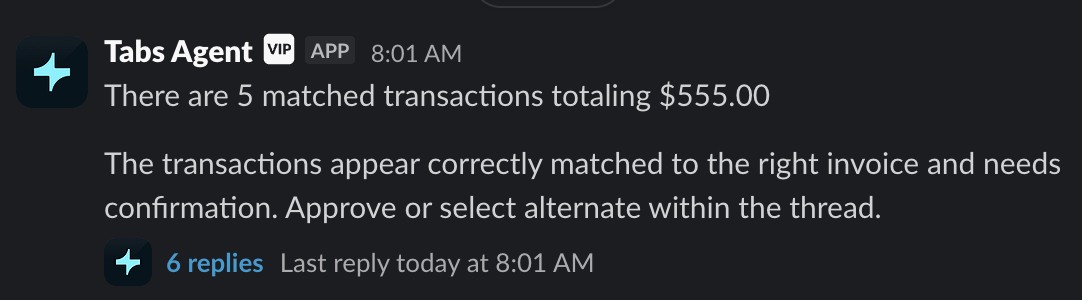
When our agent detects invoices that it is confident match to a given transaction it will add it to this thread and allow you to accept its recommendation.
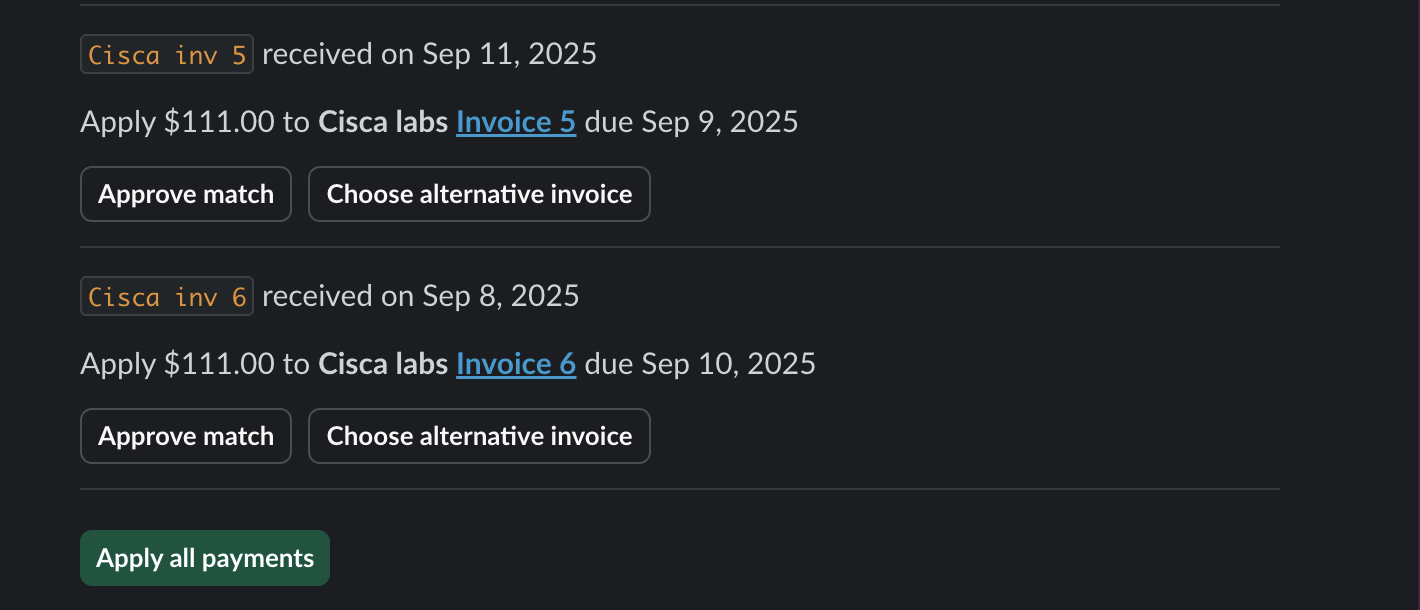
Within each thread you will notice that each recommendation is sent out as its own message with two options:
Approve match: Each recommendation can be individually approved. This will apply this transaction to the recommended invoice and, if the invoice is marked as paid from this application, a payment confirmation email will be sent out.
Choose alternative invoice: If you do not agree with the agents recommendation, this option allows you to reject this recommendation and ask the agent to generate other recommendations. This action will remove this recommendation from this thread and add it to the Recommendations thread (see below)
Additionally, there is an Apply all payments button that allows you to approve all matches in bulk with a single button
Exclusions
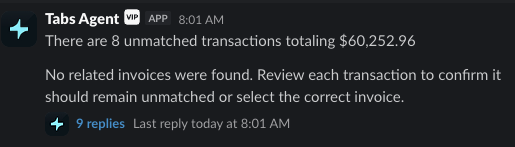
Sometimes, bank transactions are detected that are unrelated to your invoicing activity on Tabs. These transactions should be marked as excluded in our system as they will not be linked as payments on any invoices. Tabs Agent will collect into a thread a list of transactions that it is confident will not match to an invoice.
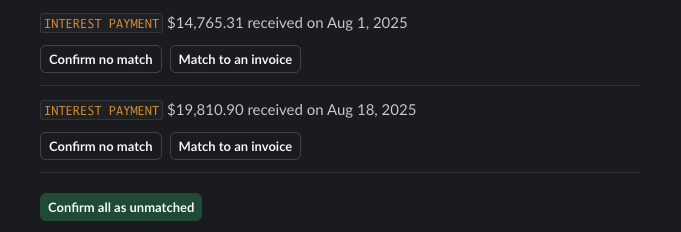
Within each thread you will notice that each transaction is sent out as its own message with two options:
Confirm no match: This will confirm that this transaction does not match to an invoice and should be excluded. This will exclude the transaction, which can be undone in platform.
Match to an invoice: If you felt like this transaction does apply to an invoice this option allows you to ask the agent to generate a set of recommended invoices. This action will remove this transaction from this thread and add it to the Recommendations thread (see below)
Additionally, there is a Confirm all as unmatched button that allows you to exclude all transactions in bulk with a single button
Recommendations thread
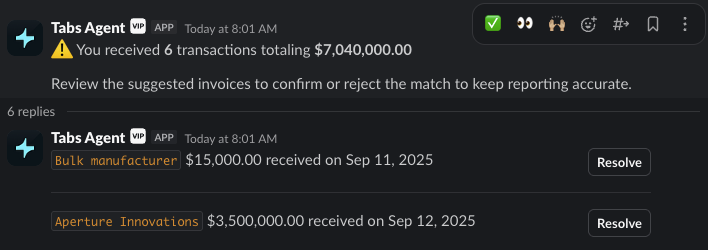
When the Tabs Agent is not highly confident on what to do with a transaction it will serve the transaction in this Recommendations thread where it will ask for help selecting the right invoice for a given transaction.
As mentioned above, transactions where you did not like the agents highly confident actions will be redirected into this thread.
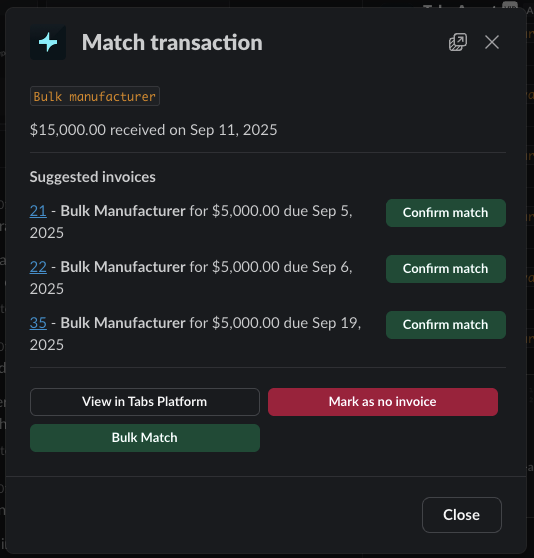
Within each thread you will notice that each transaction is sent out as its own message with a button labeled Resolve. This button will open up a modal with some additional controls to help match the right invoice:
Confirm match: This will confirm that this transaction applies to the suggested invoice. This will apply the transaction to that invoice and, if the invoice is marked as paid from this application, a payment confirmation email will be sent out.
Mark as no invoice: This will confirm that this transaction is unrelated to invoicing. The transaction will then be marked as excluded, which can be undone in platform.
View in Tabs Platform: If you feel like you do not have enough information, or none of the recommended invoices match to this transaction, this will take you to our cash application module in platform where you will have more tools to search and find the right invoice that should be applied to this transaction.
Bulk Match: The agent will attempt to recommend groups of invoices that are related to a given transaction. It may, at times, find blocks of recommendations that all pertain to a given transaction. The bulk match button allows you to apply that transaction to all of the listed suggested invoices.
Stripe reconciliation report
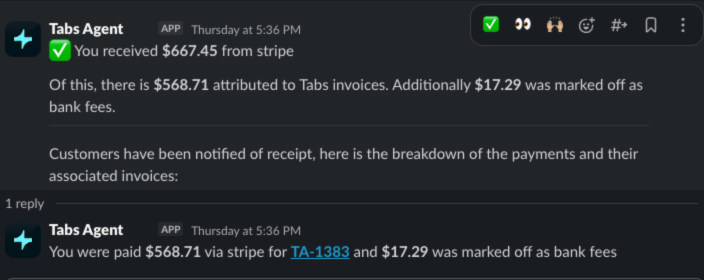
If you are using Stripe to handle payments for your invoices then Tabs Agent will detect when your Stripe payout has hit your bank account. This payout can be composed of multiple Tabs invoices so the agent will use this thread to show you the composition of the payout that was relevant to Tabs invoicing activity. Stripe processing fees are auto marked off on your invoice as bank fees which this report will help give you visibility into.
This is a read only report as our integration with Stripe ensures that the right payout transaction matches to the right invoice and processing fees are directly reported by Stripe.
Note: if you have other systems running payments through stripe outside of tabs, this will cause a discrepancy in how much you received from a stripe payout and how much is attributed to Tabs invoices
Notice of No transactions to process
If you've gone through an entire day's digest and there were no new transactions within the last 24 hours since reviewing the digest, the agent will let you know that there are no new transactions to process.

Digest clean up
All of these threads will be sent as a block around 7am EST every morning. In order to maintain a single place for you to manage your transaction recommendations, Tabs Agent will clean up the previous days thread and send out a new one.
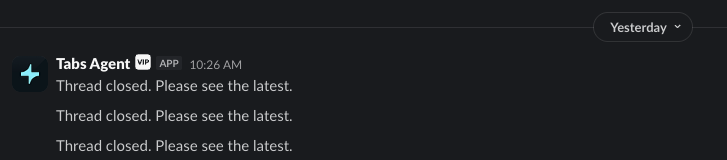
All previous threads will be updated to say "Thread closed. Please see the latest.", if you see this message then that means a new digest has been sent out for today.

Tabs Agent will only clean up messages that have not yet been reviewed by you and still require action. Any messages or threads that have been fully completed out will always be left behind as an audit trail of the actions you have done for that transaction.
Exclusion rules
The Tabs Agent recommendations engine can be instructed with special rules that you define to exclude certain transactions going forward. When marking a transaction with Mark as no invoice to exclude the transaction, the following modal will appear:
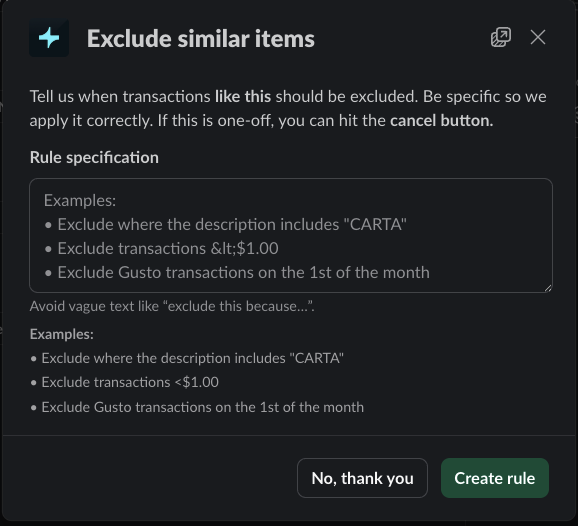
Here you can create a rule to exclude similar items as the one you just excluded and can specify in the text box a description of how a transaction that needs to be excluded can be identified. After you create a rule it will be processed in the background and confirmed via a slack message. If it looks like the rule generated was incorrect you can reject it by clicking the This looks wrong button
