Using the Transactions Page
Last updated: February 19, 2025
Summary
Match transactions to invoices and manage your transactions to ensure cash application is up to date.
The transactions page helps you manage your transactions and match them to invoices.
You can:
Upload new bank transactions
Connect directly to supported banks
Match transactions to sent invoices to create payments
Exclude transactions that are irrelevant to cash application
This page will focus on matching bank transactions to invoices.
Components of a bank transaction

Transaction date: The date that the transaction was completed in the bank account
Amount: The total value or amount of the transaction
Main description: The raw data source associated with the transaction
Second description: Additional data or context for the transaction
AI enriched content: Tabs detects customer or invoice numbers
Source: The bank account associated with the transaction
Components of an invoice

Invoice number: The number of the invoice sent to the customer
Invoice status: The status of invoice — sent, pending, or overdue
Customer: The customer that you are billing
Invoice date: The date of issue of the invoice
Due date: The date complete payment is due
Invoice amount: The total billed value of the invoice
Invoice balance: The remaining amount to be collected
Payments: A list of previous payments recorded against this invoice
To match a transaction
Navigate to the Transactions page
Select the transaction you wish to match by clicking on a row.
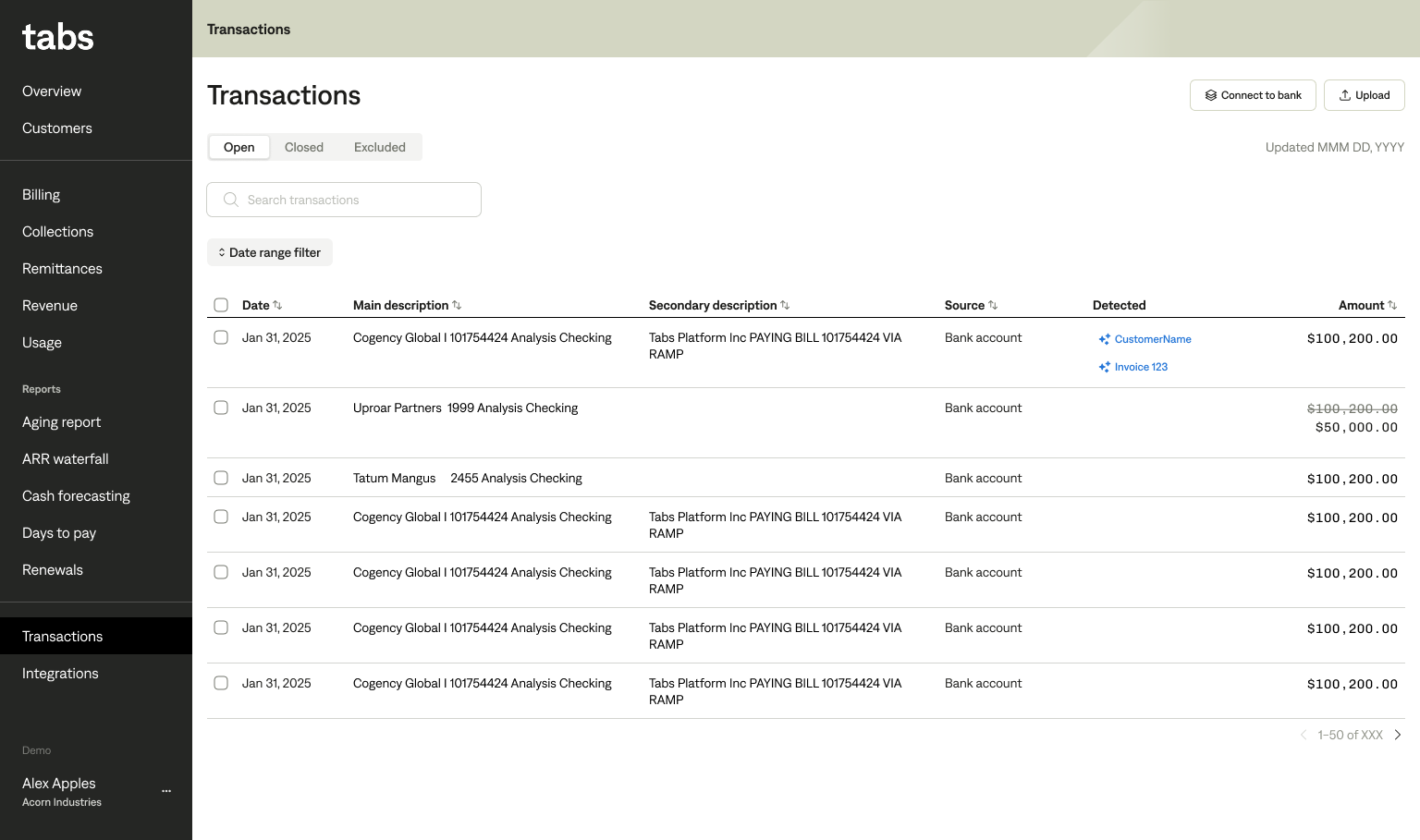
By default, transactions are sorted by most recent. You can narrow down which transactions you may want to match by filtering for a date range.
Tabs will recommend likely invoices. If there are no recommended invoices, you can view all open invoices for matching. Open invoices will include all sent and overdue invoices.
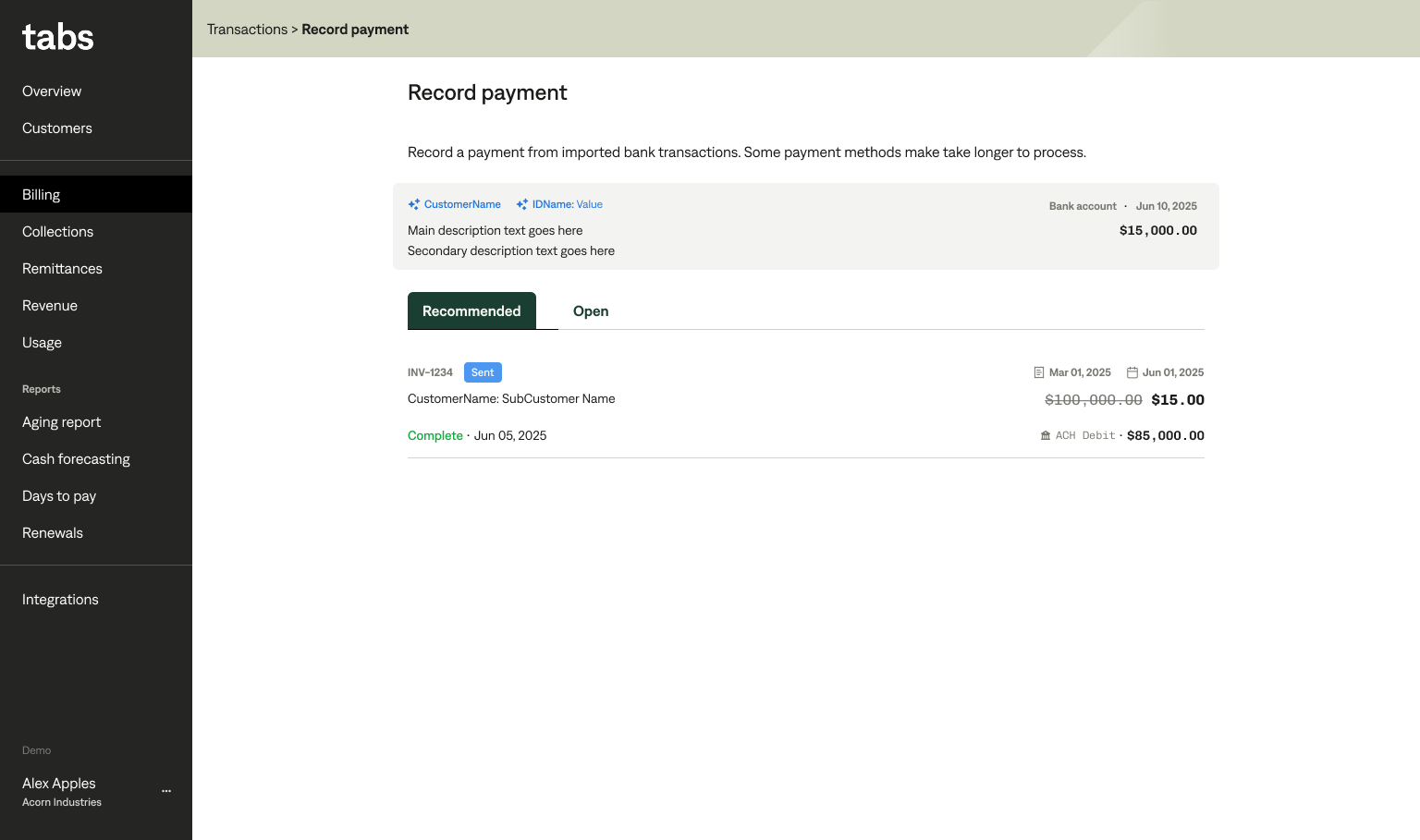
Select the invoice that most accurately matches the transaction based off the invoice data by clicking on its row.
In this next step review and confirm payment creation.
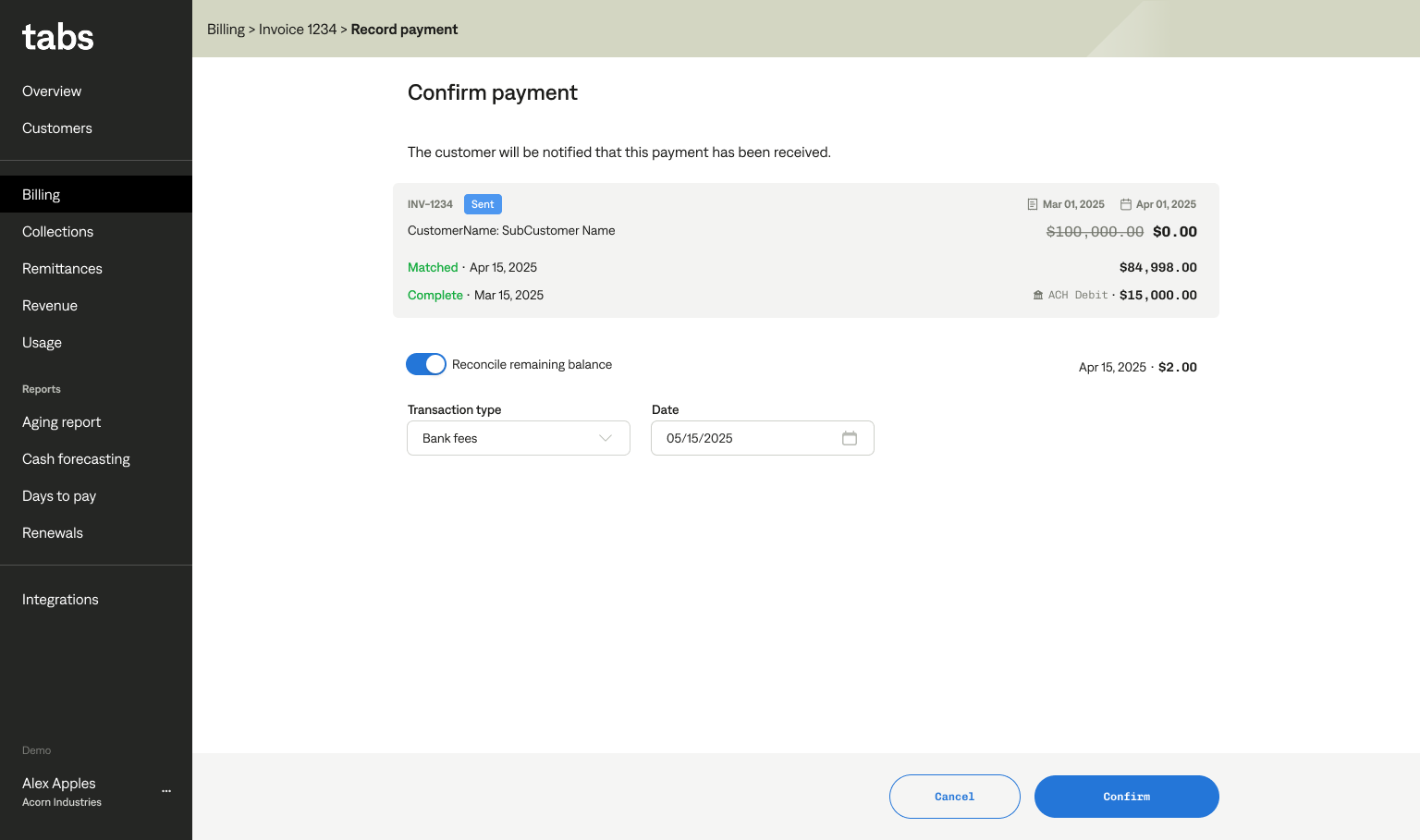
If there is a remaining balance, you can reconcile the remaining balance as bad debt or bank fees. If you account for remaining amounts in different ways, please contact support.
If you haven’t set up GL accounts for reconciliation, you can do so at Integrations > your ERP
If you don’t wish to reconcile the remaining balance at this moment or if you expect additional payments, toggle ‘reconcile payment’ to off
Click ‘Confirm’ to complete the match.