How the Tabs <> Sage Integration Works
Last updated: June 15, 2026
This guide walks through how to connect Sage Intacct to Tabs, how data syncs between systems, and how users can manage customers, products, invoices, and payments. It's designed to understand how the integration works and what to expect in each step.
Overview
The Tabs <> Sage integration syncs customer, invoice, payment, and accounting data between both systems.
Tabs pulls data from Sage on a scheduled basis and pushes transactional data to Sage as activity occurs in Tabs.
Connecting Sage Intacct to Tabs
Navigate to: https://app.tabsplatform.com/merchant/integrations/connect
Select the Sage Intacct tile and click Connect. You will land on https://app.tabsplatform.com/merchant/integrations/sage-intacct
You'll see a blue "Before you begin" info card with setup hints, then a Connect Your Account card. In that card:
Type your Sage Company ID into the Company ID field.
Type your Sage Web Services User ID into the User ID field (placeholder:
e.g., tabs).Click Connect to Sage Intacct.
You should see a green toast that says "Connected successfully!" and the page reloads to show the Sage Intacct detail view. The Sage Intacct tile on the Integrations page now shows a Manage button instead of Connect.
If the connect fails, you will see a red toast with the Sage error. Double-check Company ID and User ID for typos and that the Web Services user is whitelisted in Sage.
Setting Your Sage Entity
Go to: https://app.tabsplatform.com/merchant/integrations/sage-intacct, scroll to the Entity mapping section.
In the Entity dropdown, search for and select the entity you want Tabs to sync to.
Click Save.
A confirmation dialog appears: "You are selecting Sage Entity: [ID - Name]. This cannot be changed after saving. Please confirm before proceeding." Click Confirm.
📌 Note: Tabs supports multi-entity Sage configurations; one Tabs instance maps to one Sage entity.
How to sync data from Sage to Tabs
Go to: https://app.tabsplatform.com/merchant/integrations/connect
On the Sage Intacct tile, click Sync. Alternatively, click Manage to open the detail page and click Sync there.
Within a few minutes, the sync finishes and the tile shows a fresh Last synced timestamp.
What Syncs from Sage to Tabs
During initial setup, Tabs imports existing supported records from Sage. After setup is complete, Tabs continues to sync supported records on an ongoing basis.
Tabs imports the following objects from Sage:
Customers
Items
Chart of Accounts
Bank Accounts (included as part of the Chart of Accounts import)
Historical invoices created in Sage only
Payments
Classes, Departments, Locations, Projects (if applicable)
What Syncs from Tabs to Sage
Tabs pushes the following objects to Sage:
Customers creation and updates
Invoices
Credit Memos
Payments
Journal Entries
Customer Sync
Customer sync is bi-directional.
Sage → Tabs
Existing customers in Sage are imported into Tabs during initial setup and ongoing syncs.
Tabs → Sage
New customers and customer updates created in Tabs sync to Sage automatically.
📌 Note: Company legal name and CC Emails are Tabs-only and do not push to Sage.
Customer Requirements
Before invoices can be sent:
Customer name must exist
Billing address should be populated
Primary email should be populated
Invoice Sync
When an invoice is sent in Tabs:
The invoice syncs to Sage automatically
The invoice is marked as sent
Tabs remains responsible for invoice delivery and numbering
Invoice Requirements in Sage
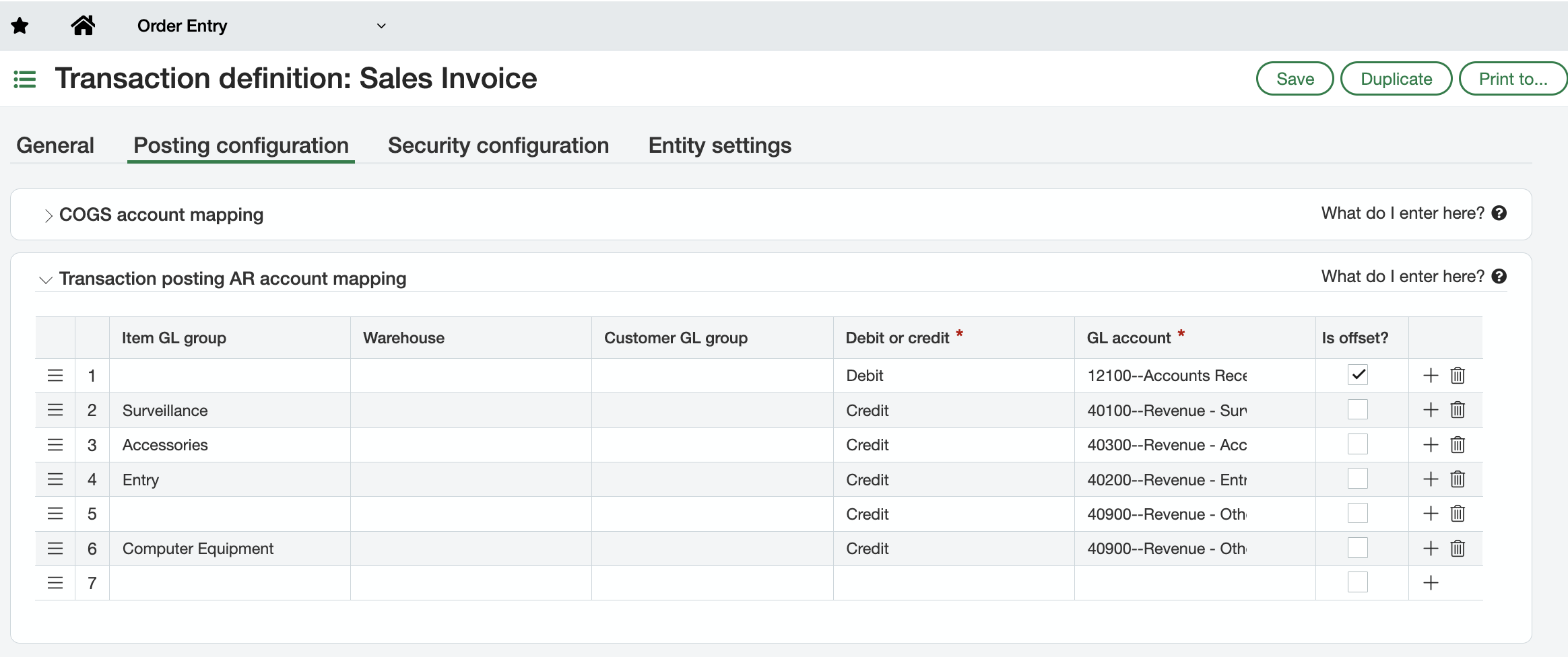
In order for Tabs to push invoice data into Sage, the Sales Invoice template must be configured within the Order Entry module.
In Sage, navigate to: Order Entry → Setup → Transaction Definitions
Make sure the parent Sales Order template and the child Sales Invoice and Credit Memo templates are configured as indicated below.
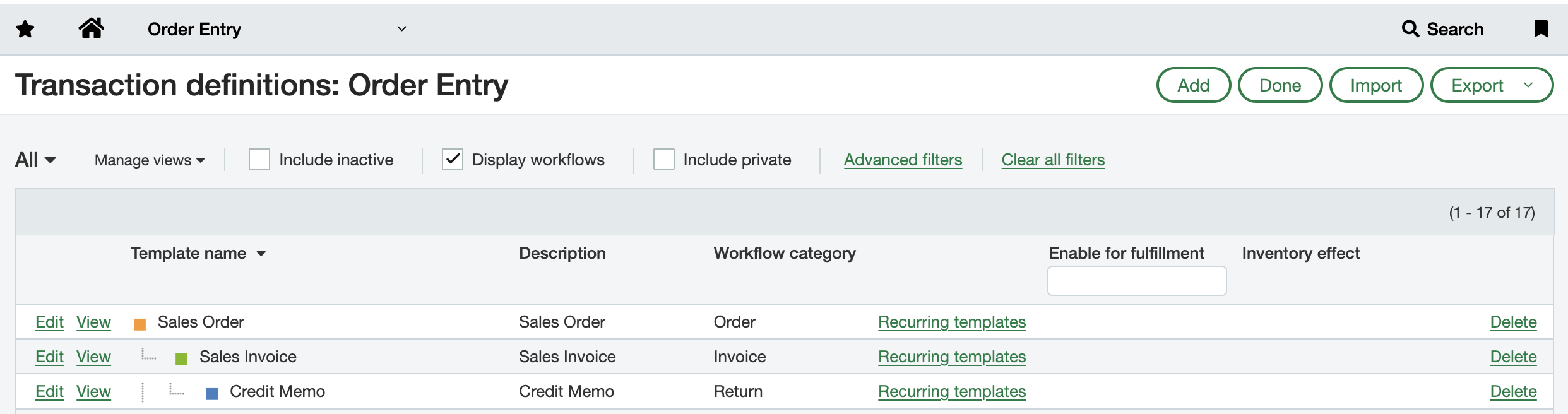
Then, proceed to: Edit Sales Invoice → Posting Configuration → Transaction posting AR account mapping
Configure the account that should be credited when items belong to specific GL groups are invoiced
Draft Invoices
Draft invoices do not sync to Sage.
Invoices are only synced after they are sent.
Invoice Changes
Tabs is the source of truth for invoices.
Changes made directly in Sage do not sync back to Tabs.
Invoice Reset Behavior
If a sent invoice is reset back to draft in Tabs:
The corresponding invoice is removed from Sage
Re-sending the invoice recreates it in Sage
Credit Memo Sync
Creating a credit memo in Tabs automatically syncs the credit memo to Sage.
Supported workflows include:
Creating credit memos
Applying credit memos
Credit memos created as part of invoice reconciliation (bad debt write off or bank fees)
📌 Note: Creating a credit memo in Sage does NOT sync back into Tabs.
Credit Memo Requirements in Sage
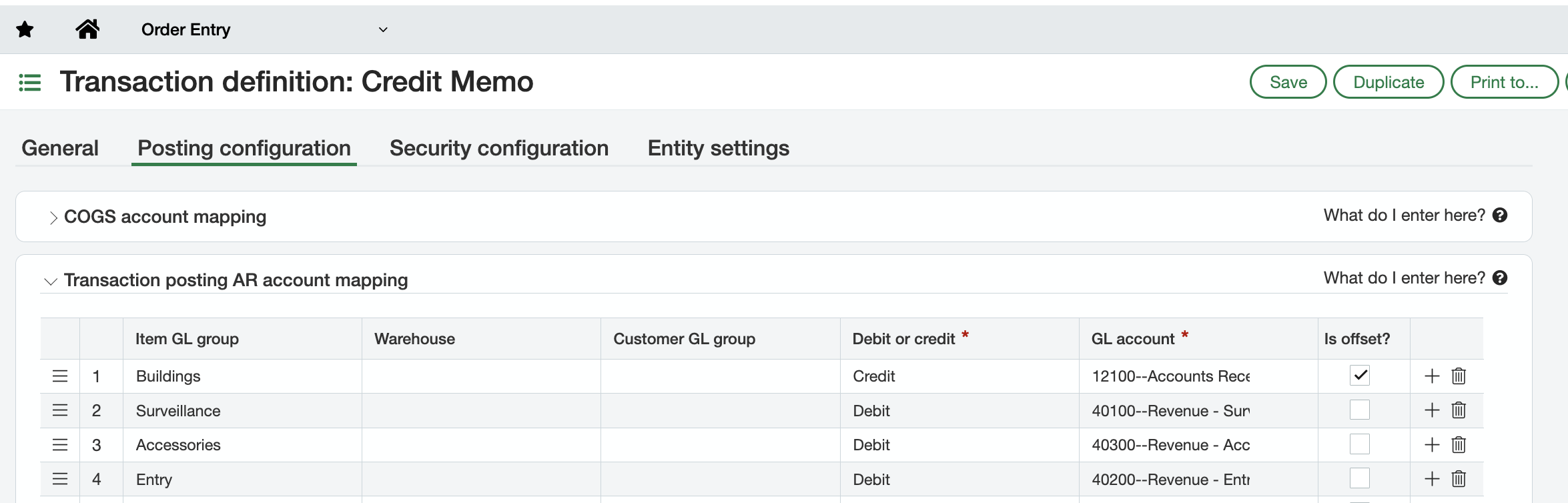
In order for Tabs to push credit memo data into Sage, the Credit Memo template must be configured within the Order Entry module.
In Sage, navigate to: Order Entry → Setup → Transaction Definitions
Make sure the parent Sales Order template and the child Sales Invoice and Credit Memo templates are configured as indicated below.
Then, proceed to: Edit Credit Meo → Posting Configuration → Transaction posting AR account mapping
Configure the account that should be debited when items belong to specific GL groups are included in credit memos
Payment Sync
Payment sync is bi-directional.
Payments applied in Sage sync to Tabs
Payments applied in Tabs sync to Sage
Journal Entry Sync
Journal Entries sync from Tabs to Sage through the Close Management module in Tabs.
Key Details
User must go through Tabs' Close Management to generate and submit revenue journal entries, they do not automatically push to Sage without user action
Entries are pushed in batches of up to 2,500 entries
Items and Chart of Accounts
Tabs imports:
Items
GL Accounts
Bank Accounts (included as part of the Chart of Accounts import)
Items must be created in Sage before they can be used in Tabs.
Tax Handling
Tabs supports tax providers integrated with the Sage workflow.
Tax amounts are included when invoices and credit memos sync to Sage.