What do I need to do before I integrate with Salesforce?
Last updated: August 5, 2026
Summary
Before integrating the Salesforce, there are a few pre-integration steps that are required.
Once all of these steps are complete, inform your Tabs Implementation Manager and they will enable the integration in your Tabs environment.
Step 1: Customer and Contract Mapping
The below assumes that Customers are mapped to Accounts and Contracts are mapped to Opportunities in the sync configuration. For this exercise, be sure to map the IDs of the Salesforce objects you plan on mapping to Customers and Contracts. For more information on mapping capabilities, see Salesforce Configuration Guide.
It is important to ensure that existing customers and contracts in Tabs map to the correct accounts and opportunities in Salesforce. This will prevent duplicating contract records upon the initial sync, and will ensure that invoices previously sent from Tabs will populate on the correct opportunity in Salesforce (if invoices are being synced).
Tabs will take on the bulk of this work. To complete this, we will need a report from Salesforce that will include:
Columns:
Account Name18 Digit Account_IDOpportunity Name18 Digit Opportunity IDContract Start Date(or the closest thing you have to this in the SFDC opportunity)
Filters:
Stage=Closed Won
Once we have this data, Tabs will map all customers and contracts to their associated account and opportunity. If we need extra context, we will reach out!
Step 2: Install Tabs Managed SFDC App (required)
Before you can integrate Tabs with SFDC, you will need to install the Tabs App in order to get the authentication package into your SFDC environment.
To install:
Visit: Instals Tabs SFDC App
Login to Salesforce and you will be directed to a verification page. On this page:
We recommend you select Install for All Users so anyone from the organization is able to connect to SFDC. However, if the merchant only want admins to be able to connect, they should select Install for Admins Only.
Be sure to select the checkbox acknowledging that this is a Non-Salesforce Application. This essentially means that you are connecting to a third-party application that is not currently in their marketplace. However, there is no risk here and this has no impact on the integration.
Once this is complete, you will see a confirmation message on the page. If you would like to verify this in your SFDC, go to: Setup —> External Client App Manager and you will see an app listed called Tabs SFDC Client App.
Step 3: Install Tabs Managed SFDC UI Package (optional but recommended)
As part of the integration, Tabs creates custom objects for Invoices, Invoice line items, and Payments in Salesforce. To help organize these custom items, Tabs has created a managed package that can be installed directly from Salesforce. This will present all of the Tabs created objects into a single view for ease of use.
What does the managed package do?
Installs 3 custom objects in Salesforce:
Tabs Invoice
Tabs Invoice Line Item
Tabs Payment
Installs/creates a junction object between the Tabs Invoice and standard Opportunity object.
Builds a simple view (seen below) to see the Tabs Invoice, Tabs Invoice Line Item and Tabs Payment. This is the main value add of the managed package that is not included with the standard sync.
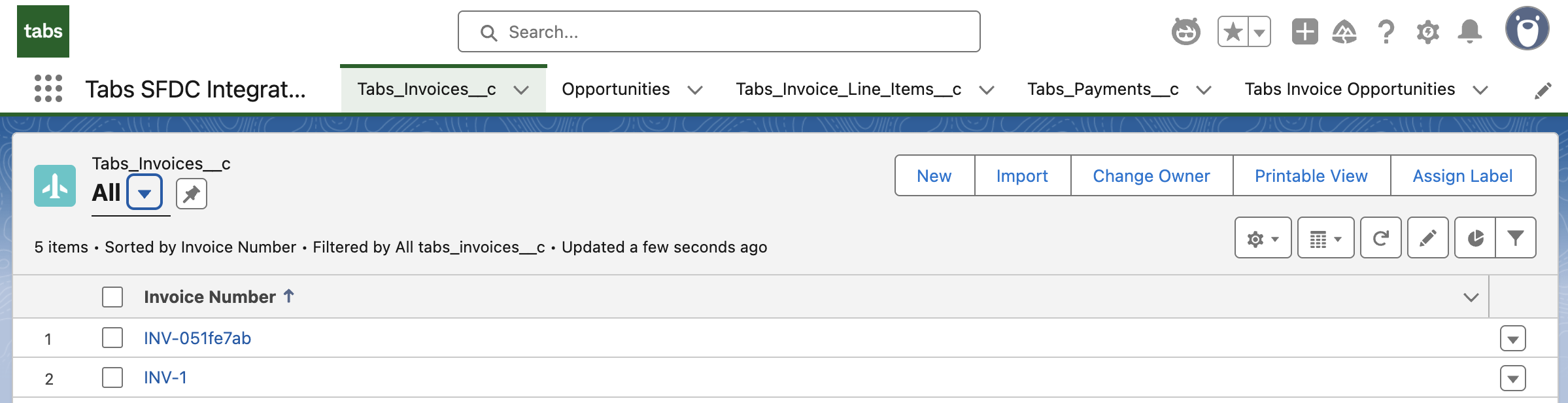
**If electing to install the package, this will need to occur before integrating Salesforce with Tabs.
NOTE: Installing the managed package is not required, so if you have a Salesforce admin or other resource that is dedicated to Salesforce UI configuration, or if your Salesforce is configured in a specific way, then this step can be bypassed. If the manage package is not installed, Tabs will still create the custom objects and the junctions (#1 and #2 from above) but UI configuration will be required in order to see these objects on their associated records.
To install:
Visit: Install Tabs SFDC UI App
Login to Salesforce and Install for All Users.
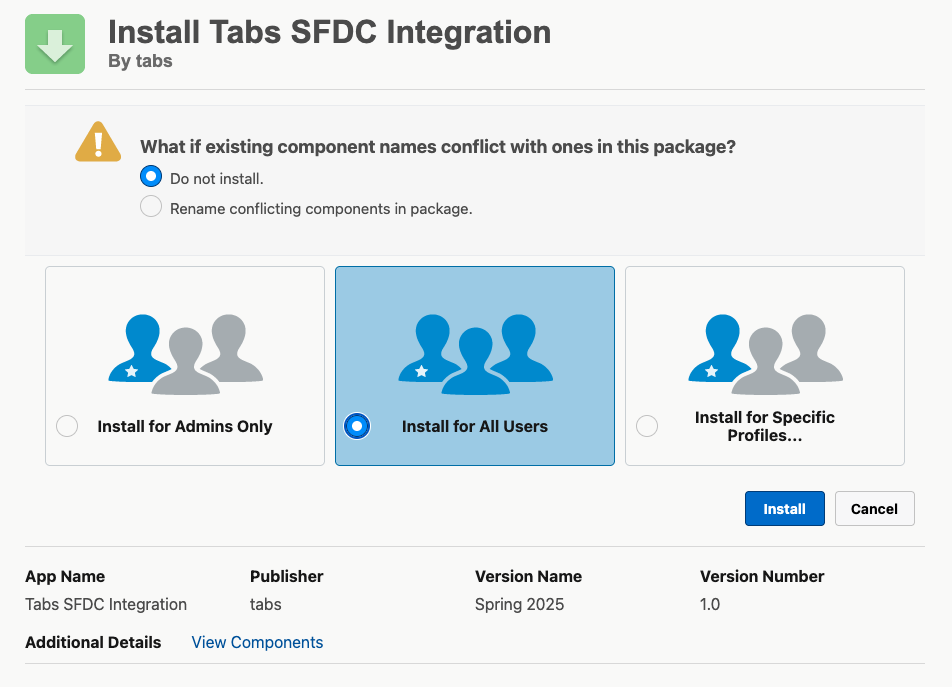
Once complete, you can go to SFDC and see the newly installed UI package called Tabs SFDC Integration that shows all of the newly installed objects as well as Opportunities in a single view.
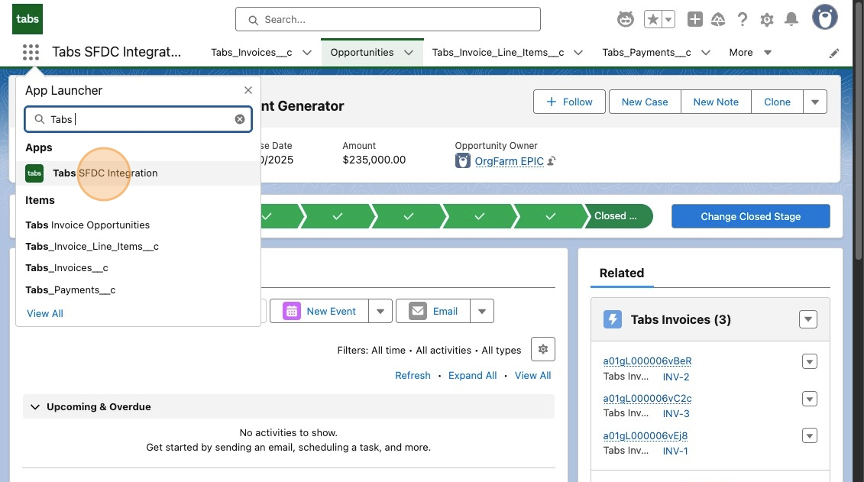
Additionally, we recommend that you add onto the package to show the new additional Invoice object directly on the Opportunity view. To do this, go to the App Launcher on the top left of the page and search for "Tabs SFDC Integration", and select.
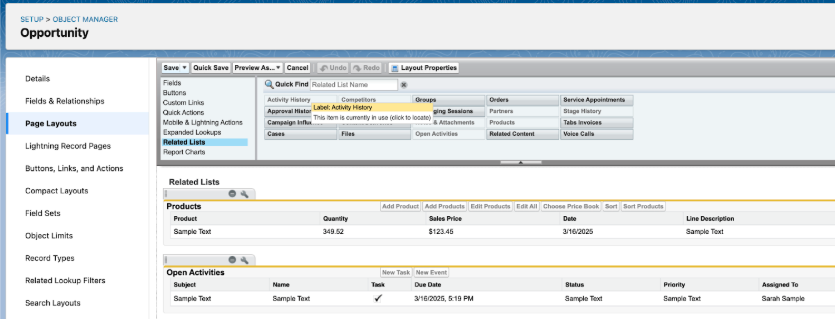
Click "Setup" in the top right corner (the gear icon) and search for Object Manager. Click the Opportunity object and click the Page layouts tab on the left side of the page. Click Opportunity Layout, find Related Lists and manually drag the Tabs Invoices section into Related Lists. Click the wrench on the related list and move the Tabs Invoice into the viewable column. When complete, make sure to click Save and overwrite the user’s related lists customizations.
Once all of these steps are complete, inform your Tabs Implementation Manager and they will enable the integration in your Tabs environment.