How do I add a Commitment in Tabs?
Last updated: September 30, 2026
Prerequisites
Before you can add a usage commitment to a contract, make sure:
The contract has at least one usage-priced billing term.
Commitments can only be tied to usage-based pricing — flat-fee billing terms aren't eligible, since there's no per-usage amount to measure a commitment against. If you don't see any eligible products to select when building the commitment, add a usage billing term to the contract first.
You know which usage event type(s) the commitment should track.
A commitment schedule tracks a specific set of usage event types, and any billing term you attach to it must track that same set.
Where to find it
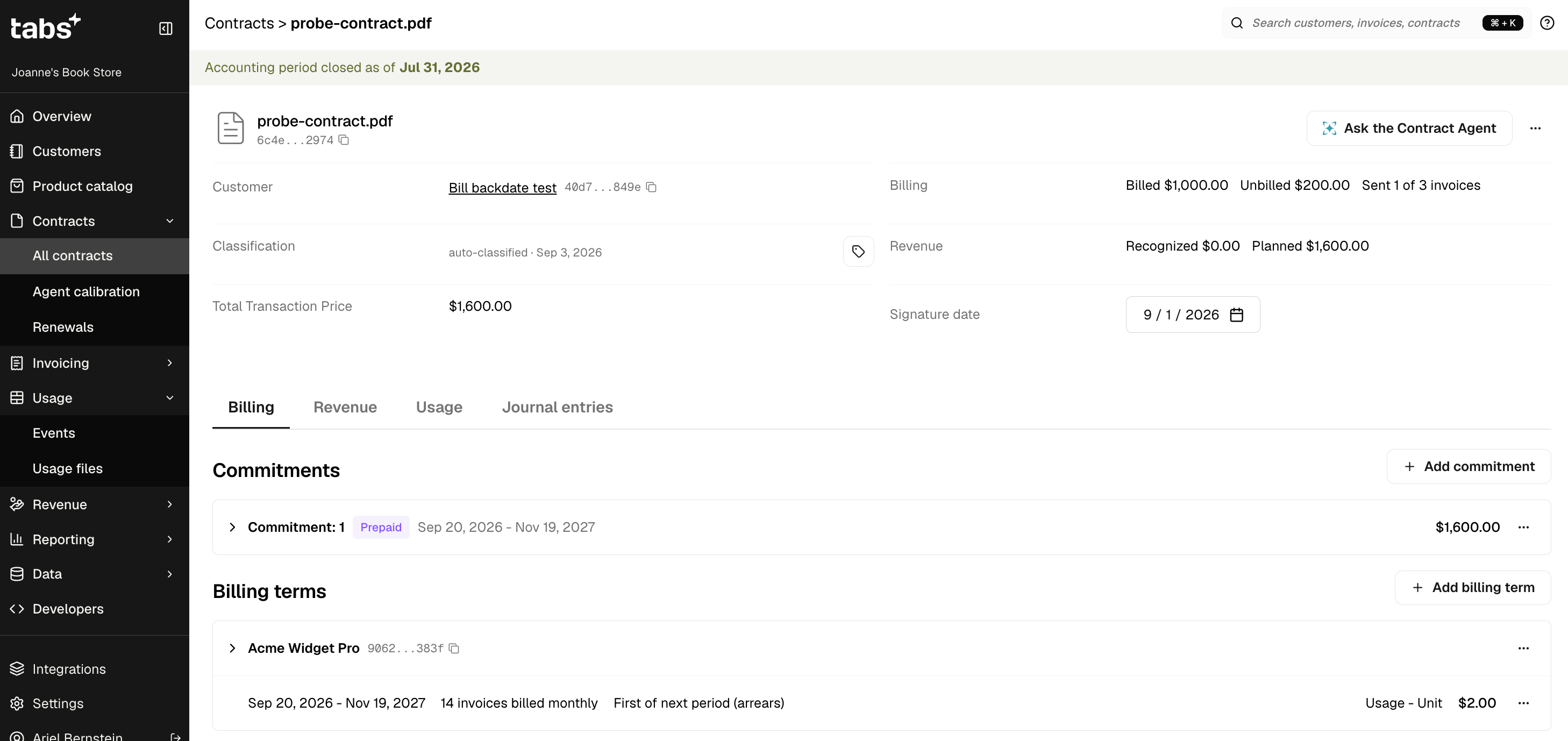
Usage commitments are managed from a contract's detail page, under the Billing tab.
There is a commitments section there listing any existing commitments, along with an "Add commitment" button.
Building a commitment
Clicking Add commitment opens a drawer where you build out the commitment.
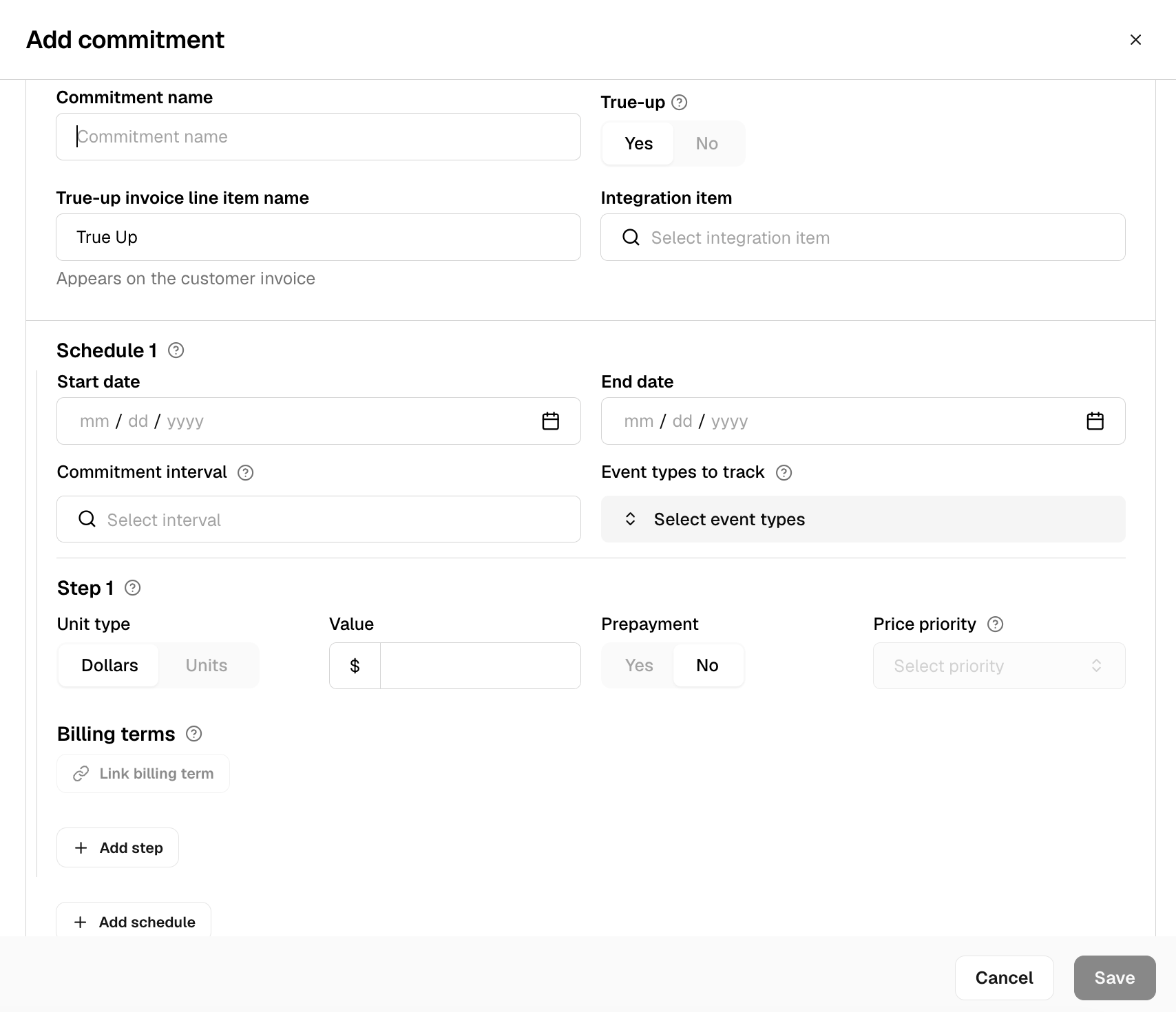
Here's what each part means:
A commitment is built from three levels — the commitment itself, one or more schedules (date ranges), and one or more steps (tiers) within each schedule.
The fields below are grouped the same way.
Commitment-Level Fields
These apply to the commitment as a whole, regardless of how many schedules or steps it has.
Field | What it means | Restrictions |
|---|---|---|
Name | A label to identify the commitment. | Optional, free text. |
True-up behavior | Whether unmet commitment amounts get billed as a true-up at the end of a period, or are simply forgiven. | Optional, defaults to true-up enabled. |
True-up name | The invoice line label for true-up charges. | Optional, defaults to "True up." |
True-up integration item | The item that the true-up charge maps to in your accounting system. | Optional, but recommended in order to properly populate the invoice line item right away |
Revenue recognition pattern | How prepaid revenue is recognized over time (straight-line, as consumed, or as billed). | Required. |
Schedule-Level Fields
A schedule is a date range within the commitment. Every commitment starts with one schedule; you can add more later to cover a new date range with different terms (see "Adding extra schedules" below).
Field | What it means | Restrictions |
|---|---|---|
Start date | When this schedule begins. | Required. Must be a valid calendar date. For the first schedule, this is the commitment's start date; for any later schedule, it must be exactly the day after the previous schedule's end date — no gap or overlap. |
End date | When this schedule ends. | Required, unless "full duration" is checked — in which case there's no end date. Must be on or after the start date. |
Commitment interval | How often the commitment resets and is measured (daily, weekly, monthly, quarterly, yearly). | Required. |
Event types | Which usage event types count toward the commitment during this schedule. | Required. Every billing term linked to a step in this schedule must track this same set of event types. |
Step-Level Fields
A step is a tier within a schedule — the actual amount, products, and pricing details. Every schedule starts with one (base) step; you can add more to represent additions to capacity for the committed amount (see "Adding step-ups" below).
Field | What it means | Restrictions |
|---|---|---|
Amount | The dollar or unit amount the customer is committing to for this step. | Required. Must be at least 1. Decimals are allowed (e.g., $1,000.50). |
Amount type | Whether the amount is measured in dollars or units. | Required — choose "Dollars" or "Units." |
Prepayment | Whether the customer prepays some or all of this step's amount upfront. | Optional toggle, off by default. |
Prepaid amount | How much is prepaid. | Required if prepaid is turned on. Cannot exceed this step's amount. |
Prepayment Billing Schedule | When the prepayment is invoiced — all at once upfront, once per commitment period, or spread across billing periods. | Required if prepaid is turned on. Must be the same for every step in a schedule. |
Price Priority | When more than one billing term is selected, which one's usage counts toward the commitment first is usage events have the same date and time. | Required only if you selected 2 or more billing terms. Not needed with a single product. |
Prepayment Invoice Line Name | The label that appears on the invoice for the prepayment charge. | Optional, defaults to "Prepayment." |
Prepayment Integration Item | The item that the prepayment charge maps to in your accounting system. | Optional, but recommended in order to properly populate the invoice line item right away |
Billing Terms | Which usage-priced billing terms this step applies to. | Required, at least one. Flat-fee billing terms won't appear as options — only usage-priced ones are eligible, and each one must track the same usage event type(s) as the schedule's. Date rules: the billing term must already exist on the contract before you can link it — Tabs doesn't create or adjust billing term dates for you. The schedule's date range must fall entirely within the linked billing term's date range: the schedule can't start before the earliest linked billing term's start date, or end after the latest linked billing term's end date. The schedule's start and end dates must also land on that billing term's billing period boundaries (for example, if the billing term bills monthly, the schedule can't start or end in the middle of a month). |
Overage Pricing | Define is the overage price is the same as the base billing term or custom, meaning the price is different from the price if the original usage billing term. | Optional, defaults to “Same as base”. |
Pricing Type | Which usage pricing type is used for overages: standard unit, graduated tier pricing, or volume tier pricing. | Required only is you selected “custom” for overage pricing. |
Overage Price | The price used for overages. To charge no overages, write in “$0”. | Required only is you selected “custom” for overage pricing. |
Prepayment Invoice Line Name | The label that appears on the invoice for the prepayment charge. | Optional, defaults to "Overage of [Name of Billing Term]." |
Prepayment Integration Item | The item that the prepayment charge maps to in your accounting system. | Optional, but recommended in order to properly populate the invoice line item right away |
Adding extra schedules
If the commitment's terms need to change at a pre-defined point in time, you can add a new schedule. A new schedule must start exactly the day after the previous schedule ends — there can be no gap or overlap.
This is helpful for predefine step-up commitments where the set of event types and maybe even the billing terms are the same across the duration of the contract, but the total committed amount increases year over year.
Adding step
Within a schedule, you can add extra "steps" to represent the commitment amount increasing partway through — for example, stepping up from $10,000 to $15,000 mid-schedule.
Each step-up has its own amount, billing terms, and (if applicable) price priority and prepayment settings, following the same rules as the base commitment fields above.
All steps in the same schedule must ultimately track the same set of usage event types. But, the billing terms can differ, which is helpful if you would like for the event type in a subsequent step to have a different price.
API
Commitments can also be added to Tabs via API.
Documentation about how to do this as well as more detailed technical commitments documentation can be found here.