How Tabs Maps Revenue Accounts in NetSuite (NS)
Last updated: November 3, 2025
When Tabs integrates with NetSuite (NS), each integration item is tied to an Income Account within NS. This mapping ensures that revenue is correctly tracked throughout invoicing and revenue recognition.
Overview: How Accounts Are Used
Each Income Account in NS represents the account that gets credited when invoices are issued for a given integration item.
Tabs syncs these accounts as Deferred Revenue accounts associated with the integration item.
As part of Revenue Close Management, Tabs generates journal entries that credit the Revenue Account and debit either the Deferred Revenue or Unbilled Revenue account associated with the integration item, based on your billing events and revenue recognition schedule.
Note: If your NetSuite configuration has both a default Income Account and a default Deferred Revenue account for each item you sell, please reach out to Support for additional account mapping assistance.
Account Mapping Logic
Tabs determines which accounts to use for each part of the journal entry based on your integration setup in NetSuite.
Revenue
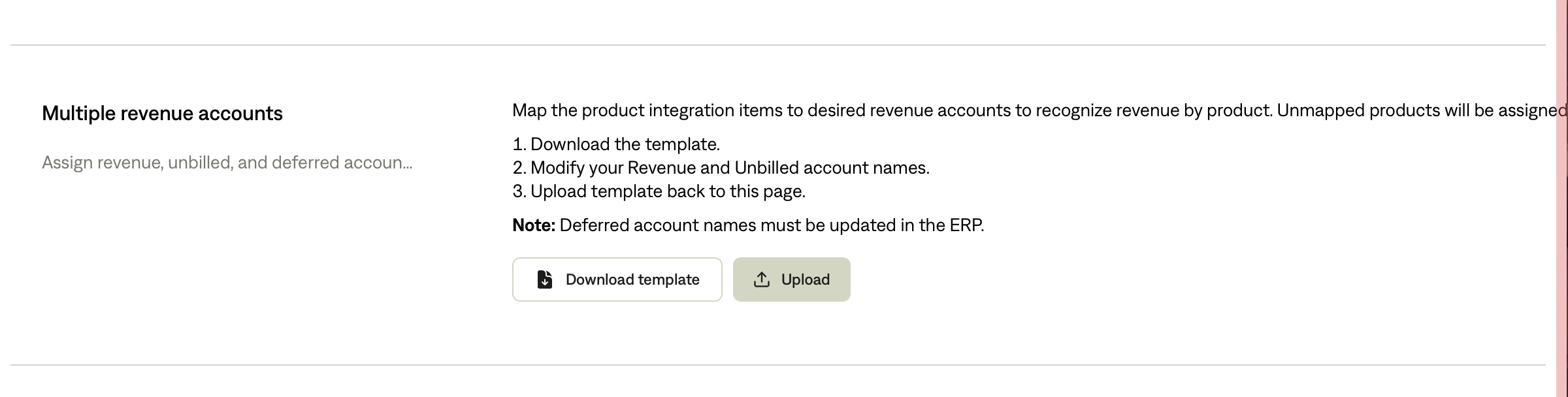
If you have uploaded a Multiple Revenue Account file under the Integration page → click Manage on the NS tile, Tabs uses the specific Revenue Account assigned for each item. (Screenshot 1)
If no account is provided, Tabs defaults to the Earned Revenue account configured in your integration settings. (Screenshot 2)
Deferred Revenue
Tabs pulls the Deferred Revenue account directly from each item’s Income Account in NS.
You can view these mappings on the Integrations → Items page in your Tabs dashboard.
This is the same account that NS credits when an invoice is issued.
If updates need to be made, you can modify these directly in NetSuite (Item page → Accounting tab).
Unbilled Revenue
Tabs uses the Multiple Revenue Account upload to determine which Unbilled Revenue account to use for each item. (Screenshot 1)
Viewing and Managing Account Mappings
Go to Integrations → Items in your Tabs dashboard to view each item’s name, source, and revenue accounts (Revenue, Unbilled, Deferred), along with their corresponding NS references.
To manage overrides or custom mappings, go to Integrations → Manage on the NS tile → Multiple Revenue Accounts, and upload a CSV file to assign specific Revenue or Unbilled Revenue accounts per item.
Tabs automatically applies these mappings when generating monthly revenue journal entries.